How to Transfer Tables From Floor Plans
Purpose
Use this tutorial when an order has already been taken on one table and the guests move to another table. The transfer keeps the order items and totals, then assigns the order to the new floor plan table.
Before You Start
- You must have access to the floor plan and the active order.
- The order should still be in progress. If the order status changes while you are transferring it, the POS may stop the save.
- Know the current table and the target table before starting.
- If the order belongs to another server, ask that server or a manager to transfer it.
- Use a floor plan table for the target table. Floor plan names and table names depend on the restaurant setup.
Steps
-
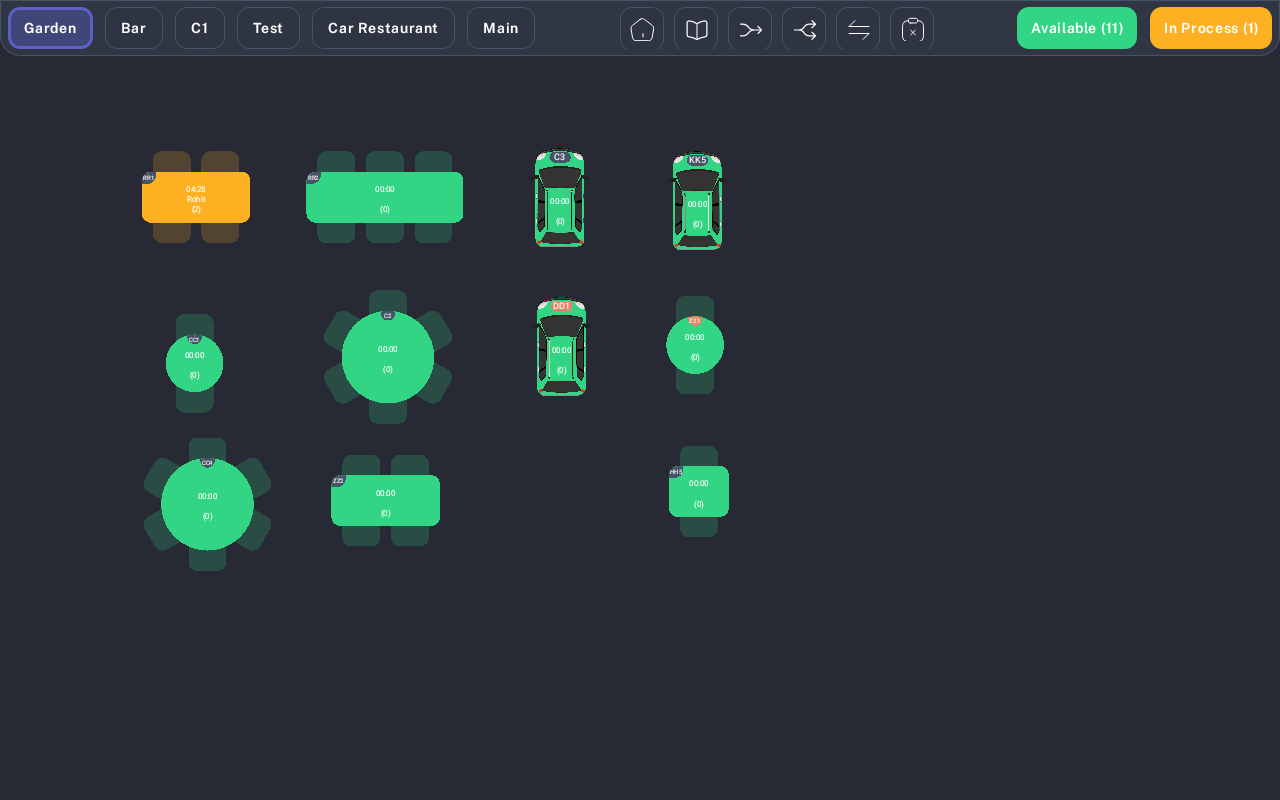
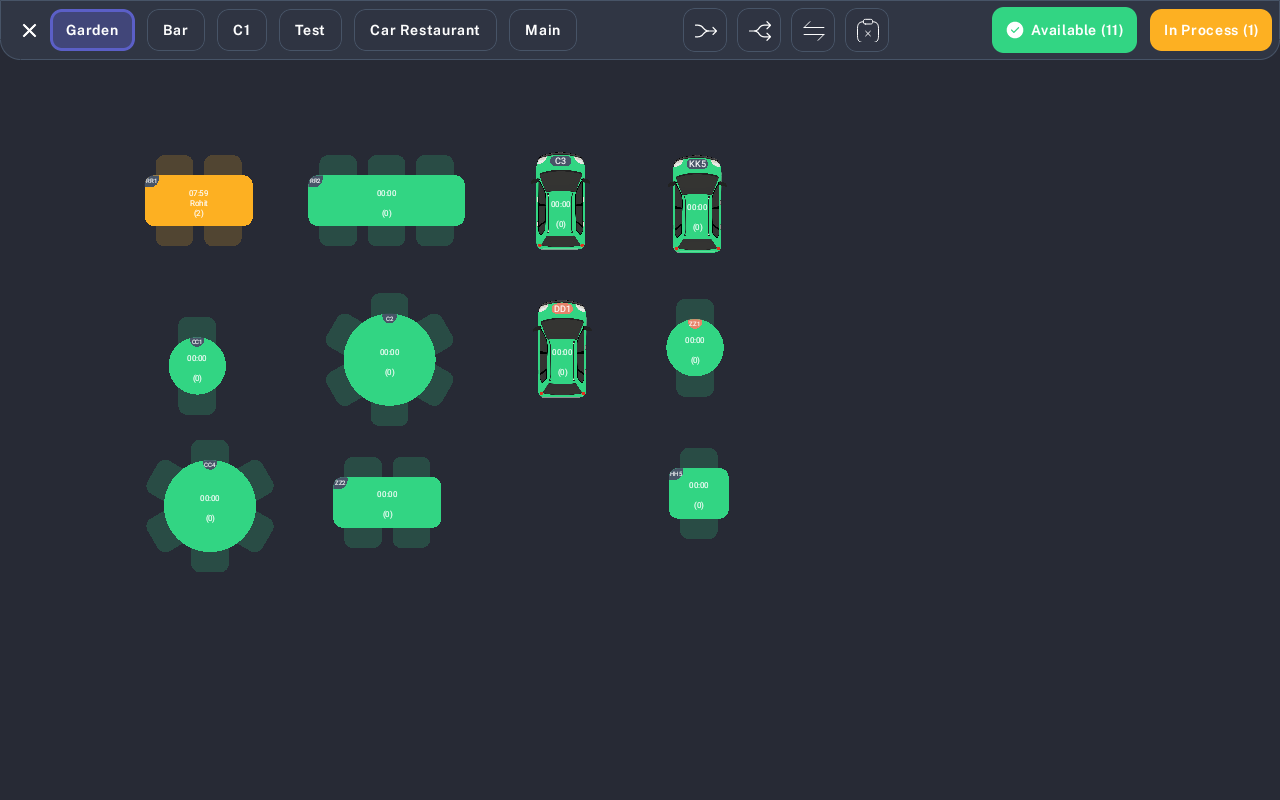
Open the floor plan screen and select the floor plan that contains the current order. The in-process table is shown in orange.
-
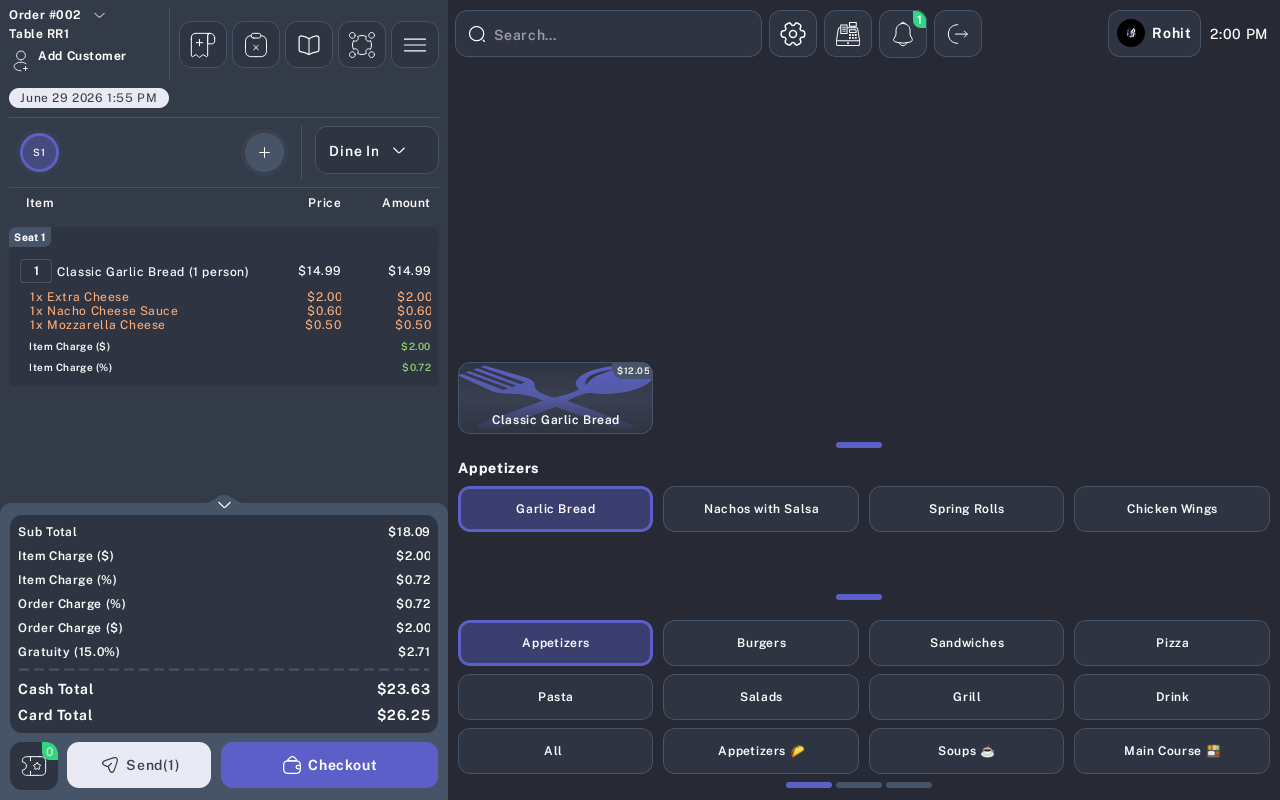
Tap the in-process table to open the order.
-
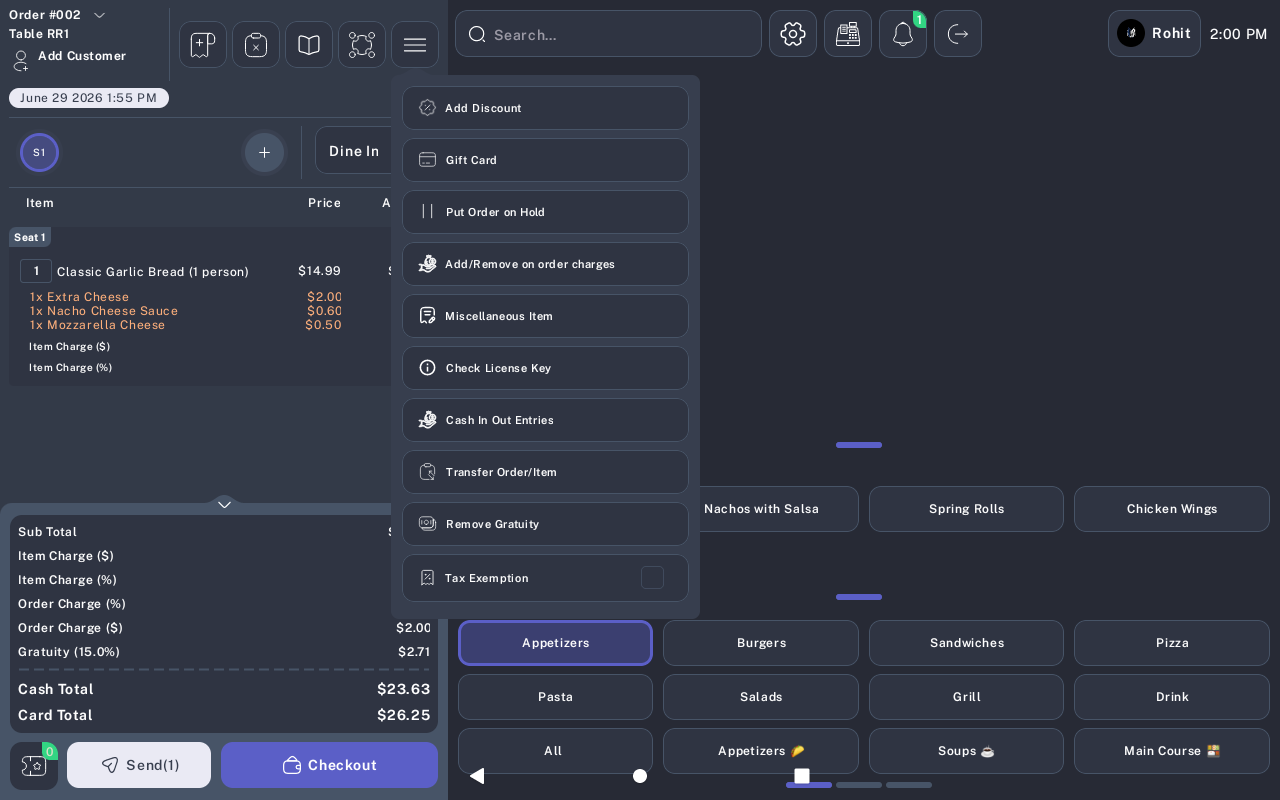
Tap the order action menu, then tap Transfer Order/Item.
-
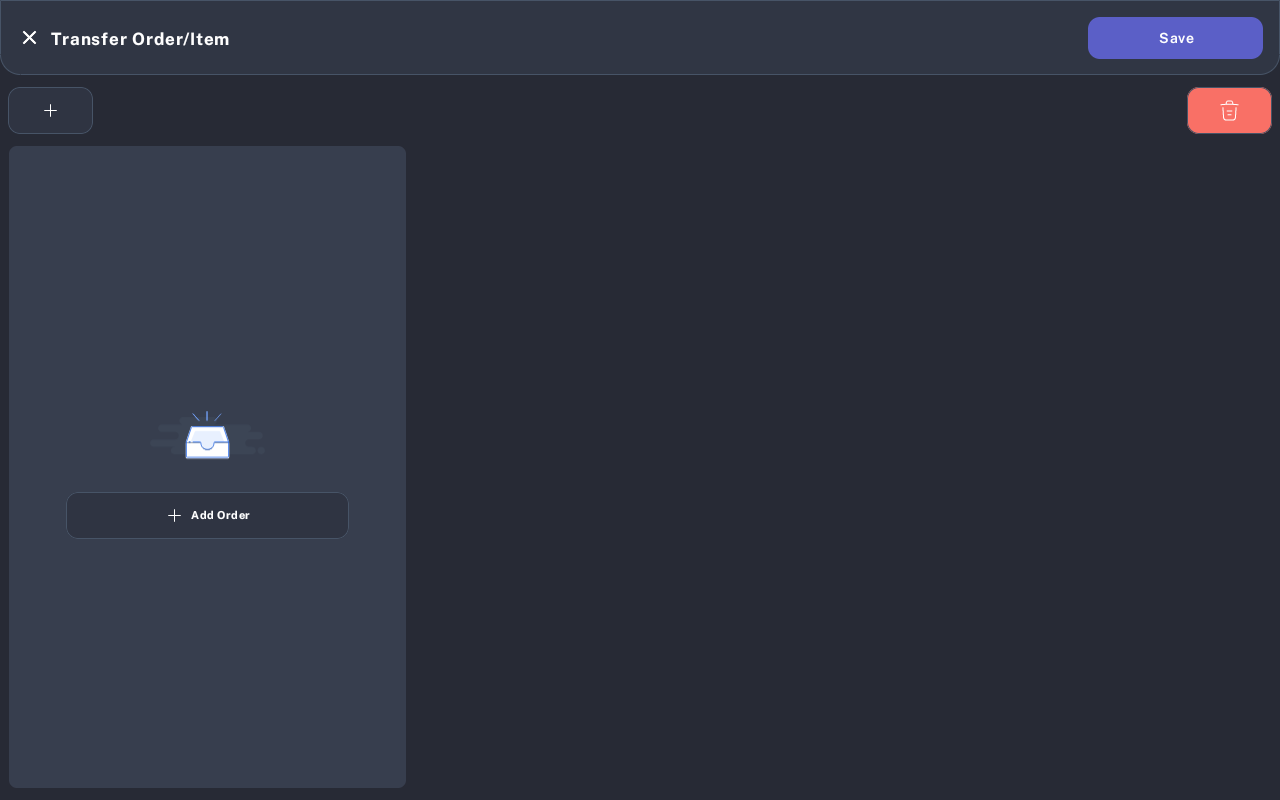
On the Transfer Order/Item screen, tap Add Order if the order is not already shown.
-
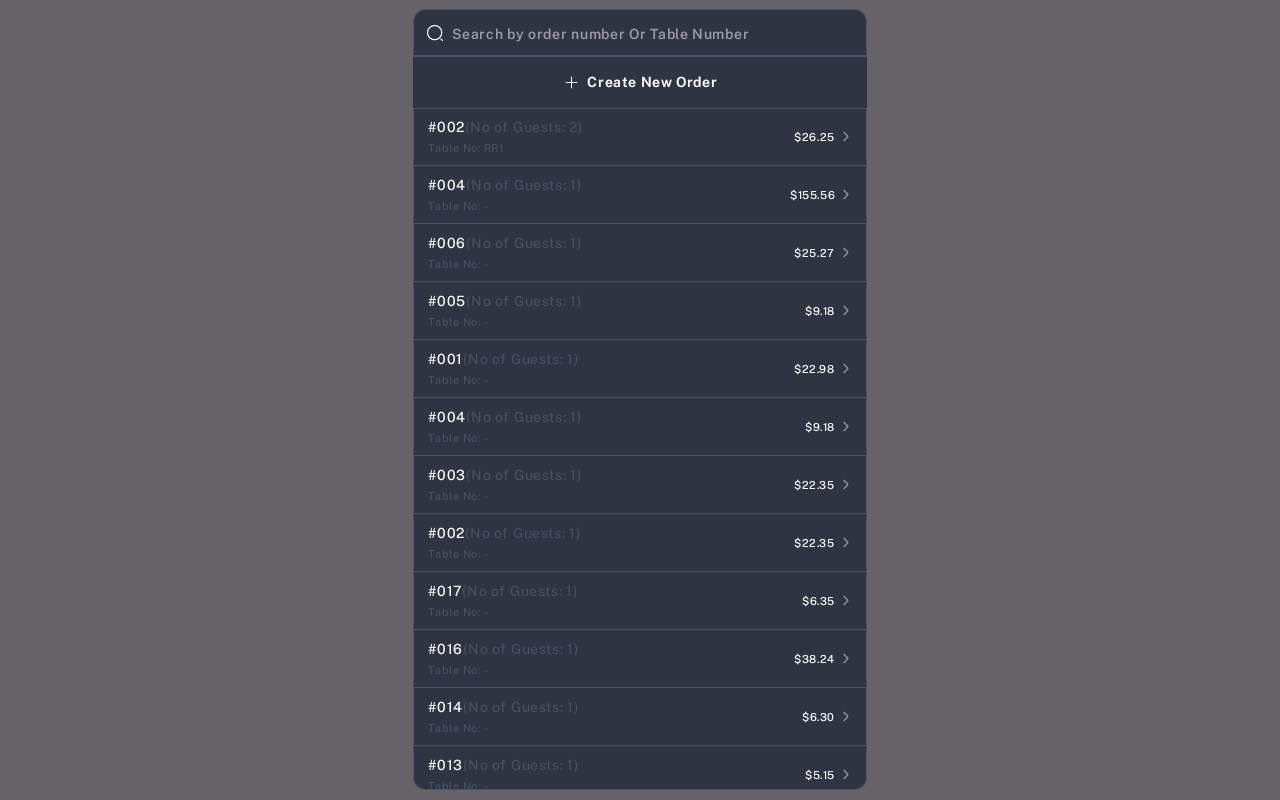
Search by order number or table number, then select the order that needs to be moved.
-
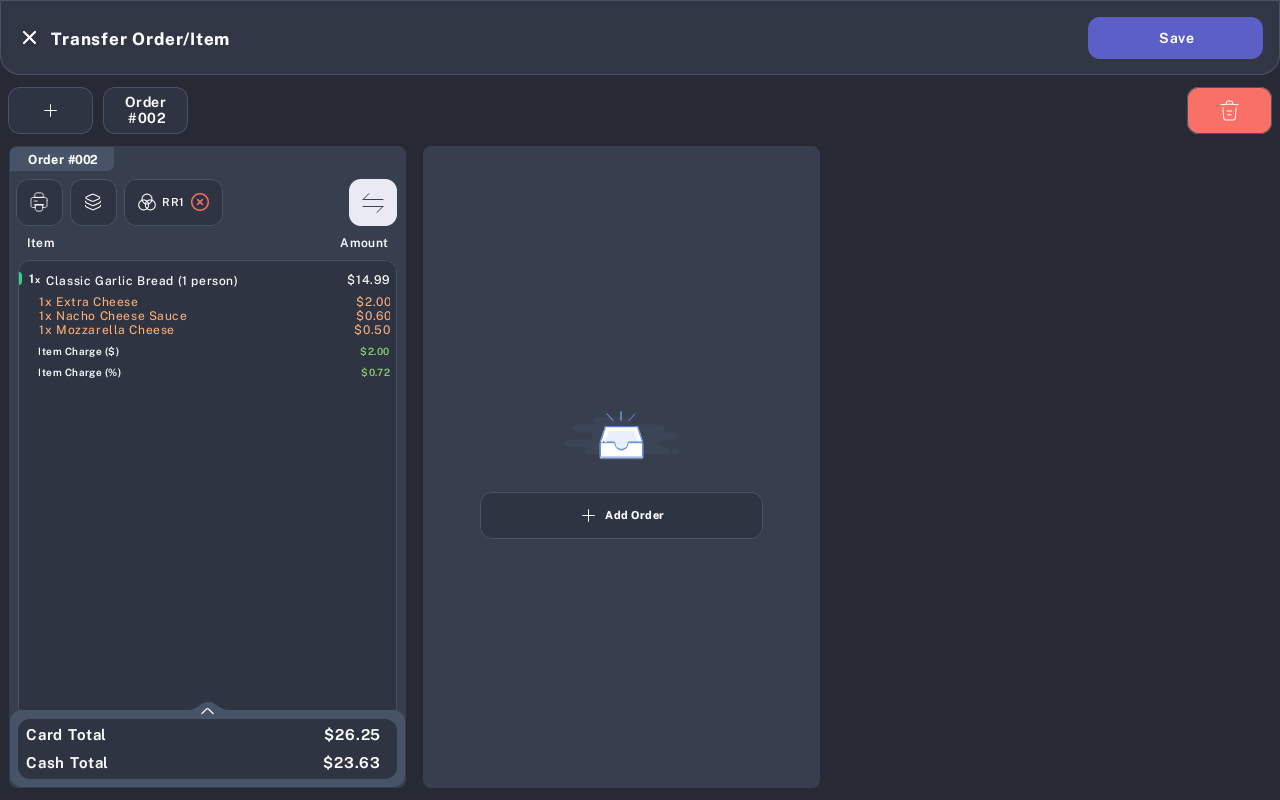
Confirm the order appears in the transfer tab. Tap the table chip, such as the current table name, to choose a new table.
-
Select the new table from the floor plan.
- Enter the number of guests for the new table, then tap Enter.
-
Review the transfer tab. The order should now show the new table name. If the wrong table is shown, tap the table chip again and choose the correct table.
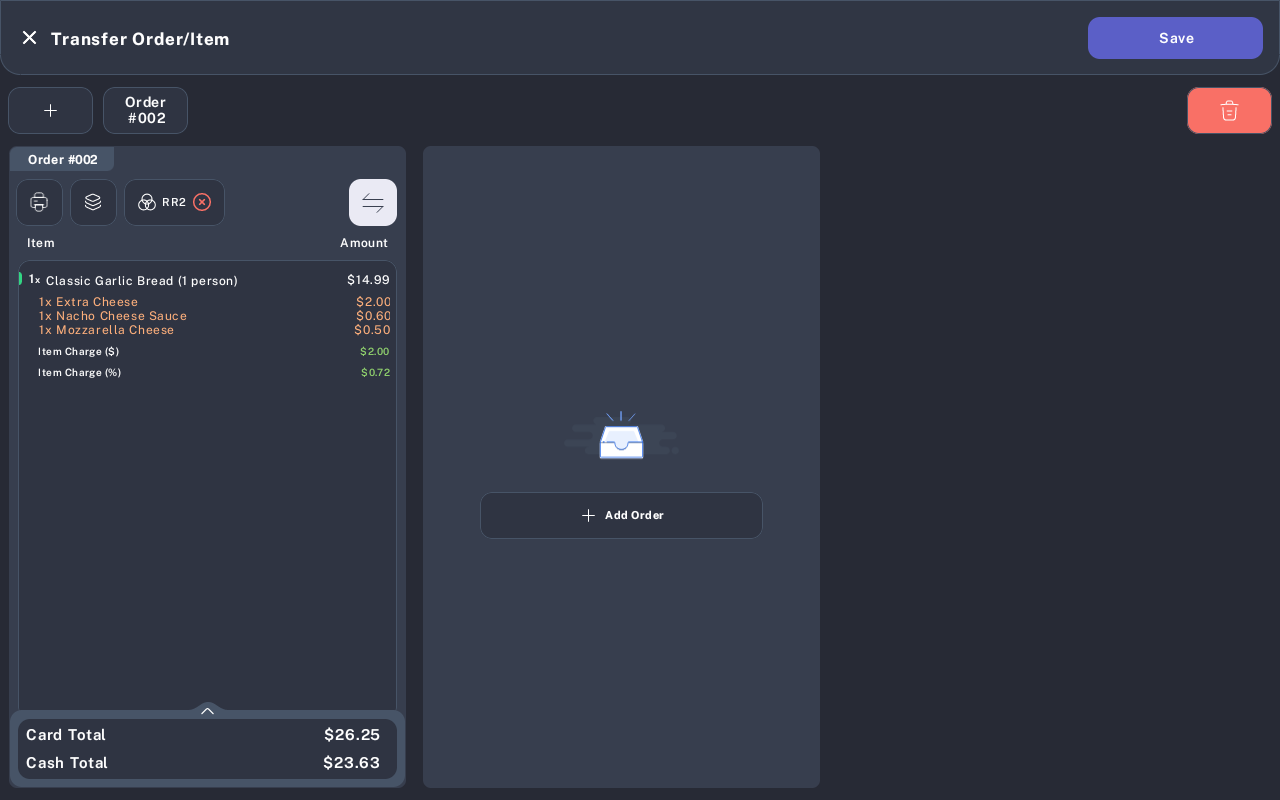
- Tap Save.
- Wait for the success message. A completed transfer shows Order Transfer Successfully.
Expected Result
The order remains active with the same items and totals, but it is assigned to the new table. When staff open the new table, they should see the transferred order.
Important
The transfer is not complete until Save is tapped. If you close the transfer screen before saving, the order stays on the original table.
Common Mistakes
- The order is not shown on the transfer screen: Tap Add Order, then search by order number or table number.
- The wrong table was selected: Tap the table chip again and select the correct floor plan table before saving.
- The guest count screen appears: Enter the guest count for the table and tap Enter.
- The transfer was staged but not saved: Return to Transfer Order/Item, select the order and target table again, then tap Save.
Common Questions
- Can I transfer only part of an order? The same screen also supports transferring selected items between tabs or orders. For moving the full table order, keep all items on the order and change the assigned table.
- Can I move an order to an available table? Yes. Select the available target table from the floor plan and enter the guest count.
- Can I transfer a paid order? Transfer active in-progress orders only. If payment has started or the order status changed, ask a manager to review the order.
- Can I transfer from a bar tab? This tutorial covers floor plan tables. Bar tab behavior depends on the restaurant's bar plan setup and staff permissions.
Notes
- Screenshots were captured from an iMin D1 device using the Garden floor plan.
- The sample order was staged from table RR1 to table RR2 for documentation. Save was not tapped while capturing screenshots, so the live order was not moved.
- Product owner or QA should verify the final post-save floor plan state on a training account before distributing this manual to staff.