How to Split Payment by Amount
Purpose
Use Split by Amount to create payment tabs with specific amounts, then collect each tab by cash, card, or gift card.
Before You Start
- The order must already be open on the payment screen.
- Use Card only when the payment terminal is connected and the TPN setup is complete.
- Use Gift Card only when the gift card can be validated online.
- Do not edit an amount after that tab has been paid or settled.
Steps
-
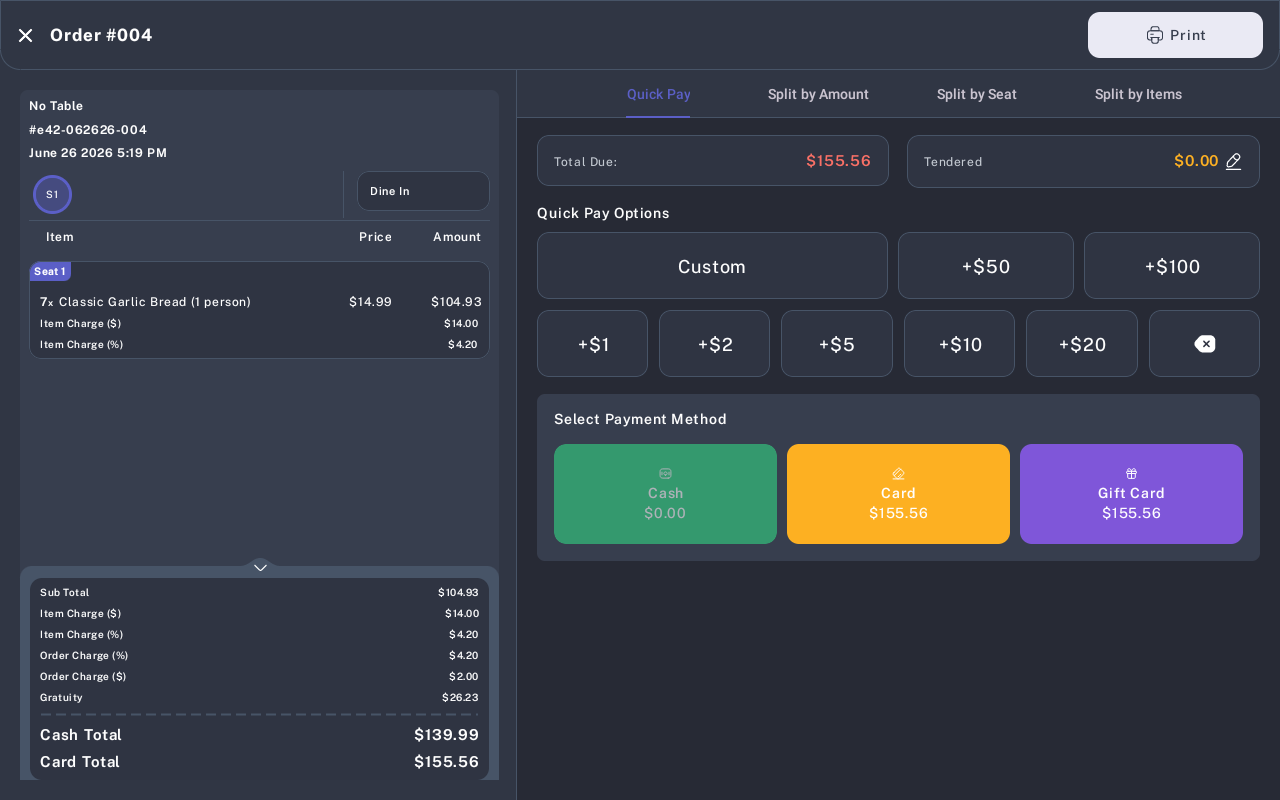
From the payment screen, tap Split by Amount.
-
Review the split tabs. The screen shows Total Due, Open Tabs, each tab amount, Confirm Tabs, and Add Tab.
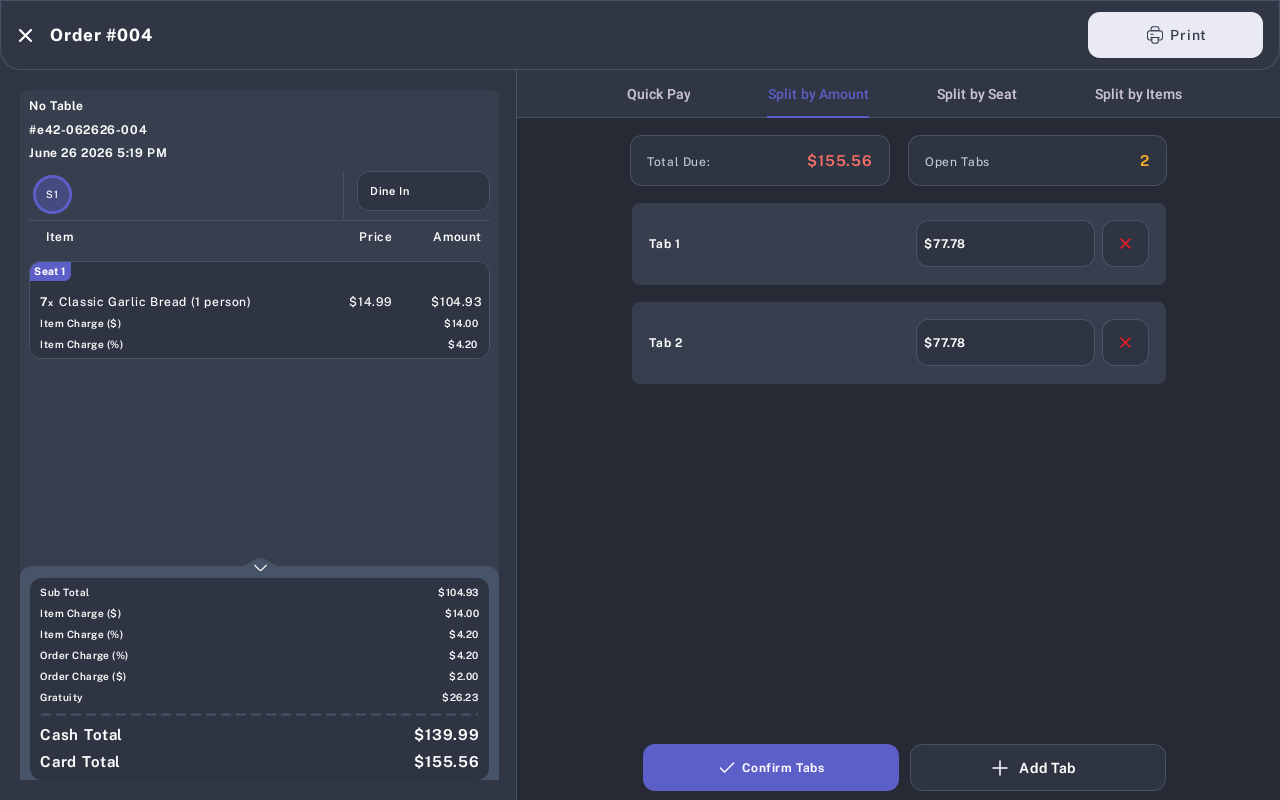
- To create another tab, tap Add Tab. The POS redistributes the unpaid amount across the open tabs.
- To change a tab amount, tap the amount field on the tab, enter the new amount, and tap Confirm. The remaining open tab amounts update automatically.
-
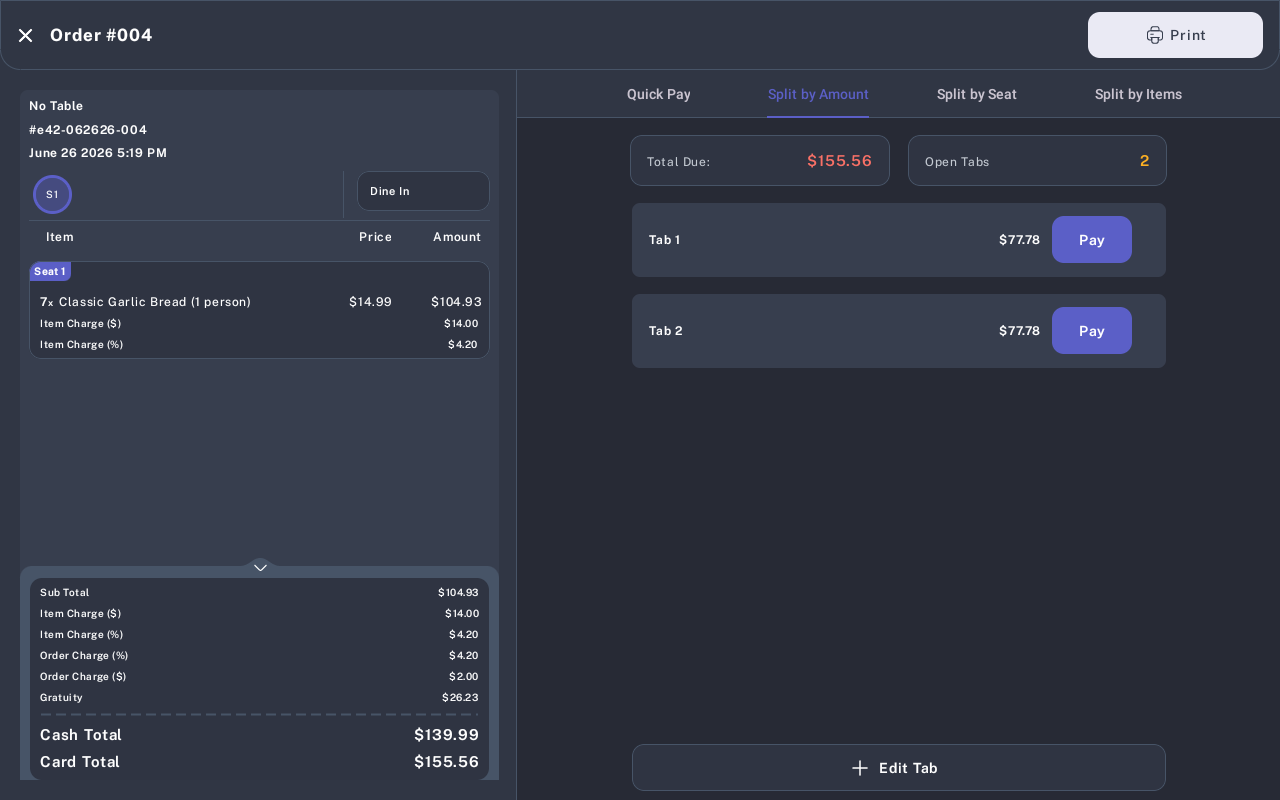
When the tab amounts look correct, tap Confirm Tabs.
-
Tap Pay on the tab you want to collect.
-
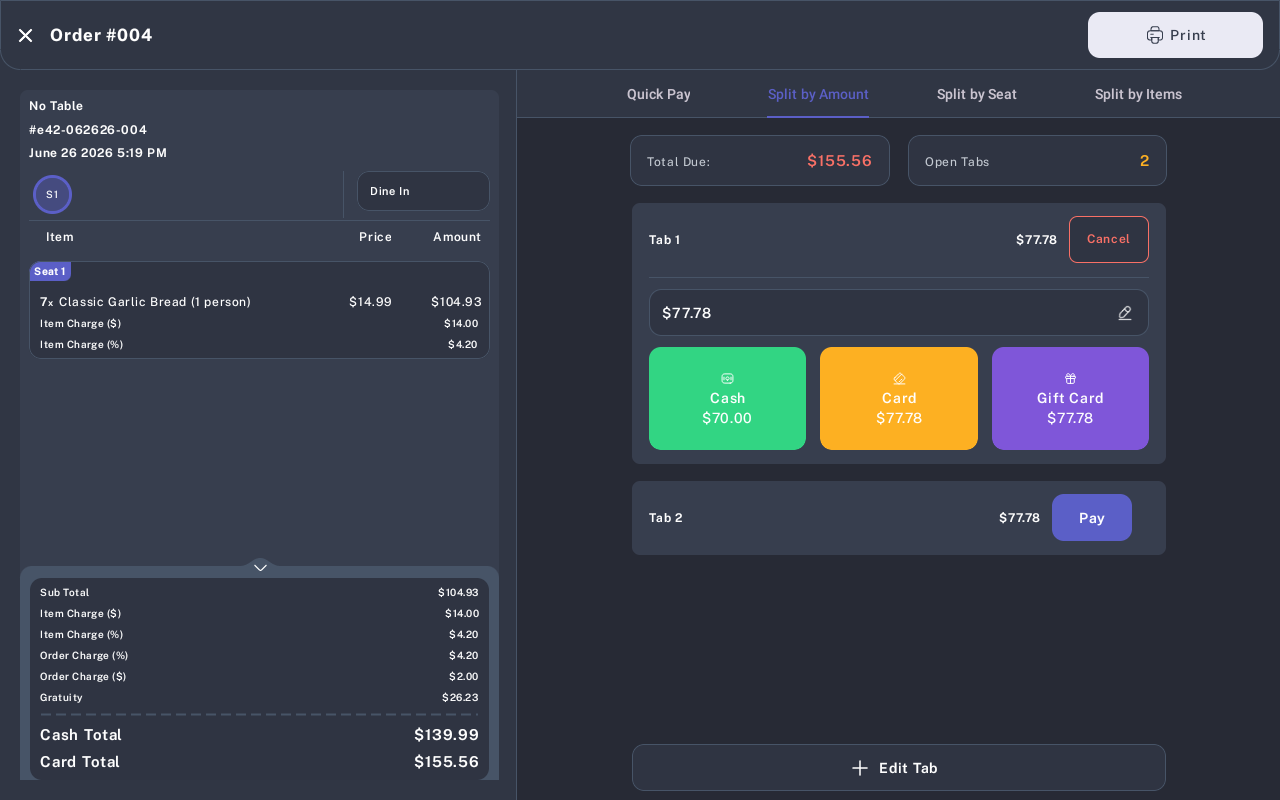
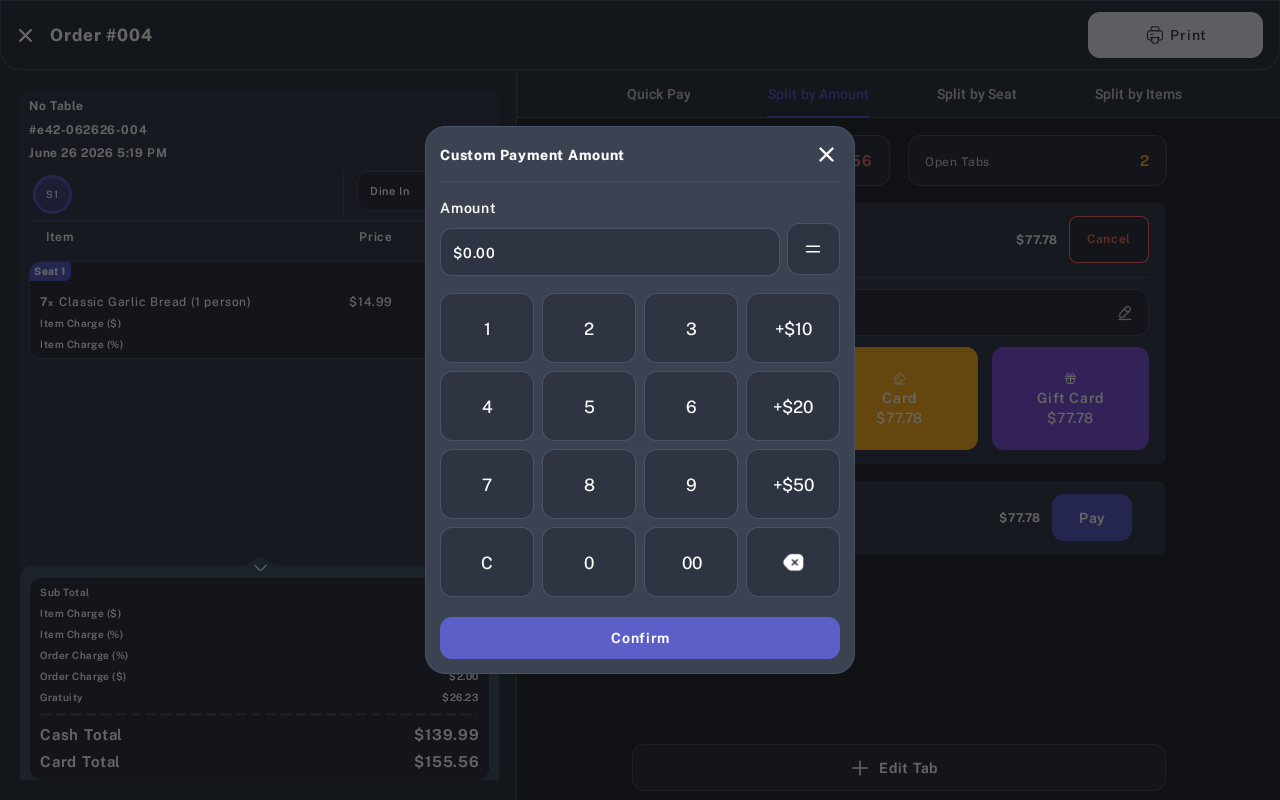
If the guest wants to pay less than the full tab amount, tap the payment amount field, enter the tendered amount, and tap Confirm.
- Choose the payment method: Cash, Card, or Gift Card. Follow the payment prompt until the payment succeeds.
- Repeat Pay for each remaining open tab until the order is paid. If the order shows Paid or Settled, tap Close Order when it appears.
Expected Result
Each split tab records its own payment. Paid tabs show a paid status, and the open tab count decreases as tabs are completed. When all tabs are paid or settled, the order can be closed.
Common Mistakes
- Forgetting to confirm tabs: Tap Confirm Tabs before collecting payment.
- Trying to edit a paid tab: Paid and settled tabs cannot be changed.
- Entering too much: A custom amount cannot be more than the remaining amount allowed for that tab.
- Deleting the last pending tab: The POS keeps at least one pending tab so the remaining order amount can still be paid.
Common Questions
- Can one tab be paid with more than one method? Yes. Expand the tab, adjust the payment amount if needed, and collect each payment until the tab is fully paid.
- Can I add a tip after a card or gift card payment? When tip handling is enabled, the POS may show the tip prompt after the payment succeeds.
- Why are cash and card amounts different? Some locations use dual pricing. In that setup, the POS shows separate cash and card amounts.
- Can I print a receipt? Yes. Use the receipt or print option shown after a successful payment, or use the payment screen Print button when available.
Assumptions to Verify
This tutorial was written from the tablet payment screen and live iMin D1 screenshots. Exact prompts after Card or Gift Card may vary by terminal processor, gift card setup, network state, and tip-in-transaction settings.