How to Use Refund From Order History
Purpose
Use this tutorial when a paid or settled order needs a full or partial refund from Order List. Refund one scenario per order so the before and after status is easy to verify.
Before You Start
- The signed-in role needs Refund Payment permission. Without it, the Refund button is hidden.
- Use a test or training order when practicing. A completed refund changes payment records and prints a refund receipt.
- For card or gift card refunds, keep the POS online. Cash refunds can be processed without the gateway.
- For HandPoint/PAX refunds, the PAX/HandPoint device must be enabled in PDQ. If it is not available, the POS shows a device setup error.
Open Order History
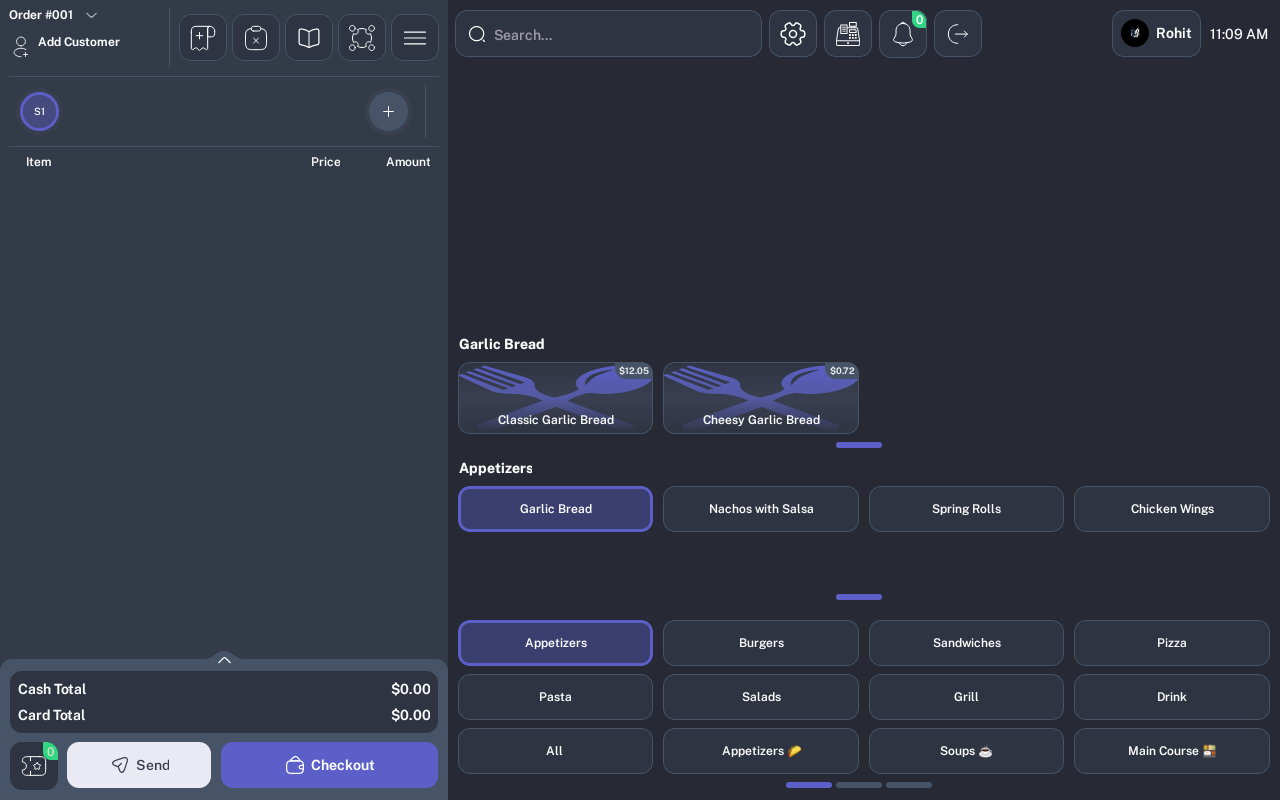
- From the menu screen, tap the History icon.
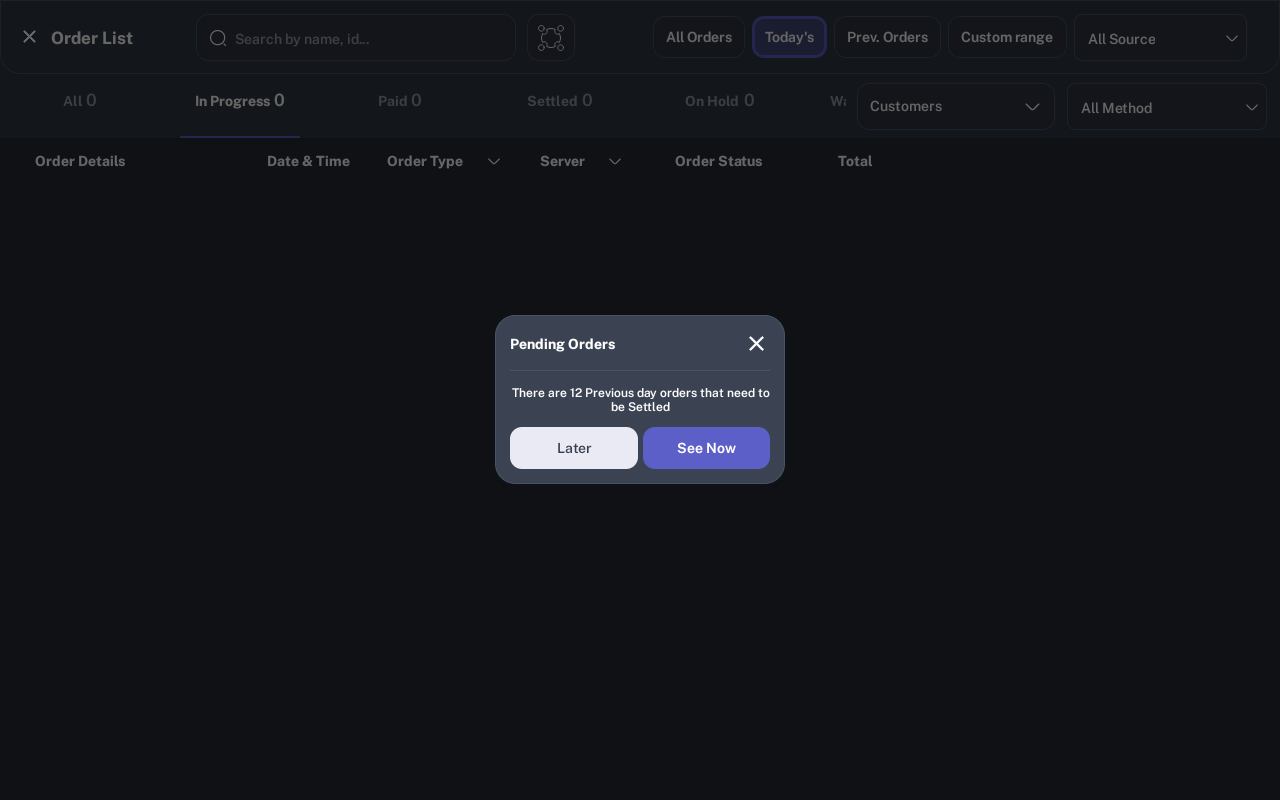
- If the Pending Orders dialog appears, tap See Now.
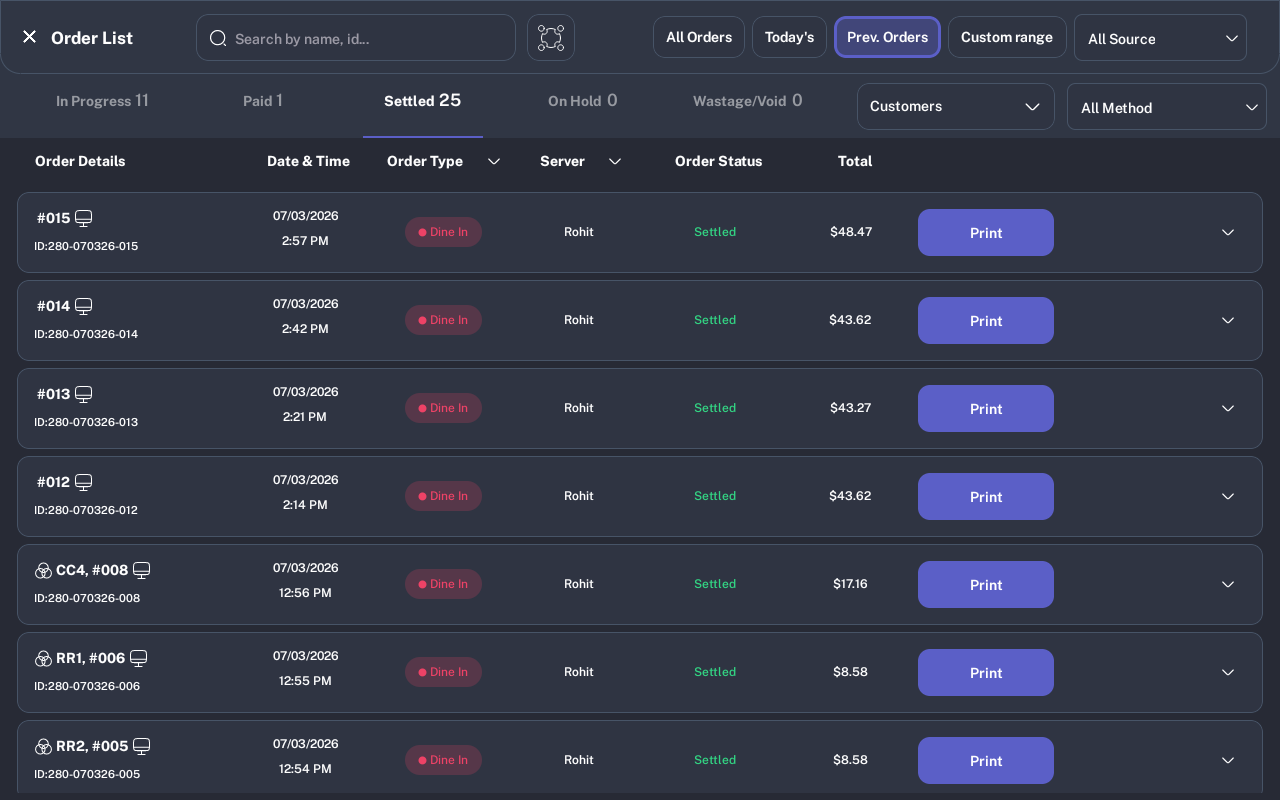
- On Order List, tap Settled.
Refund a Settled Order
- Select one order from the Settled list. Confirm the order status shows Settled before starting.
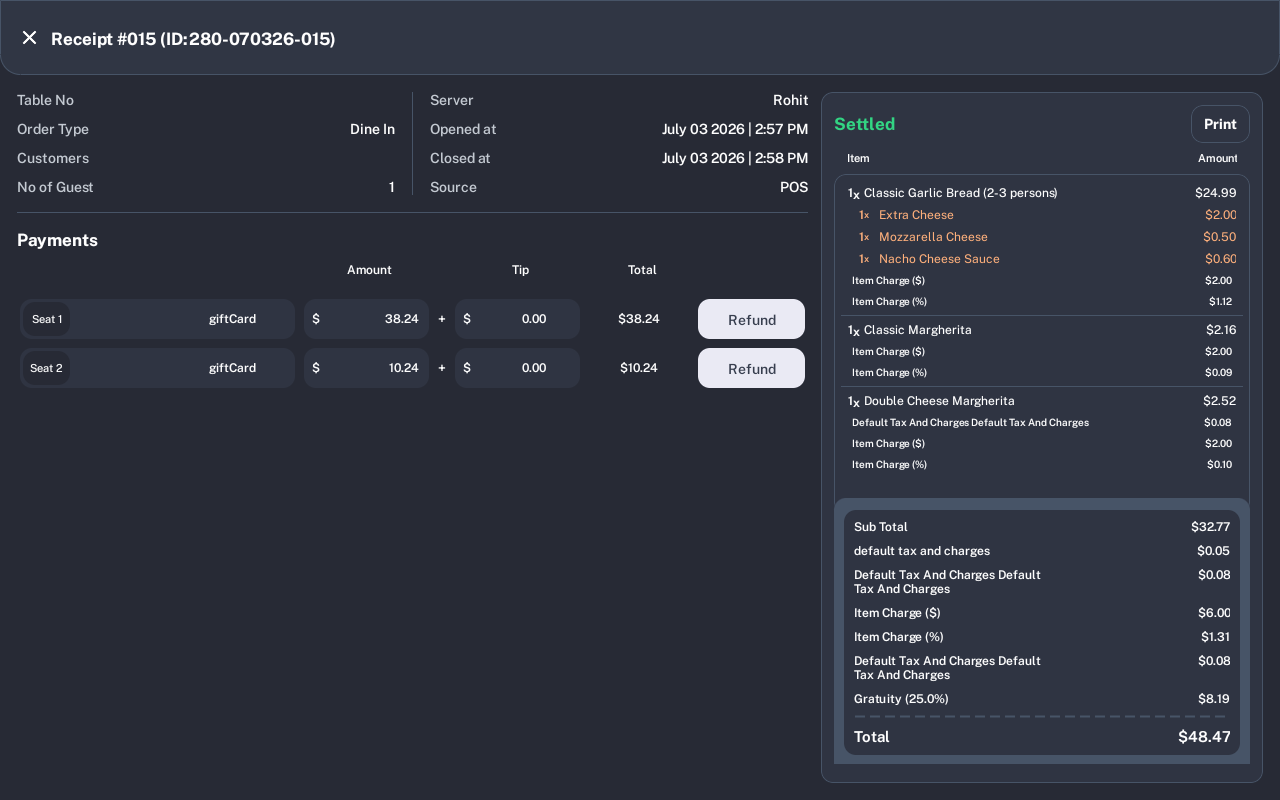
- In the Payments section, choose one payment row and tap Refund.
- In Refund Confirmation, choose Full Refund or Partial Refund.
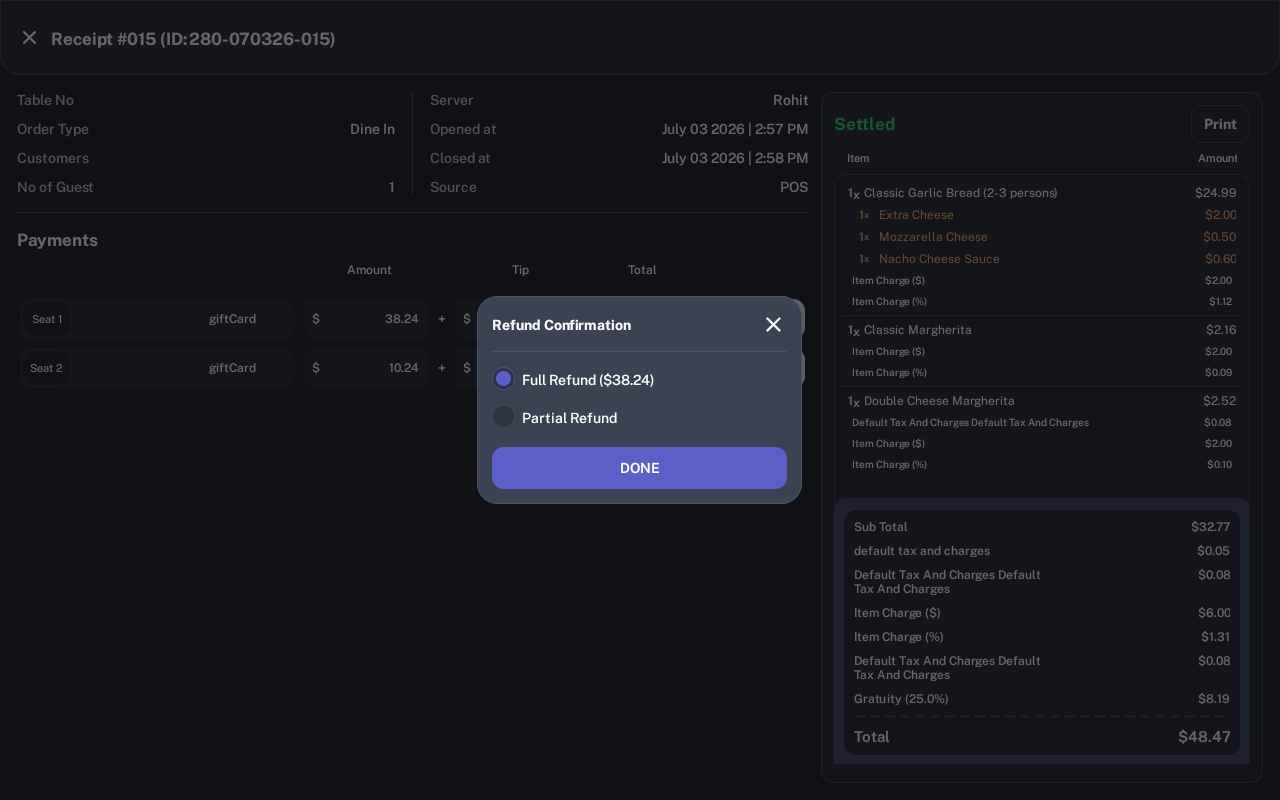
- For a partial refund, enter the refund amount. The amount cannot be more than the refundable amount shown for that payment row.
- Tap DONE. Wait until the refund finishes and the receipt prints.
- Return to the order and confirm the refunded row now shows Refunded or the remaining payment amount, depending on the scenario.
Scenarios to Document During QA
| Scenario | Before status | After status to verify | Success evidence |
|---|---|---|---|
| Full refund of the only payment on a settled order | Settled | In Progress when paid amount becomes $0.00 | Payment row changes to Refunded; refund receipt prints. |
| Partial refund of a payment | Settled or Paid | Partial Paid when remaining paid amount is less than order total; otherwise status can stay Paid or Settled | A refund row is created and the original payment keeps the remaining amount. |
| Refund one row from a split payment order | Settled | Partial Paid if other payments remain but the order is no longer fully paid; In Progress if all payments are refunded | Only the selected payment row changes; other payment rows remain active. |
| Full refund of a payment that includes a tip | Settled | In Progress or Partial Paid based on remaining active payments | The refund receipt includes the refunded payment and associated tip refund. |
| Pending or failed payment row | Pending or Failed row label | No order status change | The row shows Pending or Failed instead of an enabled Refund button. |
| Online order before accept/reject decision | Online order with pending decision | No refund allowed until accepted or rejected | POS shows: Please accept/reject the online order to proceed with a refund. |
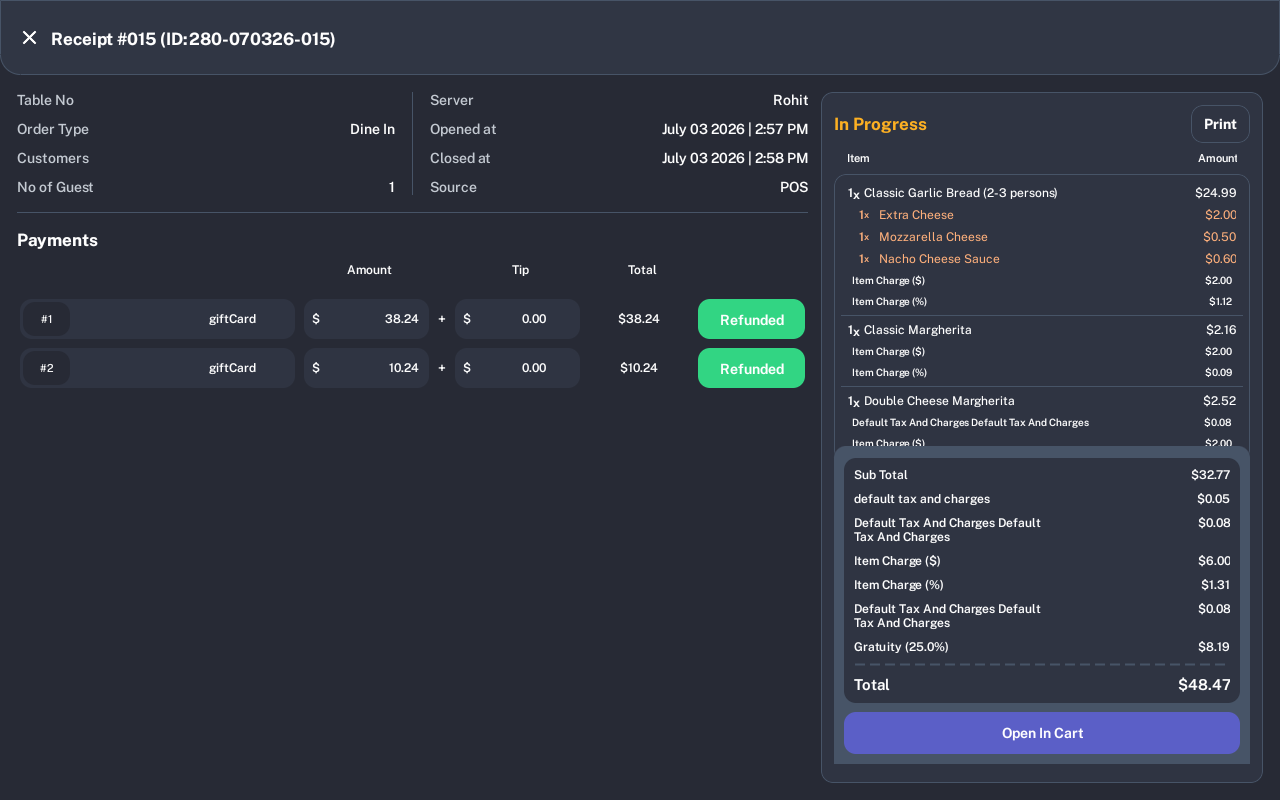
The completed full-refund scenario should show the order back in In Progress and every refunded payment row marked Refunded.
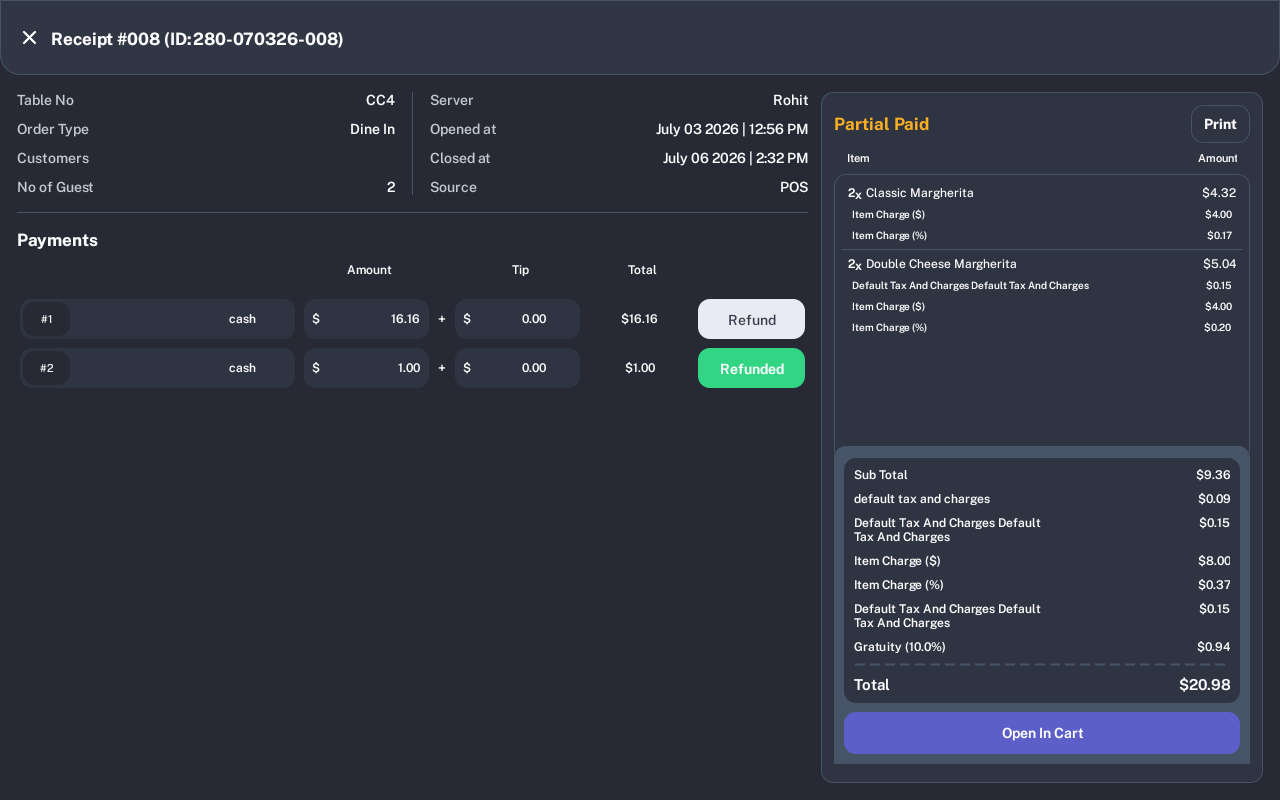
The completed partial-refund scenario should show a new refunded row and the original payment row reduced by the refunded amount.
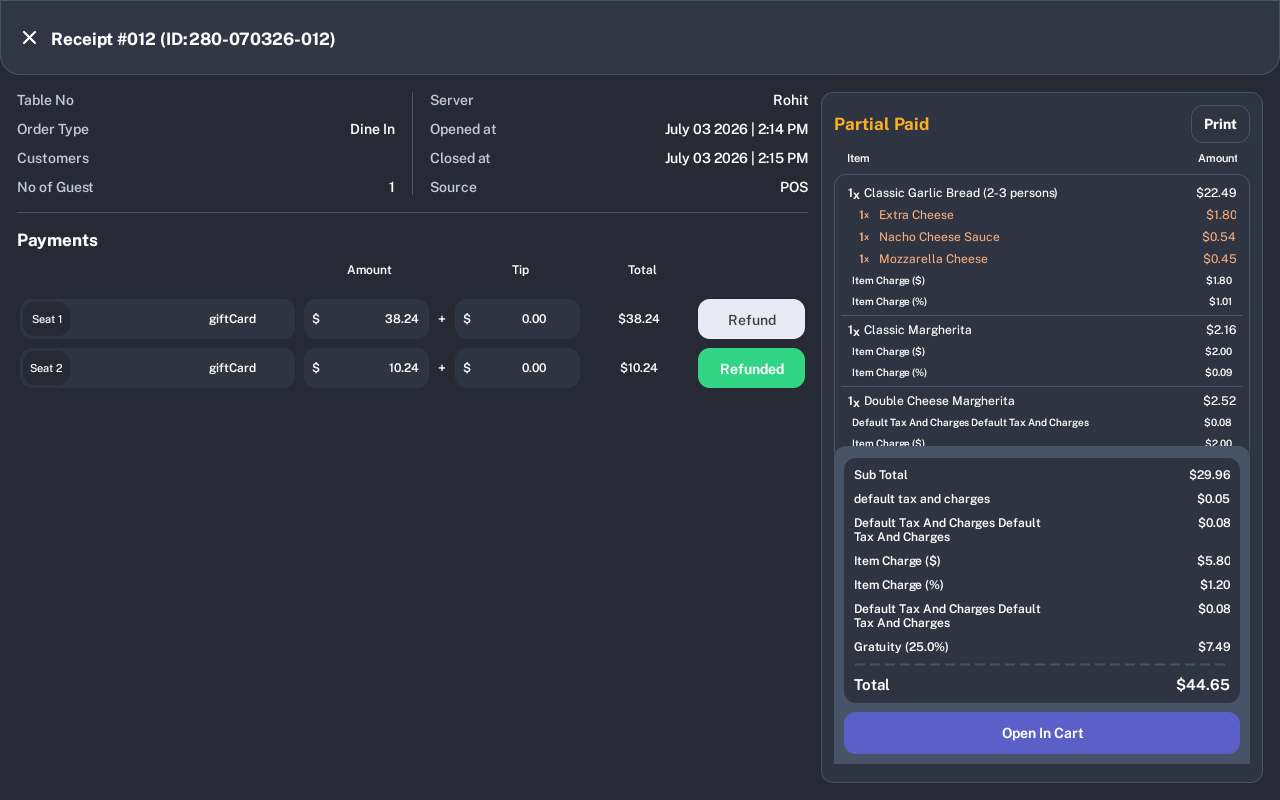
The completed split-payment refund scenario should show only the selected payment row marked Refunded, while the other payment row remains active for refund.
The completed tip refund scenario should show the order back in In Progress, with the payment row marked Refunded and the refunded tip still visible in the payment row.
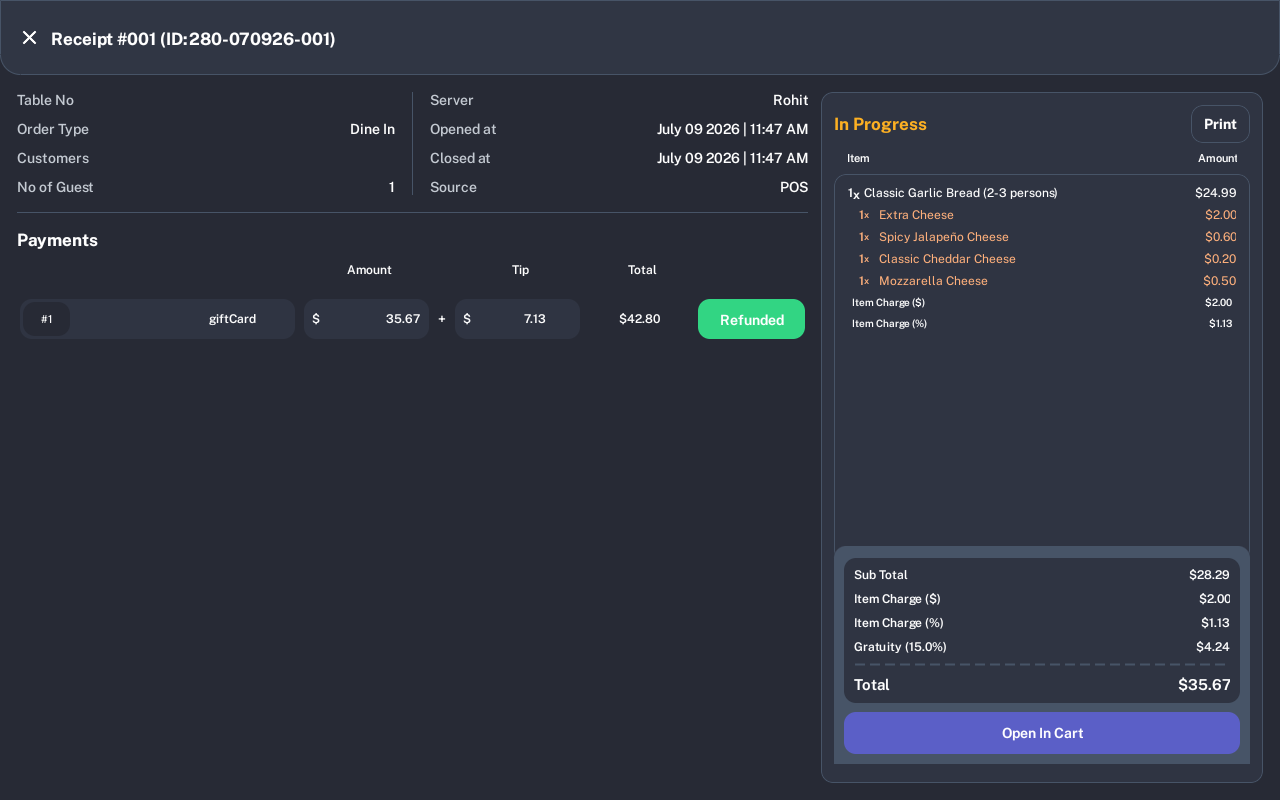
Expected Result
The refund completes, a refund receipt prints, and the order recalculates the paid amount, payment method, tips, and status. Fully refunded orders return to In Progress. Partially refunded orders usually move to Partial Paid unless the remaining paid amount still covers the order total.
Troubleshooting
- Refund button is missing: Confirm the role has Refund Payment permission.
- Partial Refund is missing: For HandPoint payments, partial refund can be hidden inside the current HandPoint business day.
- Amount can't be Exceed Order Amount: Enter a smaller partial refund amount.
- Please Enable PAX Device In PDQ: Enable the saved PAX/HandPoint device before retrying.
- No internet connection: Reconnect before refunding card or gift card payments.
Screenshot Note
The full-refund, partial-refund, and split-payment refund success screenshots were captured on disposable orders after pressing DONE. Use a new disposable order for each remaining QA scenario because completing a refund mutates payment and order data.
Notes
Screenshots were captured from an iMin D1 on July 9, 2026. Sample order numbers, amounts, staff names, payment methods, and order counts vary by restaurant data.