How to Use Profile
Purpose
Use the Profile screen to check staff details, sales after the last closing, tips, working time, break time, shift schedule, and recent working history.
Before You Start
- You must be logged in to the POS with your staff account.
- Use Close Shift, Clock Out, and Log Out only when you are ready. These actions can change your shift state.
- If you are on break, use Break Out before trying to clock out.
Steps
-
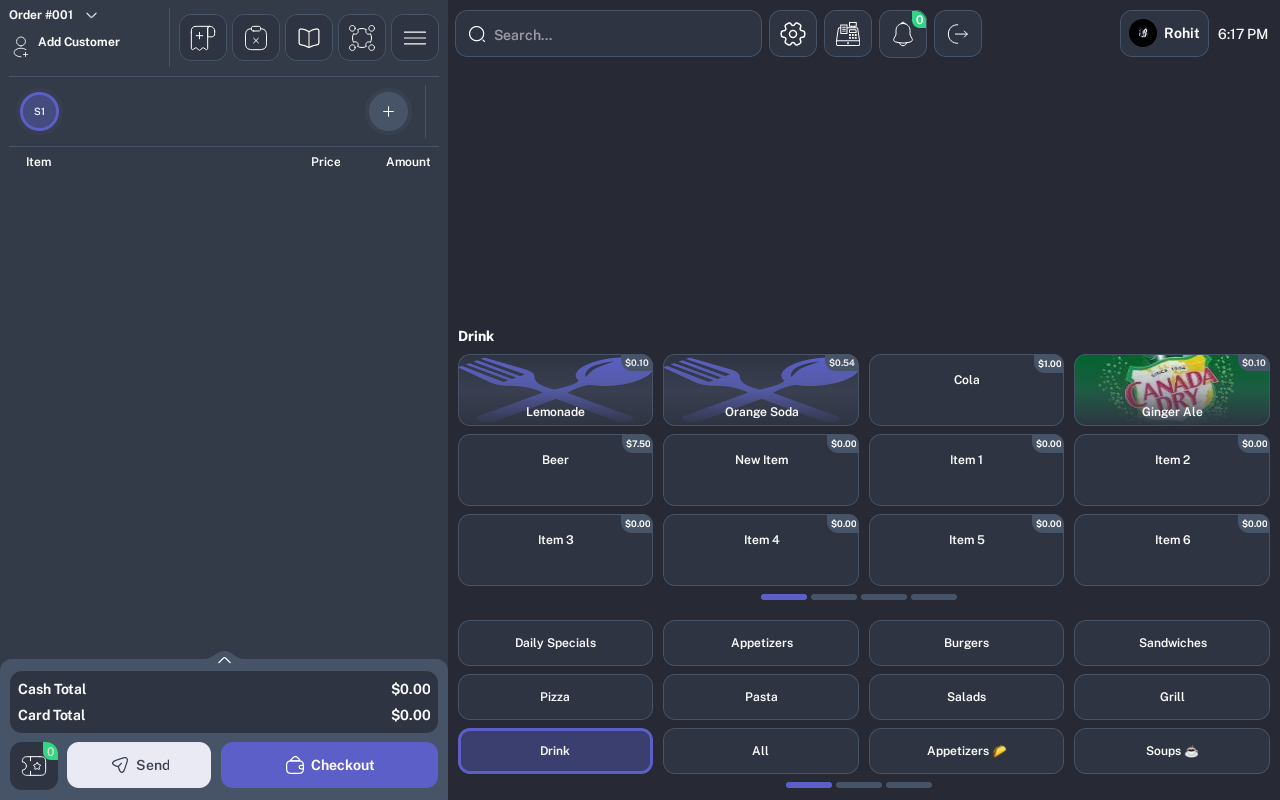
From the order screen, tap the staff profile chip in the top-right corner.
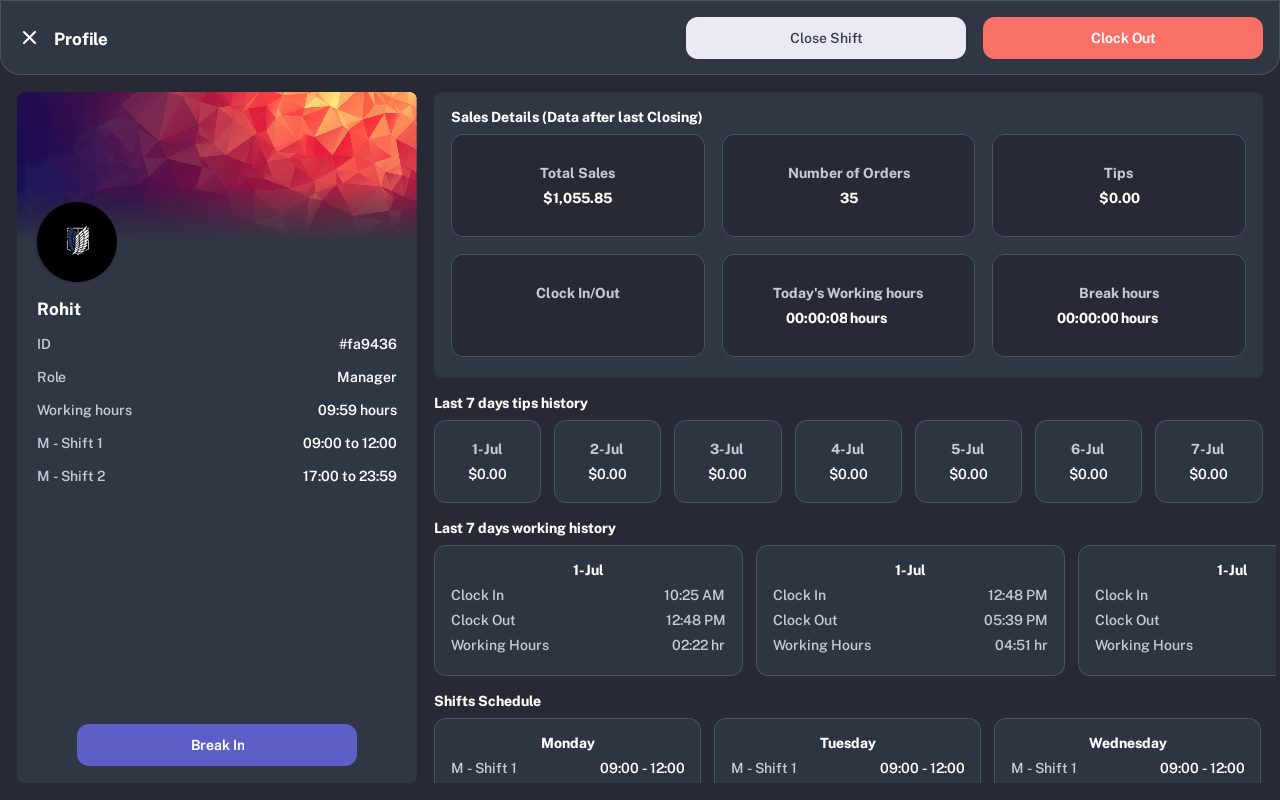
- Review your staff name, staff ID, role, working hours, and today's shift times on the left side of the Profile screen.
-
For a manager profile, confirm that the role shows Manager. Managers can see the same profile sections and may use closing when their account has closing permission.
-
For a waiter profile, confirm that the role shows Waiter. Waiters can review their own sales, order count, tips, clock in/out, working hours, break hours, waiter shifts, and shift schedule.
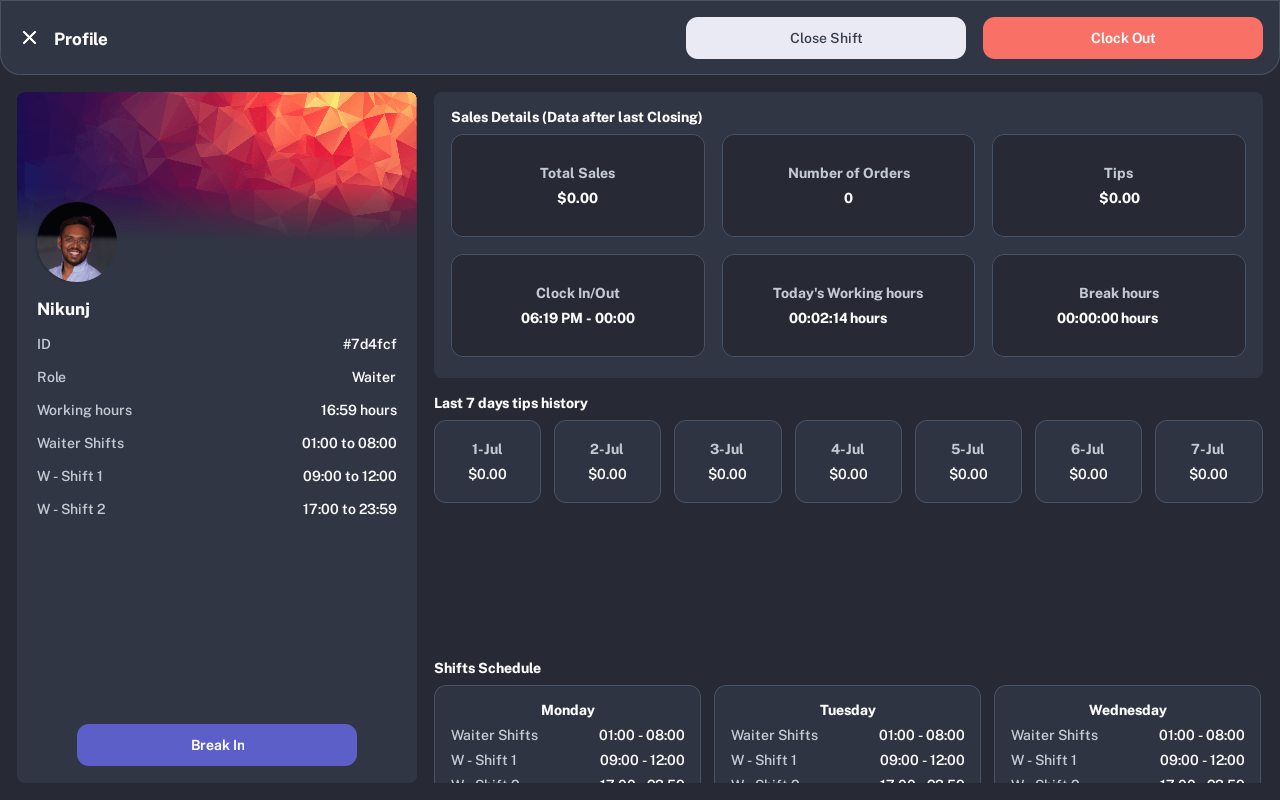
- Review Sales Details (Data after last Closing) for total sales, number of orders, tips, clock in/out, today's working hours, and break hours.
- Use Last 7 days tips history to check recent tips by date.
- Use Last 7 days working history to check recent clock-in, clock-out, and working-hour records.
- Use Shifts Schedule to confirm upcoming shift days and times.
- Tap Break In when starting a break. When you return, tap Break Out.
- Tap Close Shift when you need to complete closing for your role. Managers follow the manager closing flow; waiters follow the employee closing flow.
- Tap Clock Out or Log Out only when you are finished using the POS.
- Tap the X in the top-left corner to return to the order screen without changing anything.
Expected Result
You can see your current profile and shift information for the logged-in role. Manager profiles show the Manager role; waiter profiles show the Waiter role and waiter shift details. If you choose Break In, Break Out, Close Shift, Clock Out, or Log Out, the POS updates your staff state and may navigate to the related closing or login screen.
Common Questions
- Can I view Profile without changing my shift? Yes. Open Profile and use the X button to leave without tapping shift action buttons.
- What is Sales Details based on? It shows data after the last closing.
- Why do I see Clock Out on one device and Log Out on another? The button depends on your current clock or login state.
Notes
Screenshots were captured from an iMin D1 running the tablet POS layout for both manager and waiter profiles. Mobile devices show the same Profile information in a narrower layout.