How to Use POSHub
Purpose
Use POSHub as the mobile starting point for orders, tables, order history, order actions, and manager tools.
Before You Start
- Sign in with the correct staff account and role.
- Clock in if you want to save a Use for this shift quick option.
- Manager activities and some order actions depend on staff permissions.
- Menu, floor plan, printers, payment devices, and cash drawers must already be configured for those workflows.
POSHub Home
-
After login, open POSHub. Review the staff name, role, online status, order count, sales, and tips at the top of the screen.
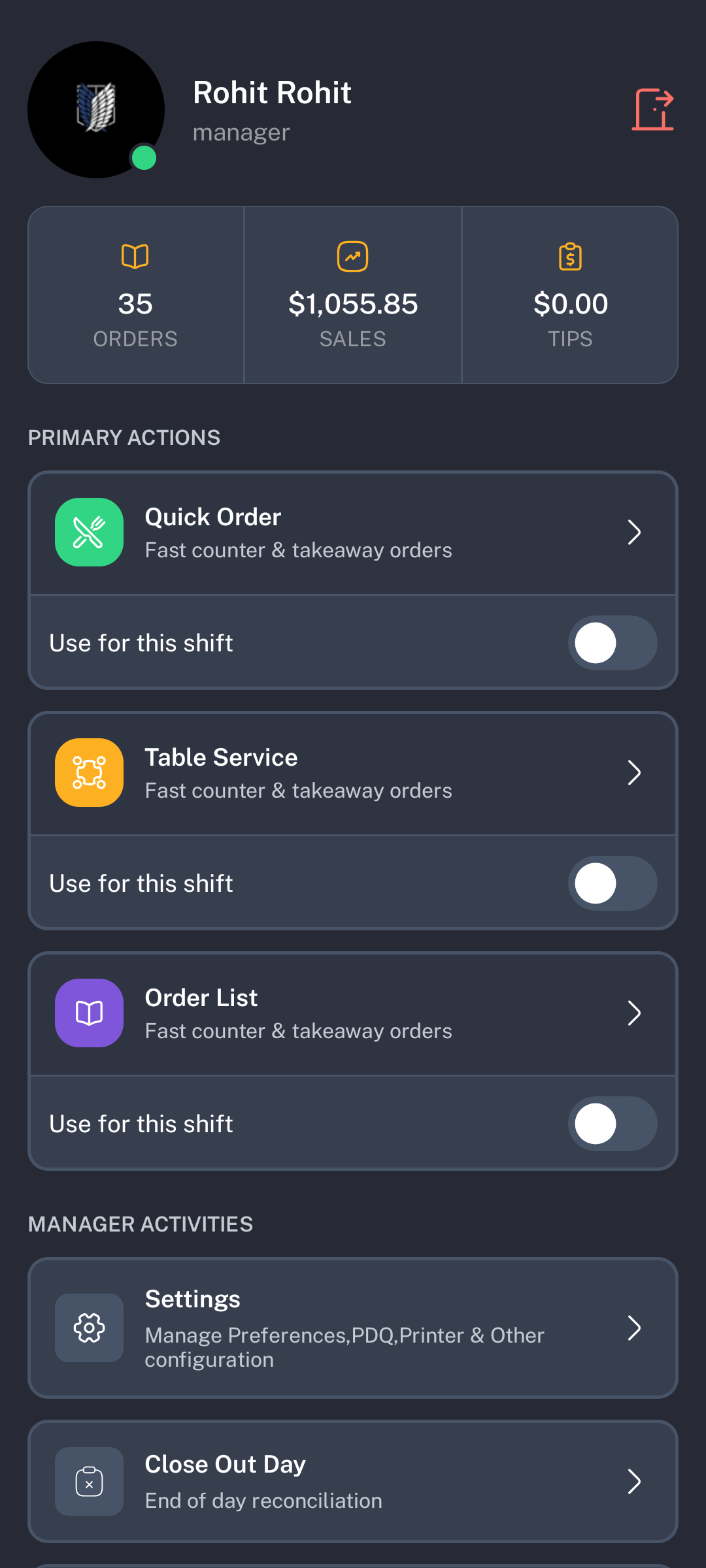
- Tap the staff profile area to open profile, clock-out, or logout options for the signed-in staff member.
- Tap the red logout icon when you need to leave POSHub and return to login.
Primary Actions
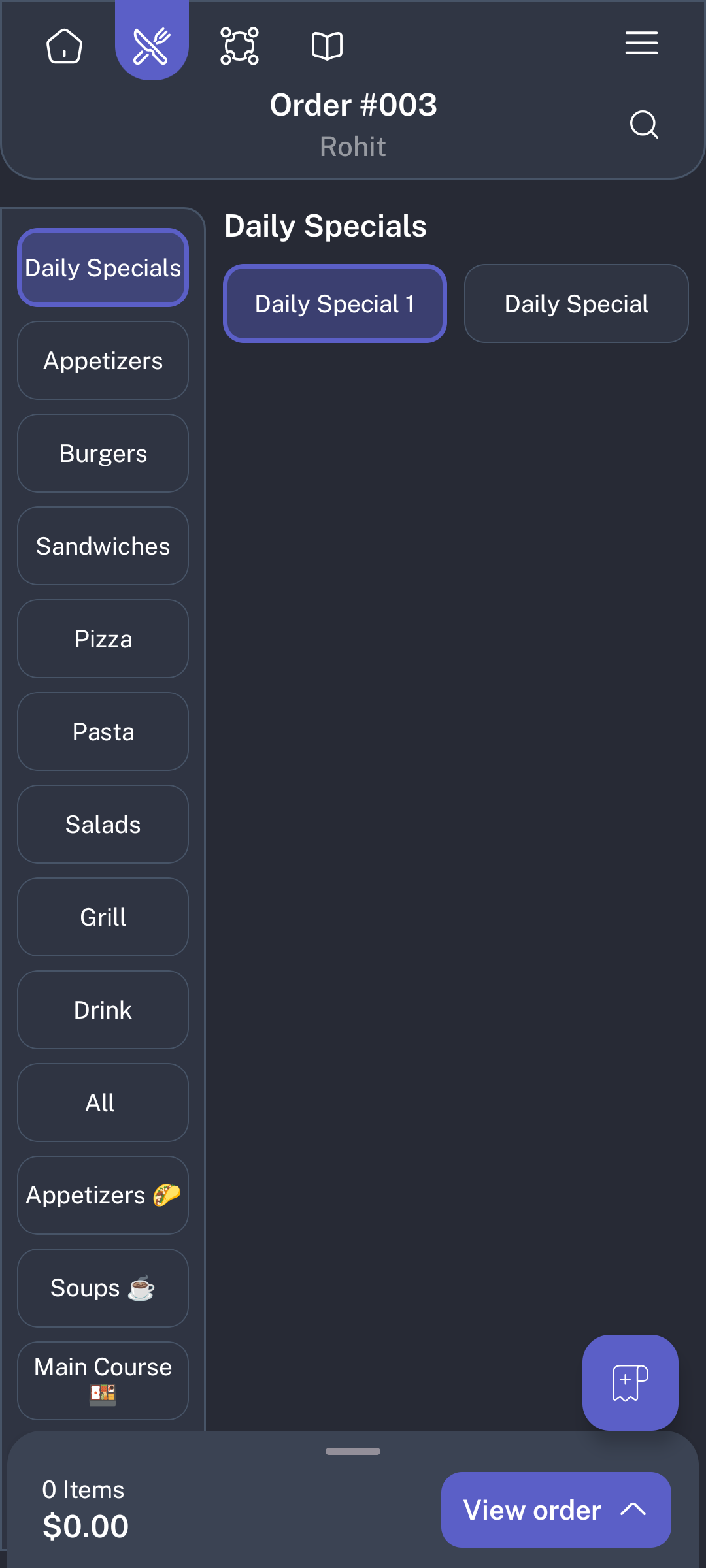
- Select Quick Order to open the menu for counter, takeaway, or new order entry.
-
Use the menu screen to add items, search items, send orders, take payment, or open order actions from the top bar.
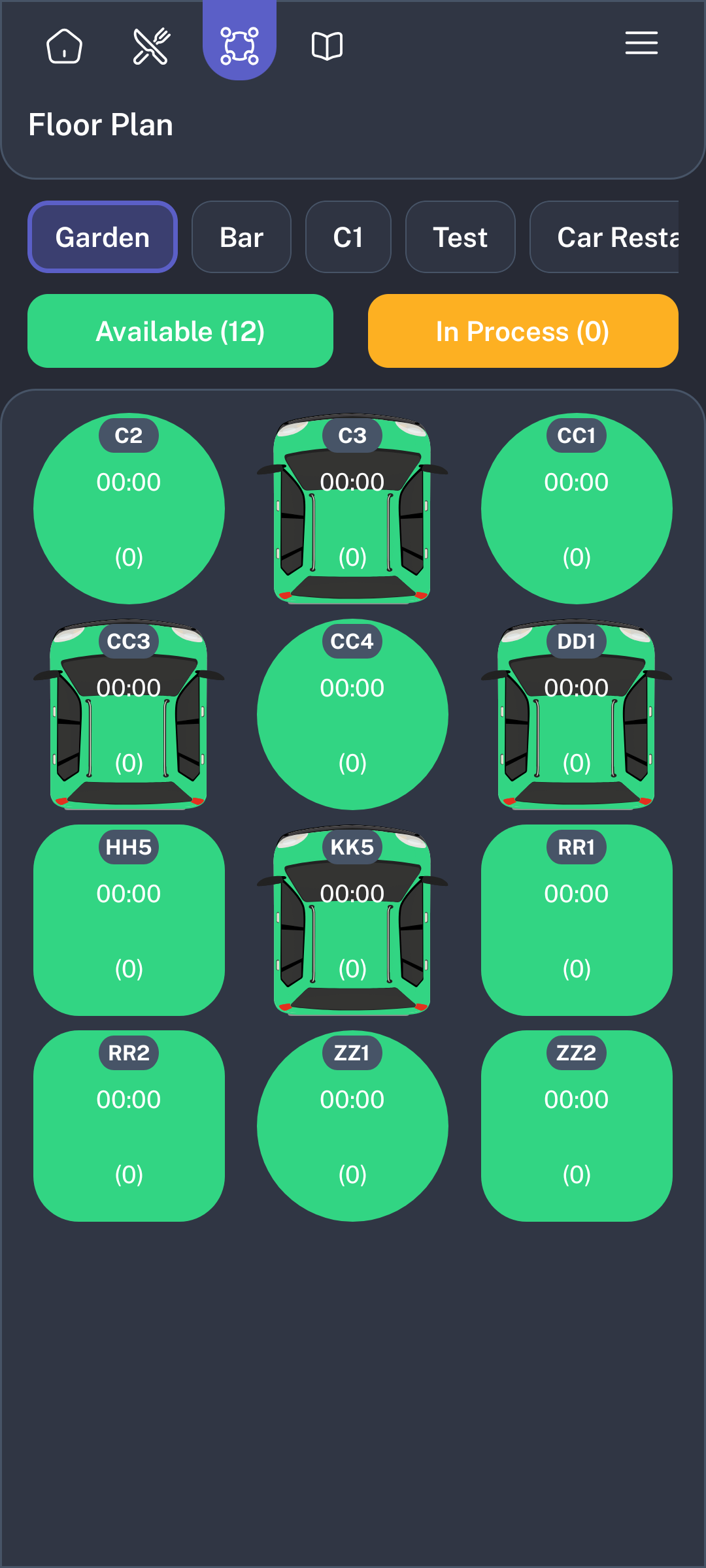
- Select Table Service to open the floor plan and work with table orders.
-
Use the floor plan to select a table, open an active table order, or use table actions.
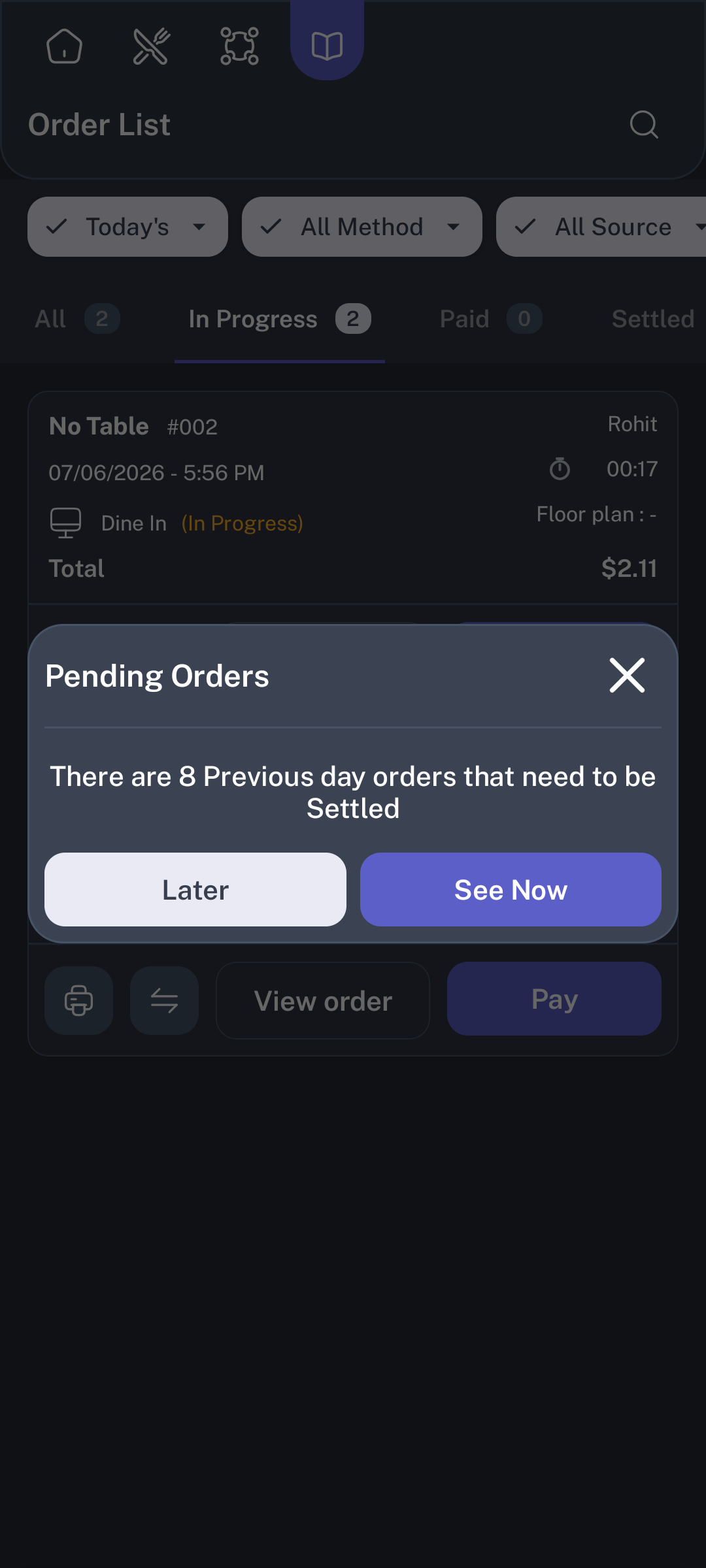
- Select Order List to review open, completed, held, or searchable orders.
-
Use the order list to find an existing order and reopen it when allowed.
Use for This Shift
- Use Use for this shift when one POSHub action is the main screen you will use during the current shift.
- Turn on the switch under Quick Order, Table Service, or Order List. POSHub saves that action for the signed-in staff member and current shift.
- The next time POSHub opens during that shift, it opens the selected action automatically instead of stopping on POSHub Home.
- Only one primary action can be selected at a time. Turning on a different action replaces the previous shift quick option.
- Turn the selected switch off when you want POSHub to open normally again.
- If POSHub shows You cannot use this feature because you have not clocked in, clock in first and try again.
More Actions
-
From the menu screen, tap the More icon in the top bar to open Order Actions.
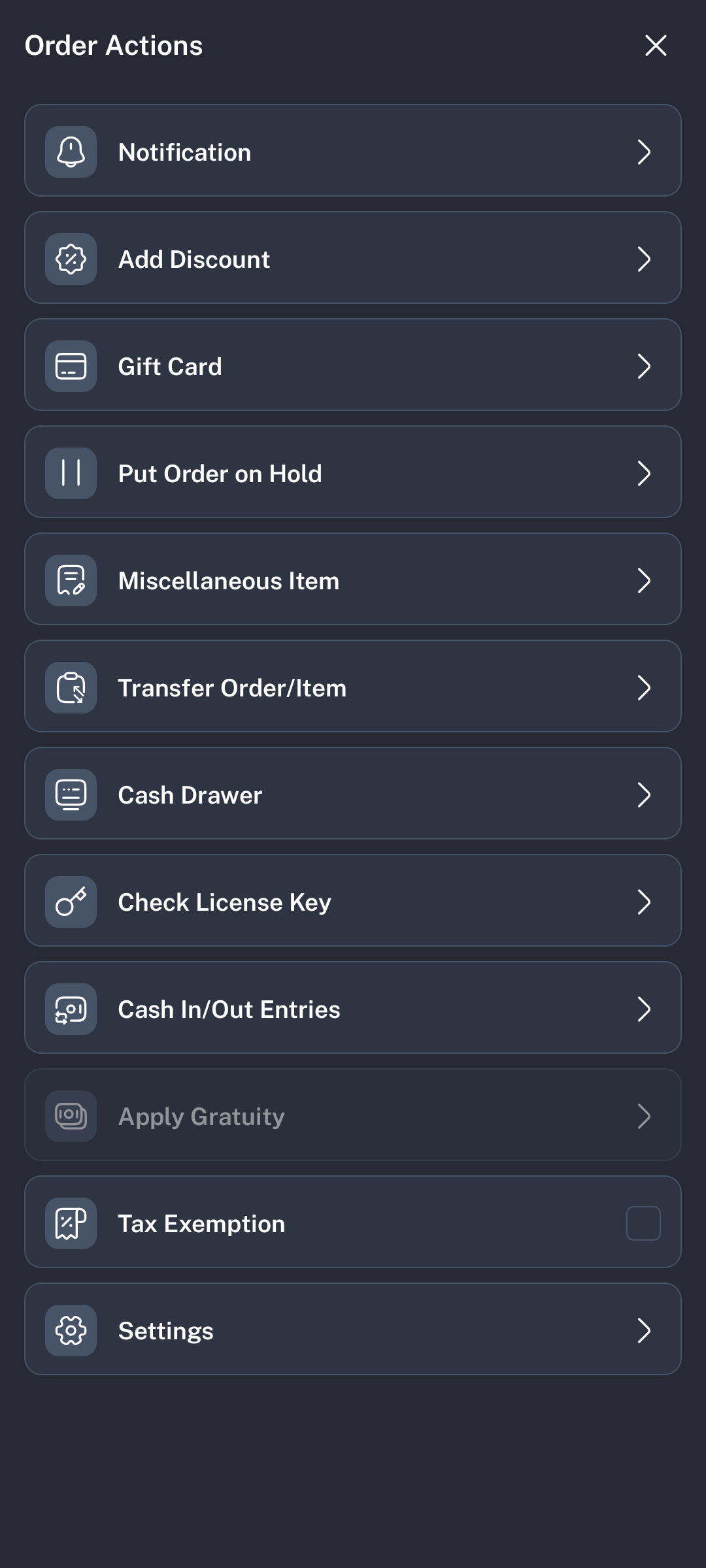
- Tap the action you need, such as Notification, Add Discount, Gift Card, Put Order on Hold, Miscellaneous Item, Transfer Order/Item, Cash Drawer, Cash In/Out Entries, Tax Exemption, or Settings.
- Disabled actions, such as gratuity when it is not available for the current order, appear dimmed.
-
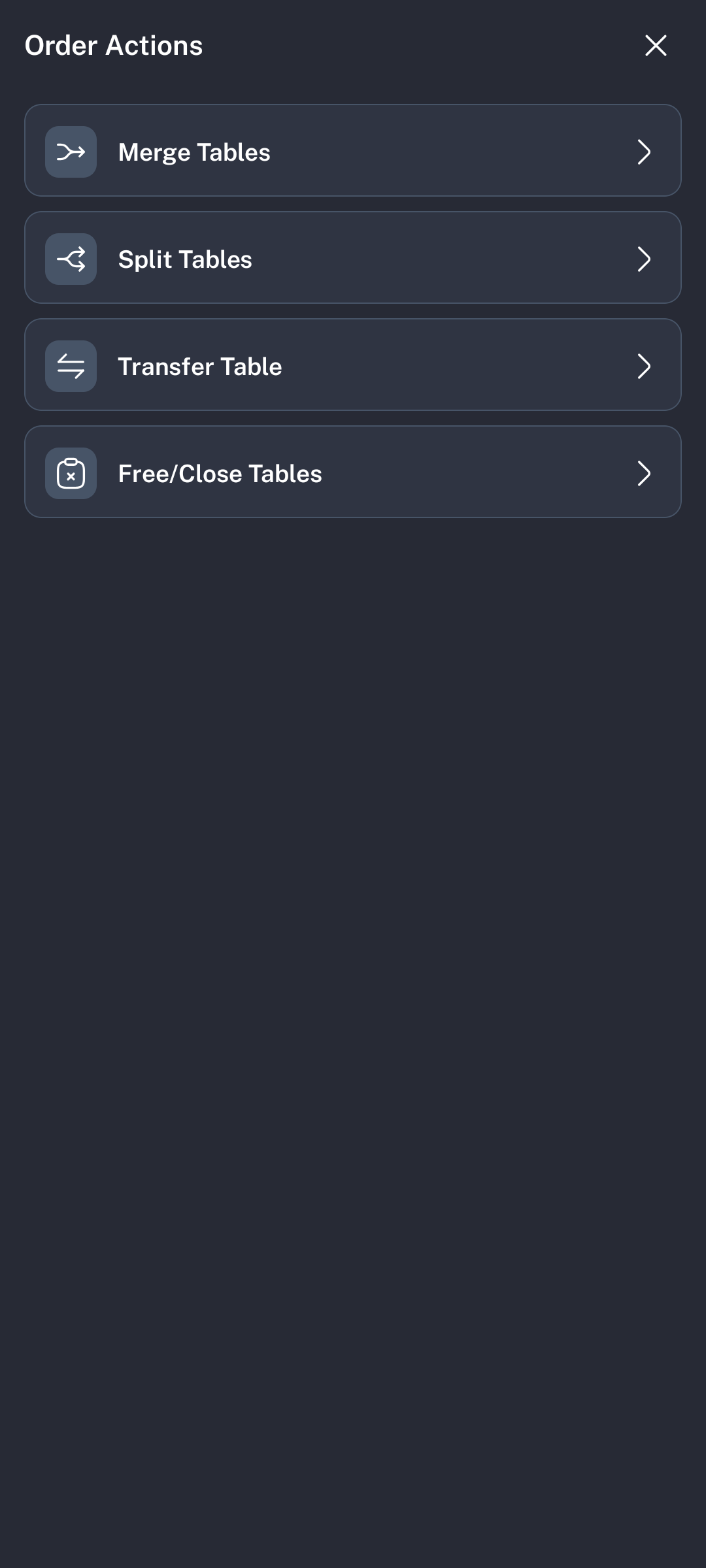
From the floor plan screen, tap the More icon to open table order actions such as Merge Tables, Split Tables, Transfer Table, and Free/Close Tables.
Search Orders
-
From Order List, tap the search icon in the top bar.
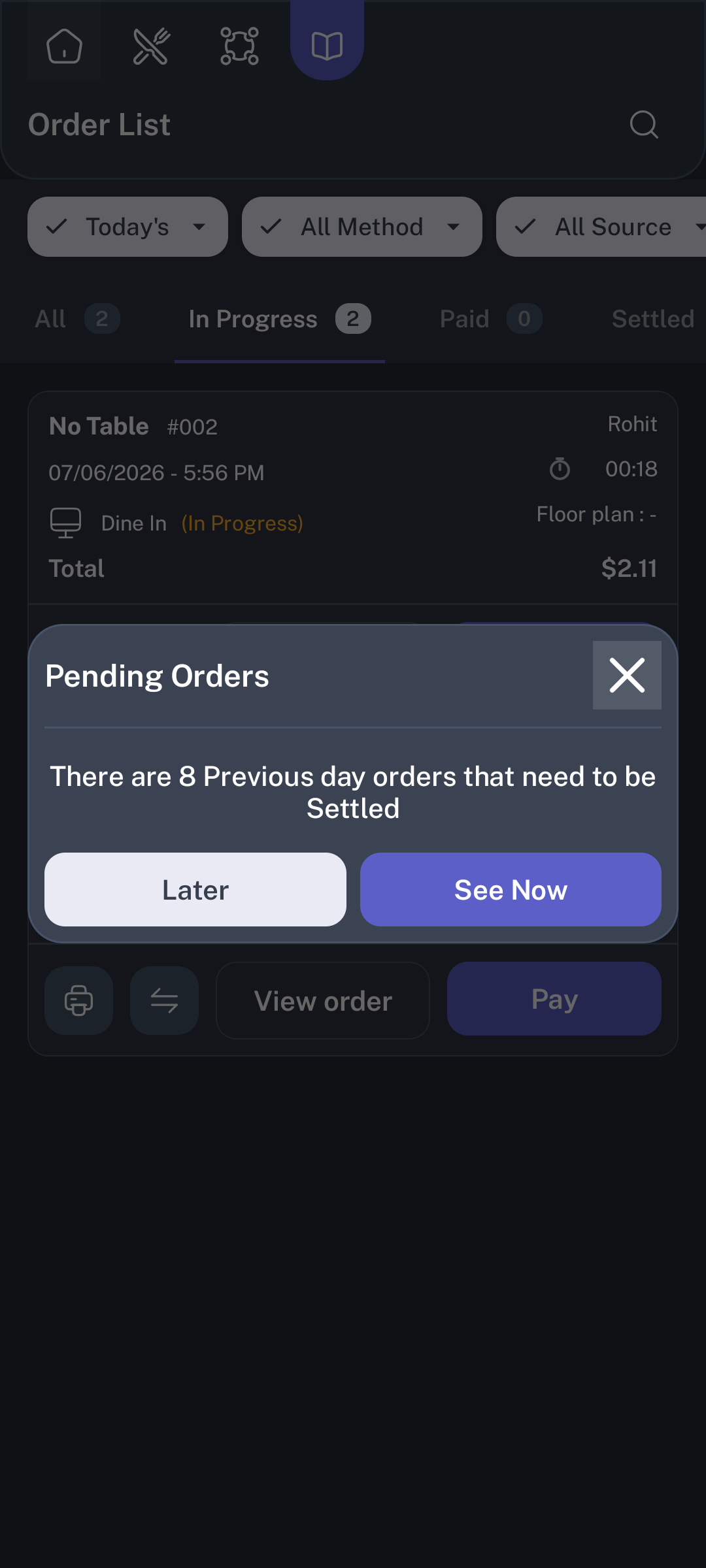
- Enter an order number, name, or other searchable order text.
- Tap the close icon to clear search and return to the normal order list.
Manager Activities
-
Scroll down on POSHub Home to view Manager Activities.
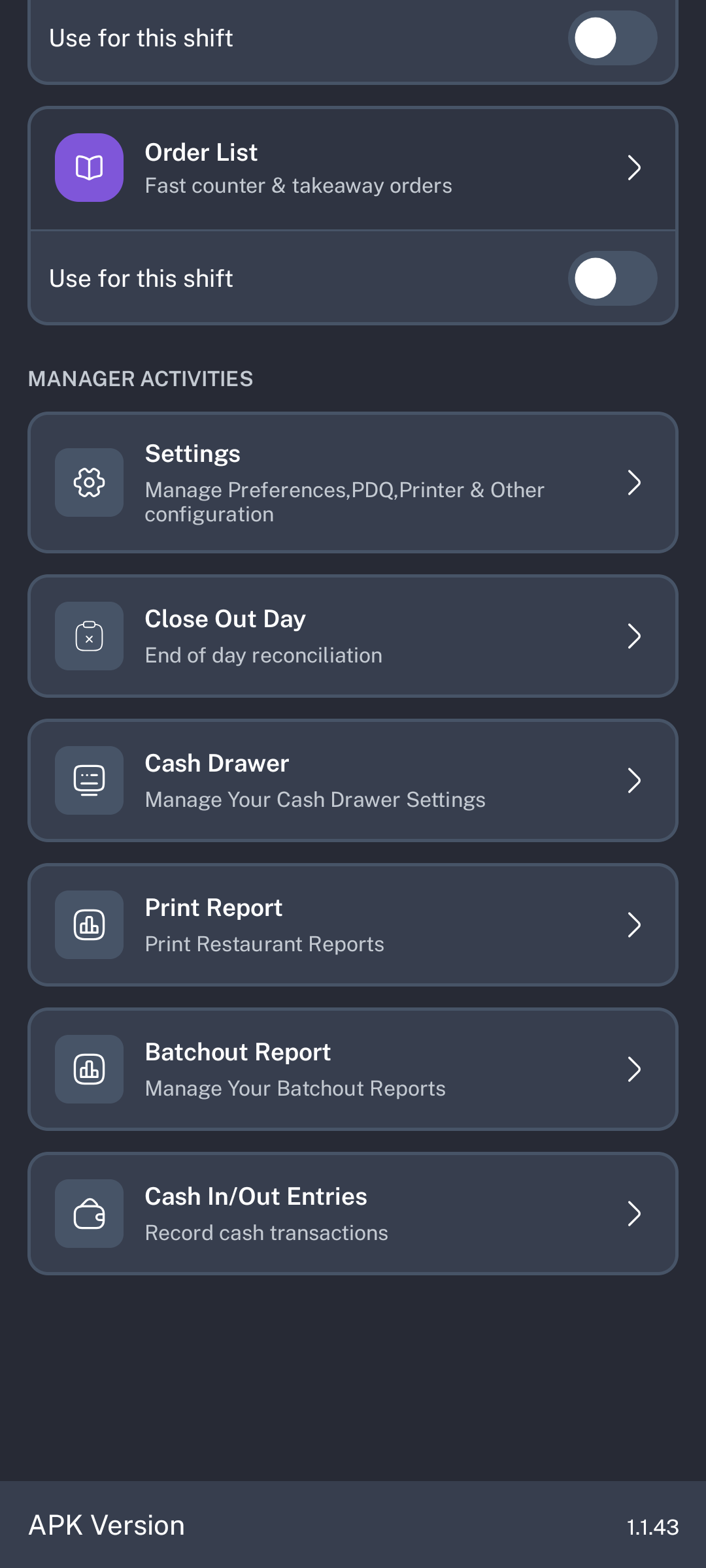
- Tap Settings to manage preferences, PDQ, printer, and other configuration.
- Tap Close Out Day for end-of-day reconciliation.
- Tap Cash Drawer to open or manage configured drawers when your role has permission.
- Tap Reports, Batch Out Reports, or Cash In/Out Entries for manager review and cash movement tasks.
Expected Result
POSHub opens the selected mobile fragment, keeps the top navigation available for Home, Menu, Floor Plan, and Order List, and shows only the actions available for the current screen and staff permissions.
Common Mistakes
- Quick option does not save: Confirm the staff member is clocked in.
- More actions are missing: Confirm you are on the correct screen. Menu actions and table actions are different.
- An action is dimmed: The current order or role does not allow that action yet.
- Manager activity does not open: Ask a manager to confirm your role permissions and device setup.
Common Questions
- Which action should I use for a new walk-in order? Use Quick Order.
- Which action should I use for dine-in table service? Use Table Service.
- Where do I find held or previous orders? Use Order List and search when needed.
- Can I change my shift quick option? Yes. Turn on Use for this shift under another primary action.
Notes
Screenshots were captured from the Medium Phone emulator on July 6, 2026. Visible staff names, totals, and order data are examples from the connected test environment.