How to Use Offers on an Order
Purpose
Use this tutorial when a cashier or server needs to apply an available discount or combo offer to an active order, review the offers already applied, or remove an offer before checkout.
Before You Start
- Open an existing order or create a new order from the Menu screen.
- Add the required menu items to the order before applying an item-based or combo offer.
- Confirm the order is still editable and has not already moved too far into payment.
- If the POS shows a combo offer selection panel, apply or skip that combo offer before checkout, sending to kitchen, adding seats, or editing cart items.
Steps to Apply an Offer
-
Open the active order on the Menu screen.
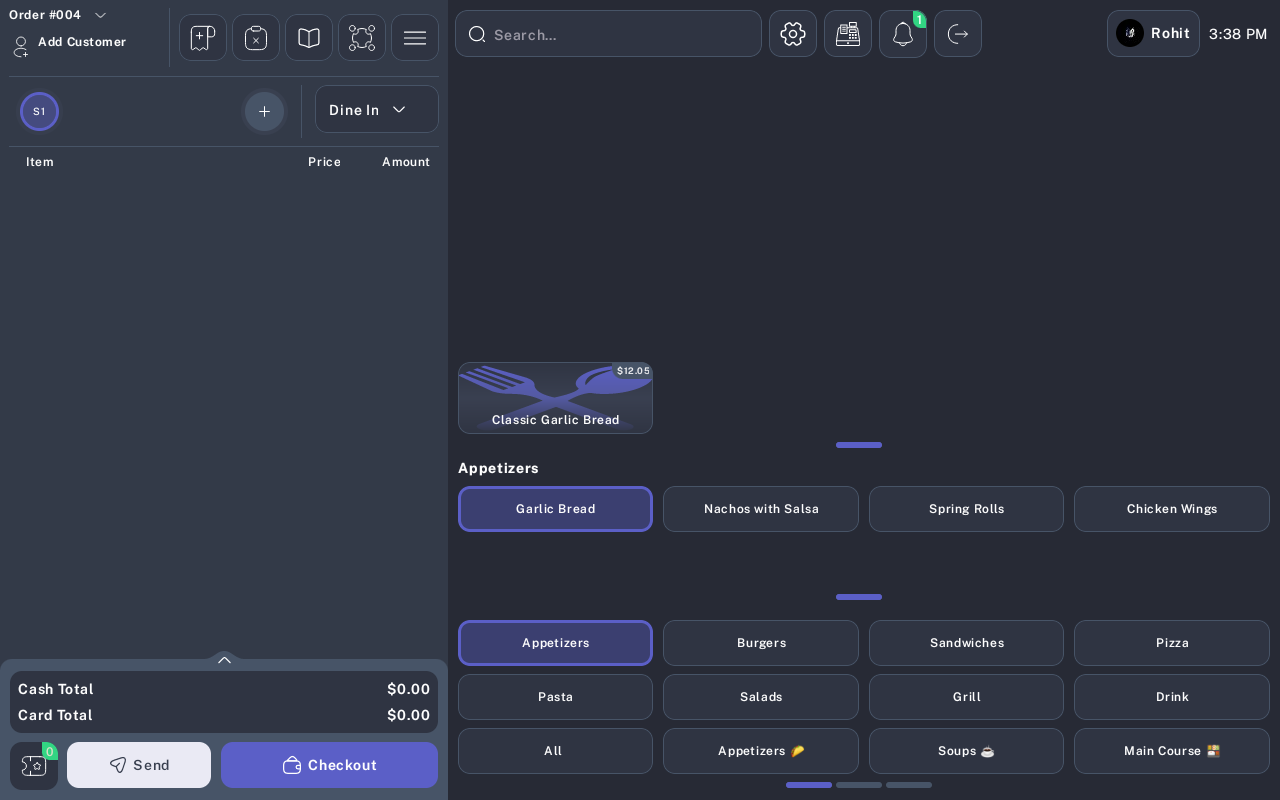
- Tap the offer icon in the order area. The badge on the icon shows the number of selected or applied offers.
- On Discount and Combo Offers, review the offer type tabs: Combo Offer, Discount, Spend $X, Save $Y, and Spend $X, Get Y Free.
- Select the tab that matches the offer you want to use.
- Review the offer name and description.
- Optional: Tap More Details to view the buy/get items or discount details before applying.
- Tap Apply on the offer.
- Wait for the POS to return to the Menu screen.
- Review the order total and confirm the discount amount appears in the total section.
- Confirm the offer badge count increased.
Steps to Review Applied Offers
- Open the active order on the Menu screen.
- Tap the offer icon.
- In Discount and Combo Offers, review the Applied Offers panel.
- If no offers are applied, the POS shows No data and Currently, the order does not include any offers.
- Close the offer screen to return to the order.
Steps to Remove an Offer
- Open the active order on the Menu screen.
- Tap the offer icon.
- In Applied Offers, find the offer that should be removed.
- Tap Remove.
- When Remove Applied Offer? appears, review the warning message.
- Tap Done to remove the offer, or tap Cancel to keep it.
- Return to the Menu screen.
- Review the order total and confirm the offer discount was removed or recalculated.
- Confirm the offer badge count decreased. If all offers were removed, the badge should show 0.
Expected Result
The selected offer is applied to the order only when the order qualifies for it. The order total updates with the offer discount, and applied offers are visible in Applied Offers. Removing an offer recalculates the order and removes any included discount or free item from that offer.
Common Questions
- Can I apply an offer before adding items? Usually no. Item and spend-based offers need the qualifying items or order amount before the POS can apply them.
- Can more than one offer be applied to the same order? Only when the POS allows it. Some offers are single-offer only and show an error if another offer is already applied.
- Can I view offer details before applying? Yes. Tap More Details on the offer card.
- What happens when I remove a combo or free-item offer? The POS removes the offer effect from the order. The removal dialog warns which discount or included item will no longer be included.
- Can I continue checkout while a combo offer prompt is open? No. Apply or skip the combo offer first.
Notes
- The offer icon is shown as an icon button on the Menu screen. Verify the exact position with QA for each tablet or mobile layout used by the restaurant.
- Offer names, requirements, and availability depend on restaurant setup.
- Assumption: staff have permission to edit the active order before payment is completed.