How to Use the Customer Screen for Gift Cards
Purpose
Use this guide when the Gift Card screen asks for Customer Information. The buyer must be selected from the customer screen before the gift card can be saved.
Before You Start
- Open the Gift Card screen from the order workflow.
- Gift card functionality must be enabled for the location.
- Use a training account when practicing so real customer records are not changed.
Select an Existing Customer
-
On the Gift Card screen, review the Customer Information section.
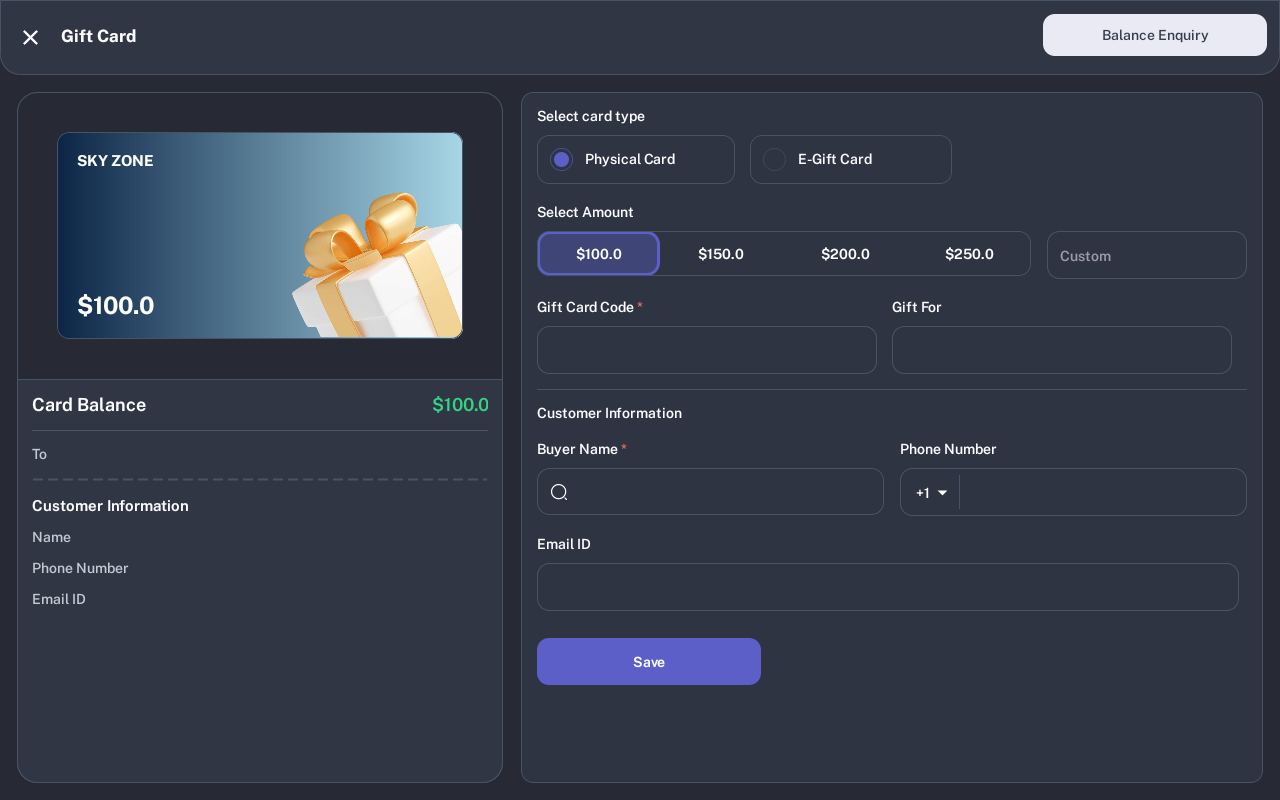
- Tap the Buyer Name search field.
-
On the customer screen, use Search Customer to find an existing customer by name, phone, or email.
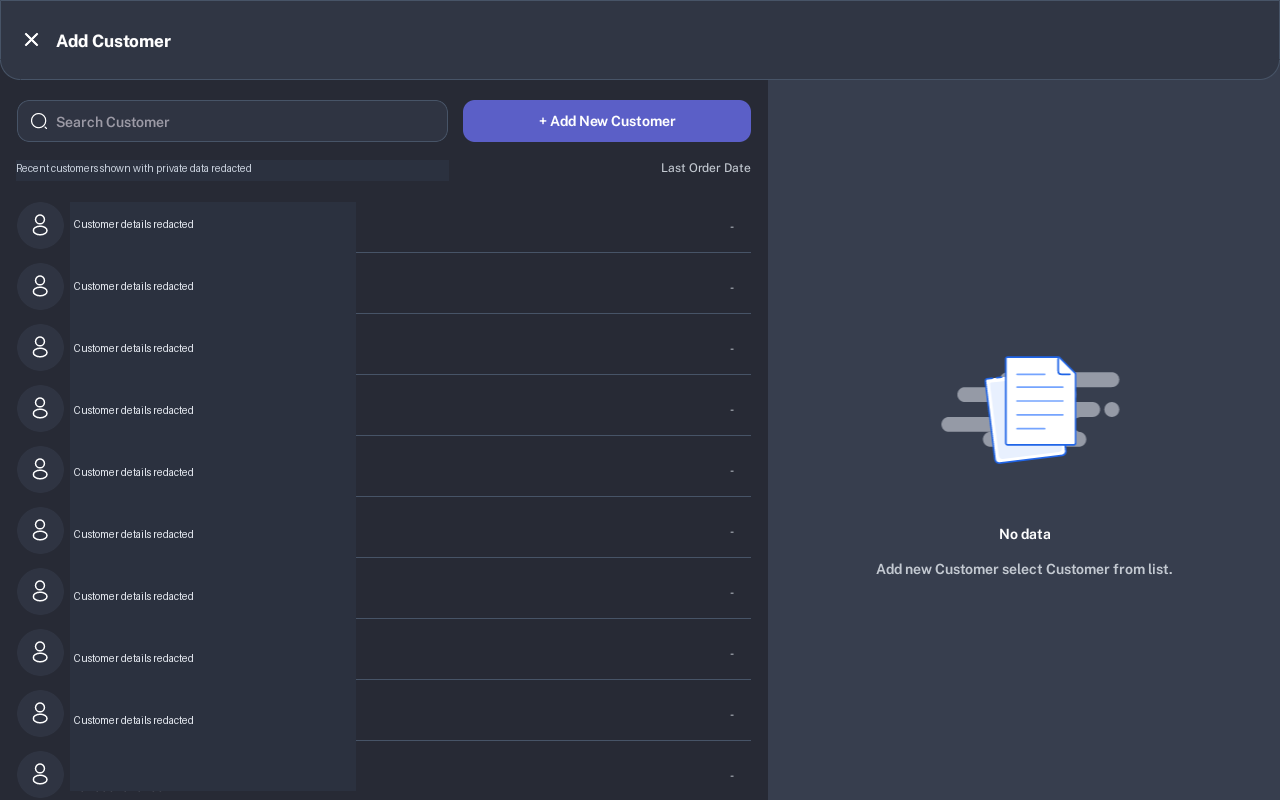
- Select the correct customer from the list. The POS returns to the gift card screen and fills Buyer Name, Phone Number, and Email Id when those details are saved on the customer record.
- Finish the gift card details, then tap Save.
Add a New Customer
- From the customer screen, tap + Add New Customer.
-
Enter the required Name and Phone Number.
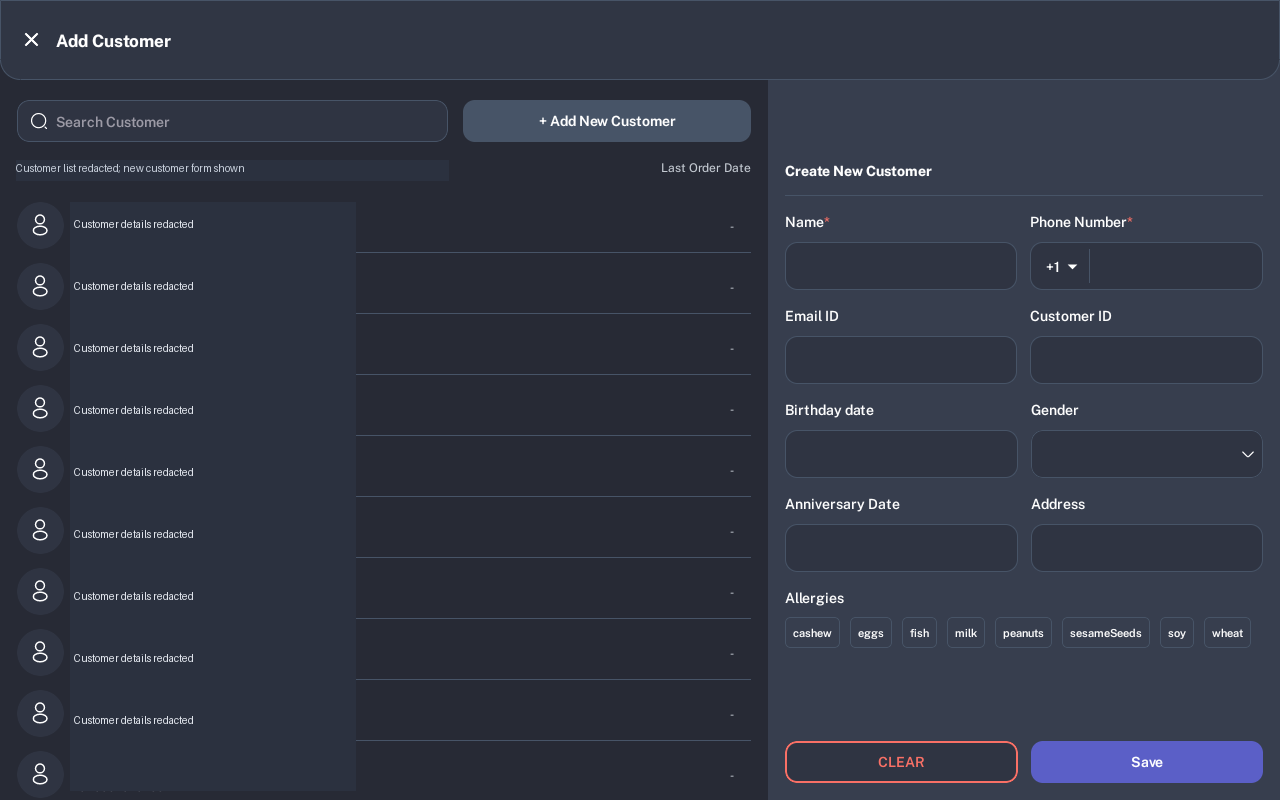
- Add optional details such as Email ID, Customer ID, birthday, gender, anniversary date, address, or allergies when they are useful for the restaurant.
- Tap Save. When this screen is opened from the gift card flow, the new customer is returned to the gift card screen.
Edit an Existing Customer
- Open the normal customer management screen from POSHub or the customer menu. The gift-card customer picker returns immediately when you tap an existing customer, so use customer management when you need to edit.
- Search for the customer and select the customer row.
- In the customer details panel, tap the edit icon.
- Update the customer fields, then tap Save.
- Return to the gift card flow and select the updated customer if the buyer is not already attached.
Expected Result
The selected buyer appears under Customer Information. The gift card can be saved only after a customer is selected.
Troubleshooting
- Please enter customer information!! Tap Buyer Name and select or add a customer before saving.
- The buyer details are wrong: Go back to the customer screen and select the correct customer. Use customer management to edit the stored phone or email if the customer profile is outdated.
- The customer does not appear in search: Check the spelling or phone number. If the customer is new, use the add-customer icon.
- Please enter valid phone: For an e-gift card, enter a valid recipient phone number or email in the gift card recipient fields before saving.
Common Questions
- Can I type the buyer name directly? No. Use Buyer Name to select or add a customer so the gift card is linked to a customer record.
- Is the buyer the same as the e-gift recipient? Not always. Customer Information is the buyer. For an e-gift card, enter the recipient phone or email in the recipient fields above it.
- Can I save without a phone or email on the buyer? The gift card requires a selected buyer. Recipient phone or email is required for e-gift delivery.
Assumptions to Verify
Customer screenshots were captured from an iMin D1 tablet and redacted because the device showed live customer names, emails, and phone numbers. The edit flow is based on the customer management activity; the gift-card customer picker only selects existing customers or adds a new one.