How to Use Cash In/Out
Purpose
Use Cash In/Out for cash movement that is not part of a normal customer payment, such as opening cash, extra change, paid-outs, or cash drops.
Before You Start
- Your role must have permission to access Cash In/Out and open the cash drawer if the drawer should open after saving.
- The cash drawer should be configured and linked to a printer when you expect the drawer to open automatically.
- Know why the money is moving so you can enter a clear Remark.
Steps
-
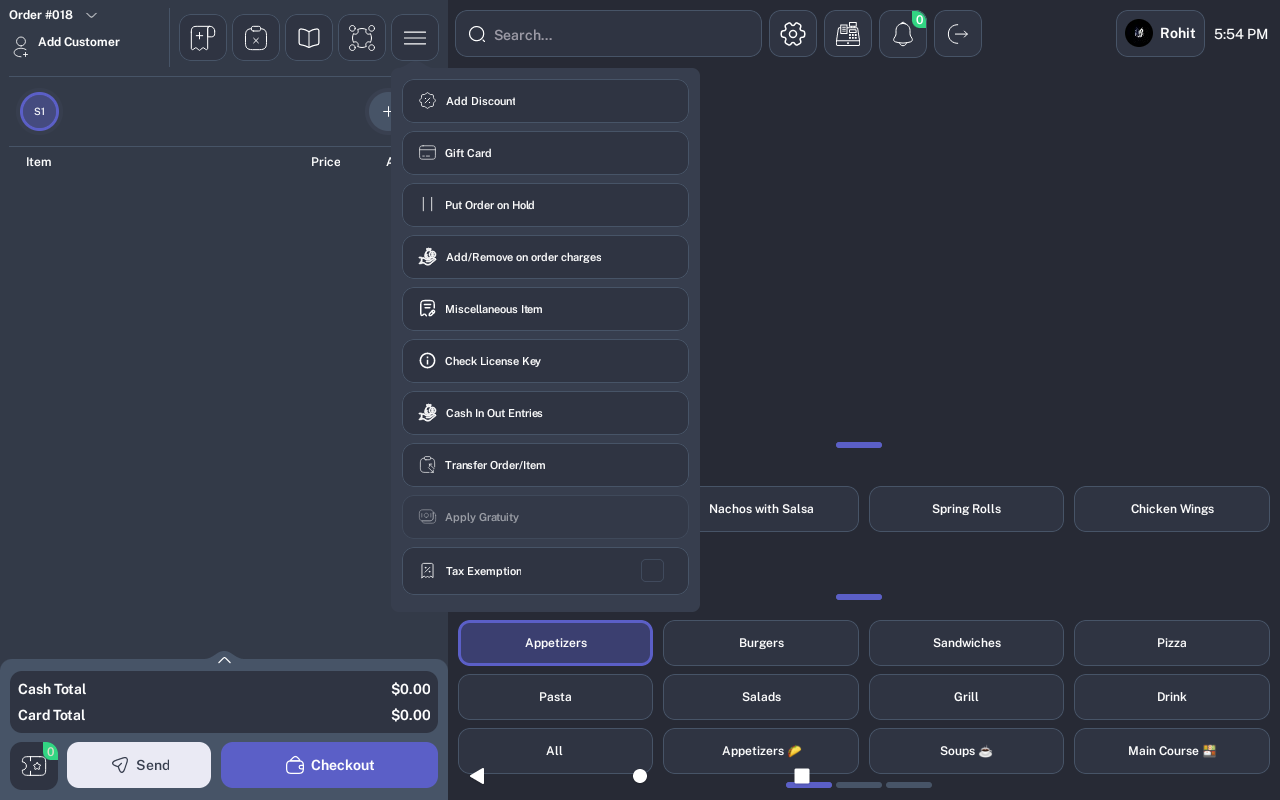
From the POS order screen, open the order actions menu and tap Cash In Out Entries.
-
On the Cash In/Cash Out screen, review the Cash Register Balance and Today's History.
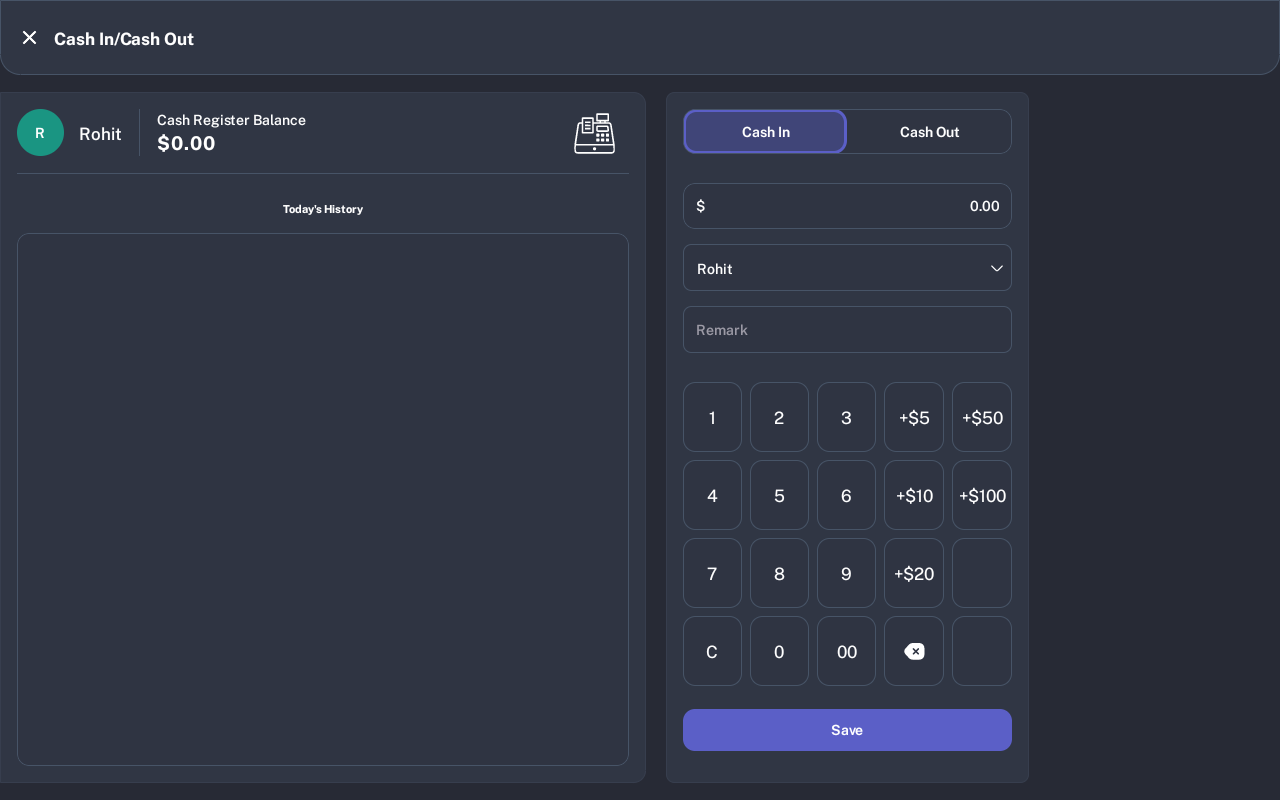
- Select Cash In when adding money to the drawer.
- Select Cash Out when removing money from the drawer.
- Enter the amount using the keypad or quick amount buttons.
- Confirm the staff member in the staff list.
- Enter a Remark, such as Opening cash, Cash drop, Paid out, or Extra change.
- Tap Save.
Expected Result
The entry is saved in Today's History. Cash In increases the cash register balance. Cash Out decreases it. If drawer access is allowed and a drawer is configured, the POS attempts to open the drawer after saving.
Cash Out Limit
If the Cash Out amount is greater than the current balance, the POS shows Cash-out amount should not be greater than Cash Register Balance. Enter a smaller amount or ask a manager to review the balance.
Common Questions
- Should I use Cash Out for customer change? No. Customer change belongs to the payment workflow.
- Can I save without a remark? No. The POS requires a remark.
- Can I record opening cash? Yes. Select Cash In, enter the amount, and use a remark such as Opening cash.
- Where can I see saved entries? Use Today's History on the Cash In/Cash Out screen.
Notes
Screenshots are reused from the cash drawer tutorial captured on an iMin D1. Labels may vary slightly by device size, but the Cash In/Out fields and Save flow are the same.