How to Use Batch Out
Purpose
Use Batch Out to send pending Dejavoo card transactions for settlement. Batch Out appears after manager closing when the restaurant has Dejavoo payment devices configured.
Before You Start
- Sign in with a manager profile and complete the restaurant closing steps.
- Clear open and paid orders before final close out.
- Confirm Dejavoo payment devices are configured for this restaurant. If no Dejavoo device is configured, the POS logs out after closing instead of opening Batch Out.
- Keep the payment terminals online until Batch Out finishes.
- Make sure a main printer is configured if you need to print the batch settlement report.
Steps
-
Start from manager closing
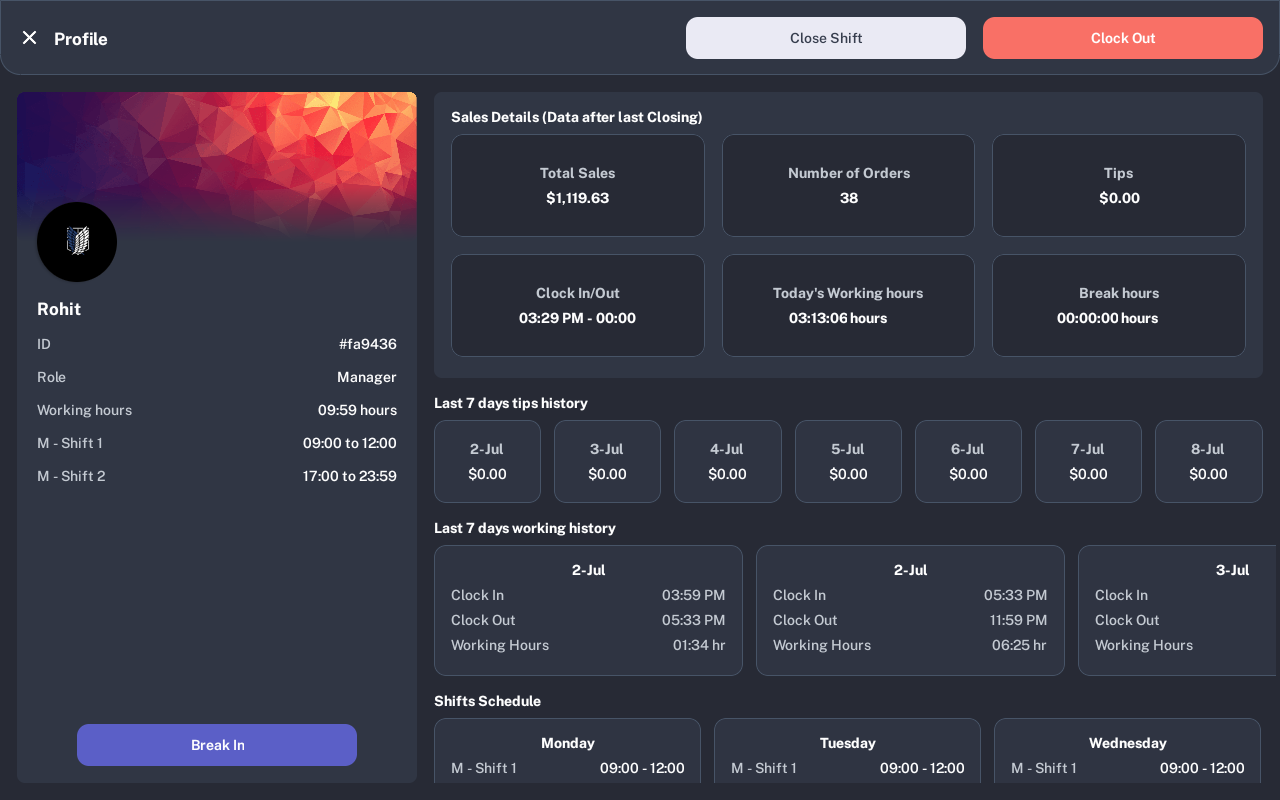
Open the manager Profile screen and tap Close Shift. Complete closing as usual.
-
Finish closing requirements
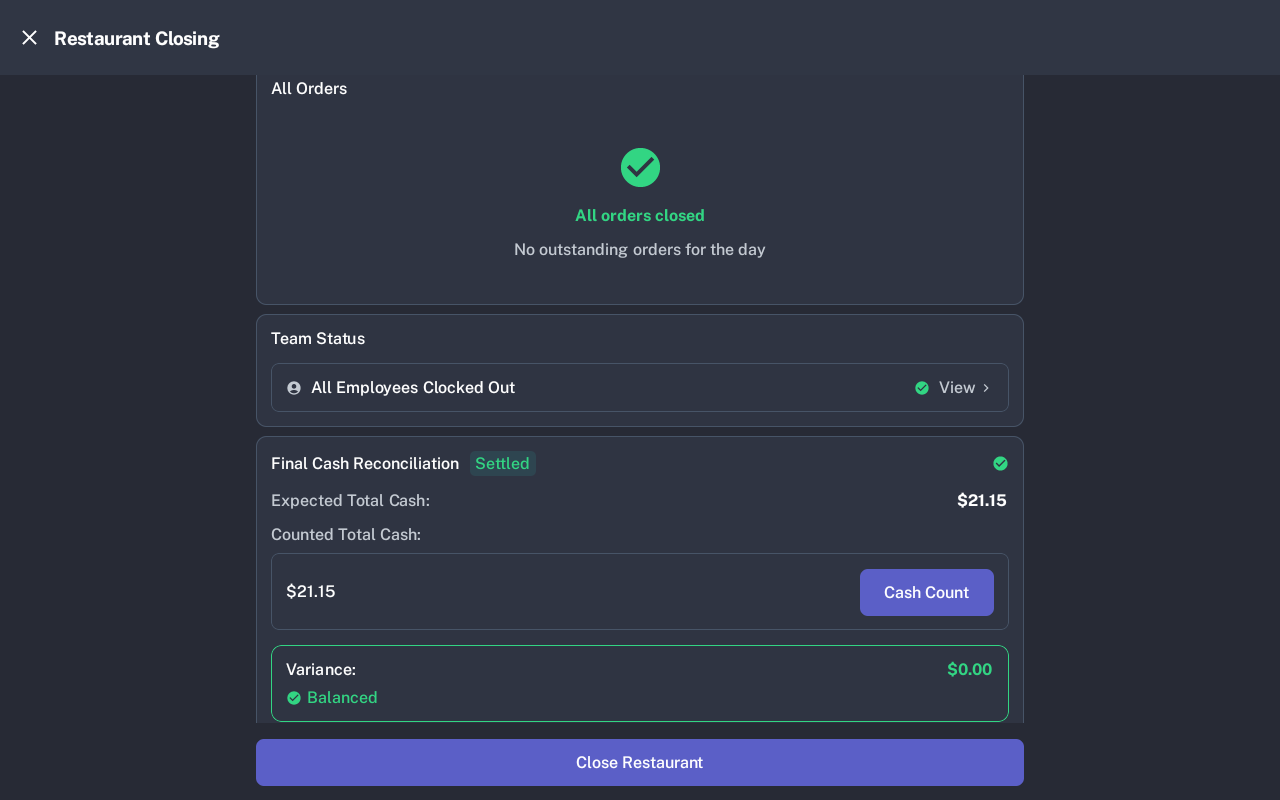
On Restaurant Closing, close remaining orders, confirm staff status, and enter the cash count. Batch Out should be used only after the shift is ready to close.
-
Open Batch Out
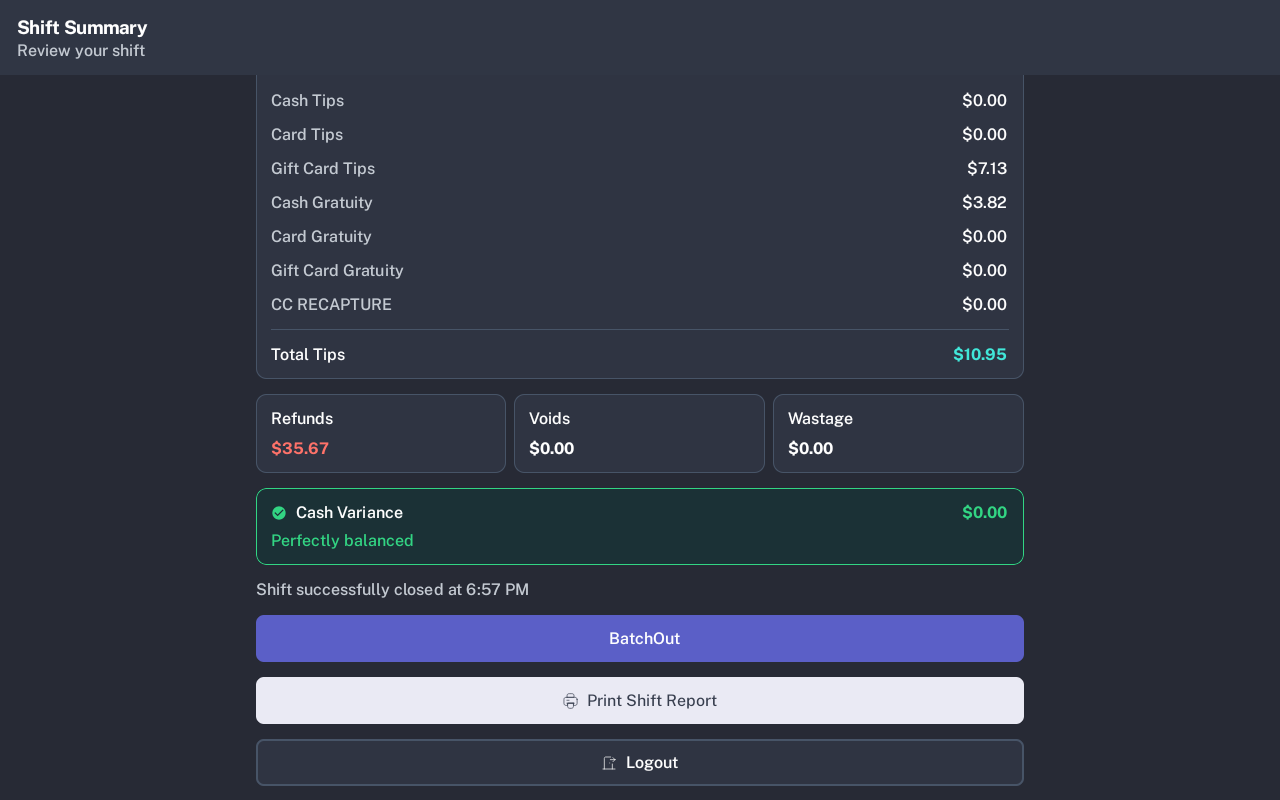
After closing, the Shift Summary screen shows BatchOut when Dejavoo devices are available. Tap BatchOut.
If the POS returns to login instead, there are no Dejavoo devices available for Batch Out on this terminal or restaurant setup.
-
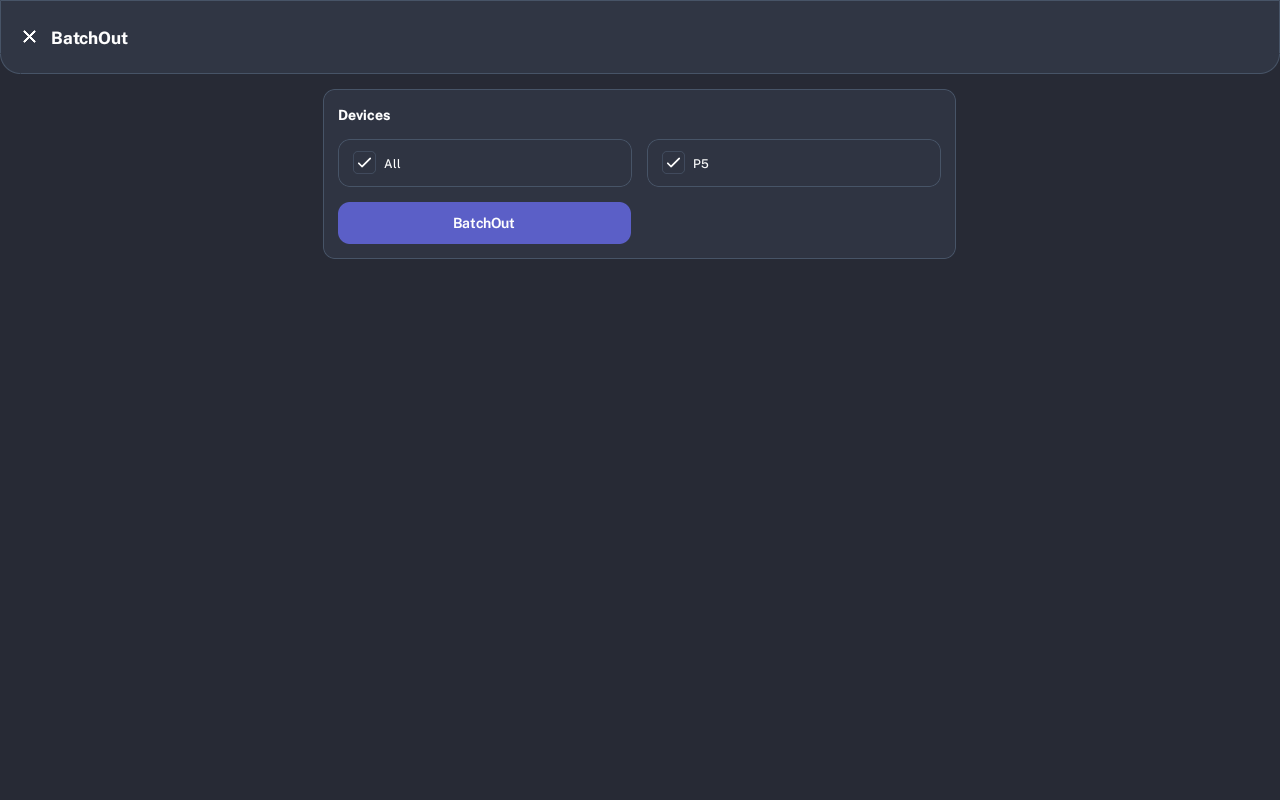
Select devices
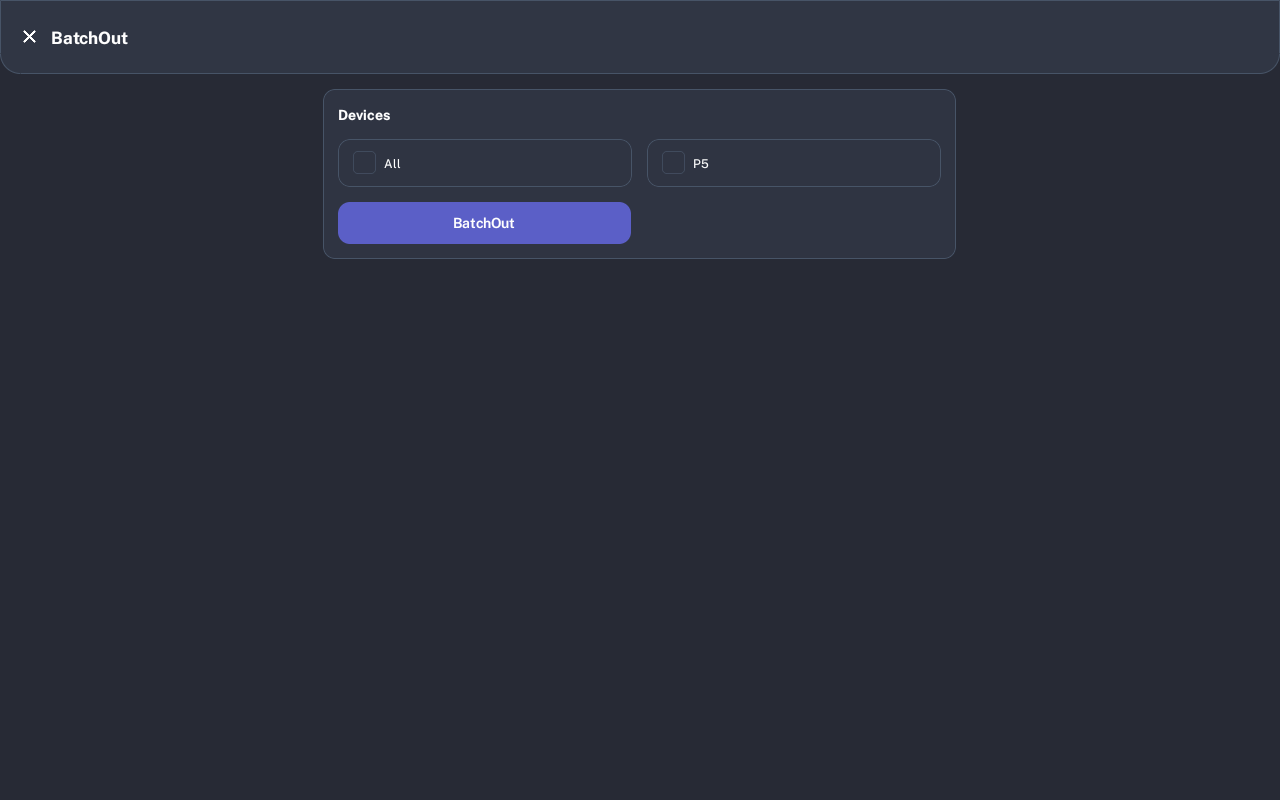
On the Devices list, select each TPN that needs settlement. Select at least one real TPN, then tap BatchOut.
If you tap BatchOut without a device, the POS shows AtLeast one TPN should be selected. Select a device and try again.
-
Wait for transactions
The POS opens Fetch Payments and shows Fetching transactions.... Do not close the screen while the POS retrieves card transactions from the selected terminals.
-
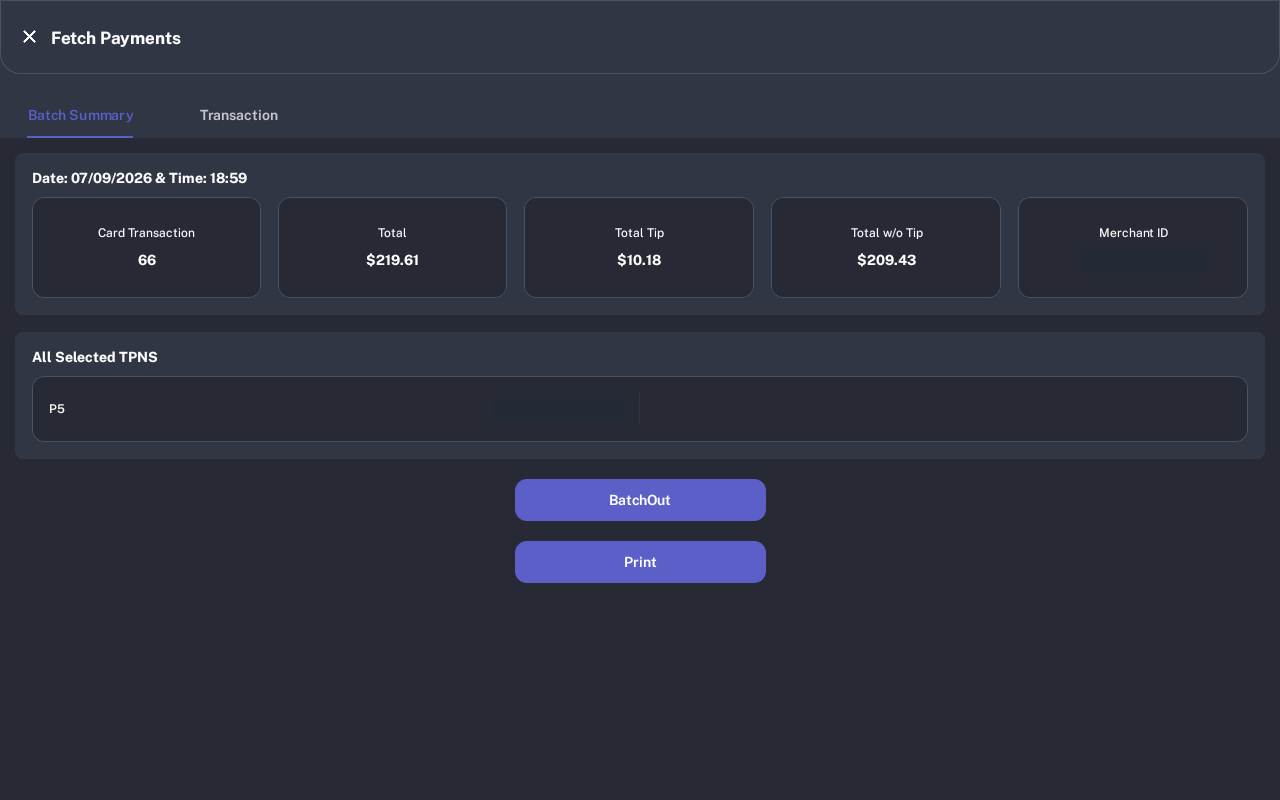
Review Batch Summary
On the Batch Summary tab, review Card Transaction, Total, Total Tip, Total w/o Tip, Merchant ID, and All Selected TPNS.
If totals are zero, the BatchOut and Print actions are hidden because there is nothing to settle.
-
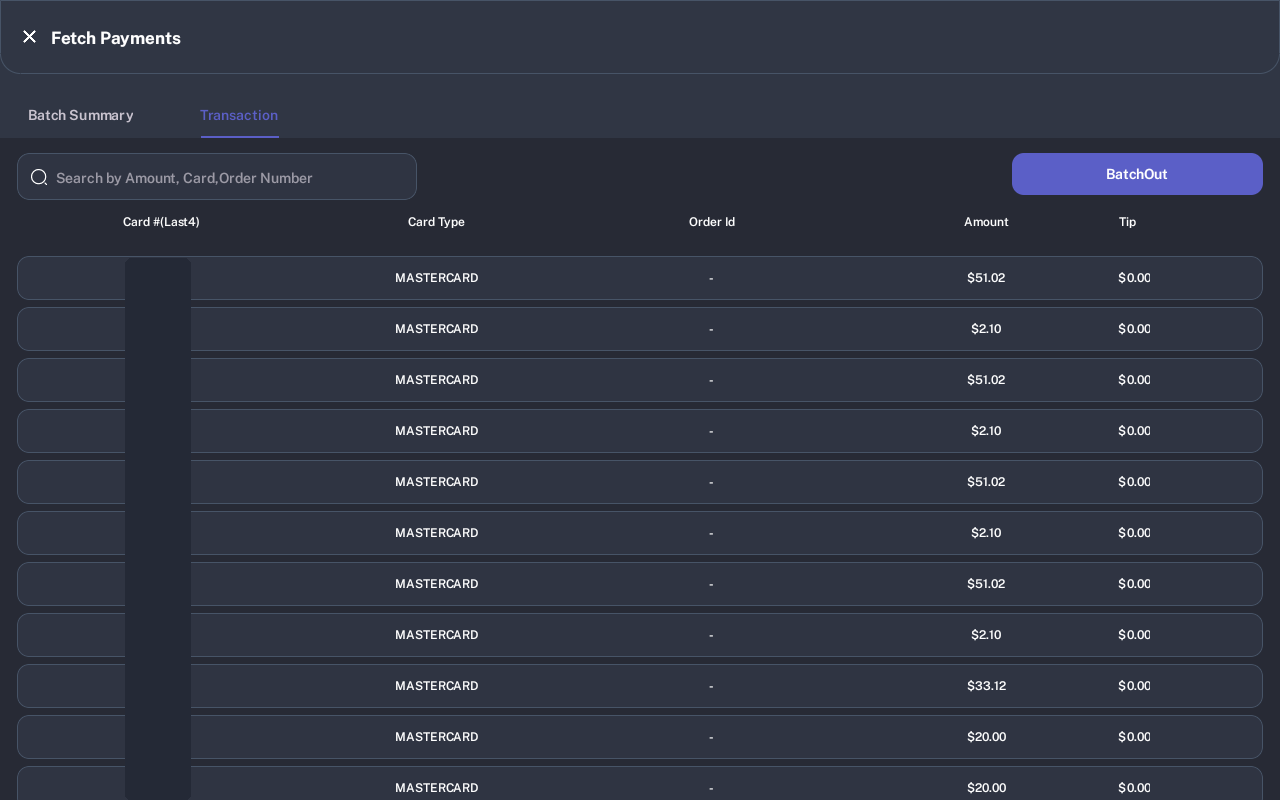
Review transactions
Open the Transaction tab to review individual payments. Use Search by Amount, Card,Order Number to find a payment by amount, masked card number, or order number.
-
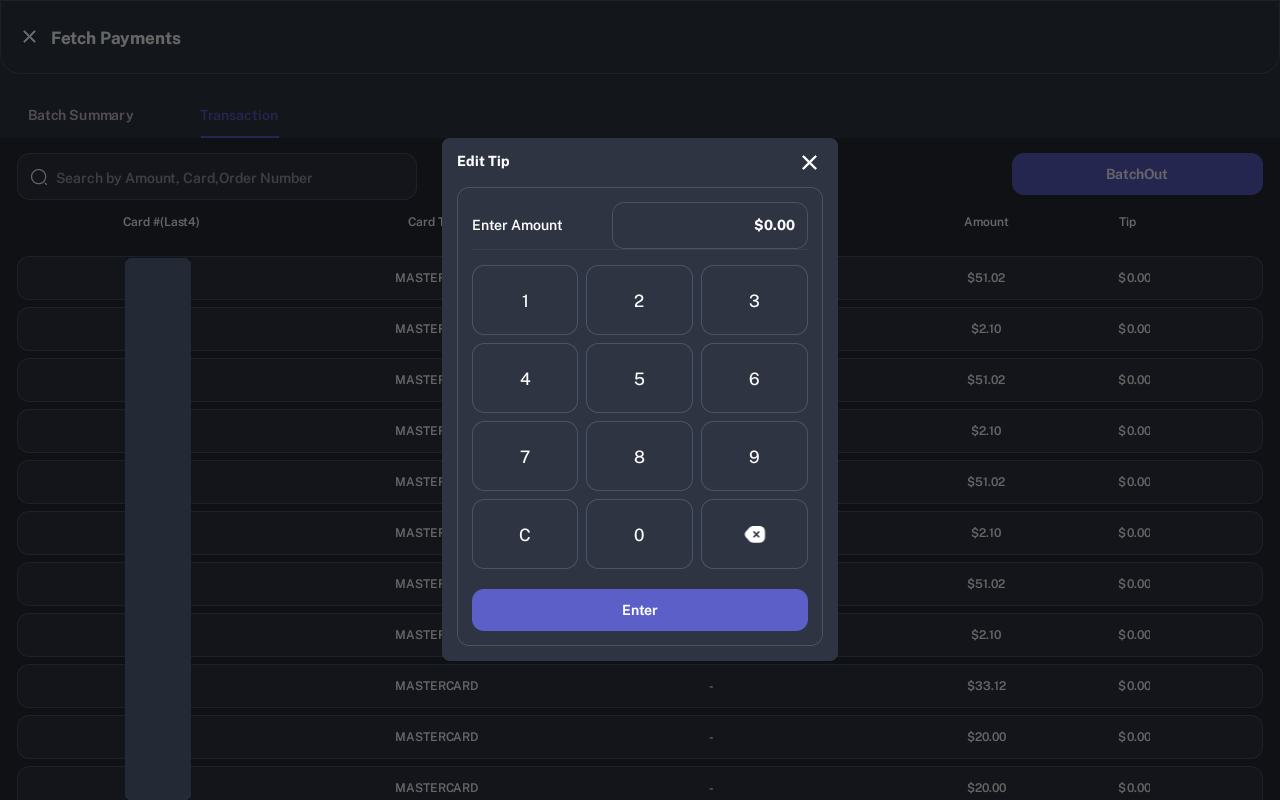
Edit a tip only when needed
In the transaction list, tap the tip amount to open Edit Tip. Enter the correct amount and tap Enter.
If the POS says Edit tip is not allow in Tip in Transactions, that transaction cannot be edited from Batch Out.
-
Print the report if needed
On Batch Summary, tap Print to print the settlement report before settling. If the POS says No Main Printer Found, configure a main printer and print again.
-
Settle the batch
Tap BatchOut. The POS shows BatchOut is in process, please do not close this screen. Keep the app open until the process finishes.
-
Confirm the result
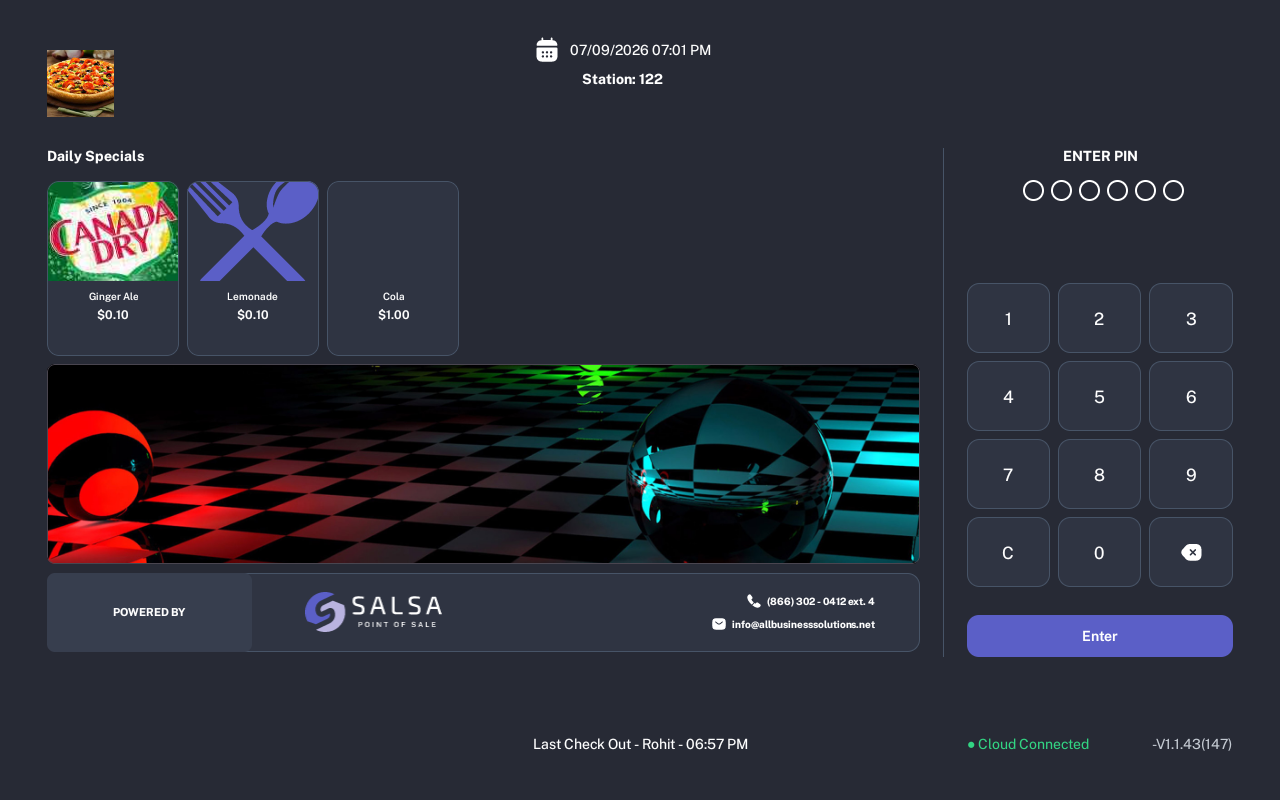
When settlement succeeds, the POS shows Batch Settled Successfully and returns to login or PIN entry. If a device fails, the POS shows which device and TPN failed; unselect that device and run Batch Out again for the remaining devices.
-
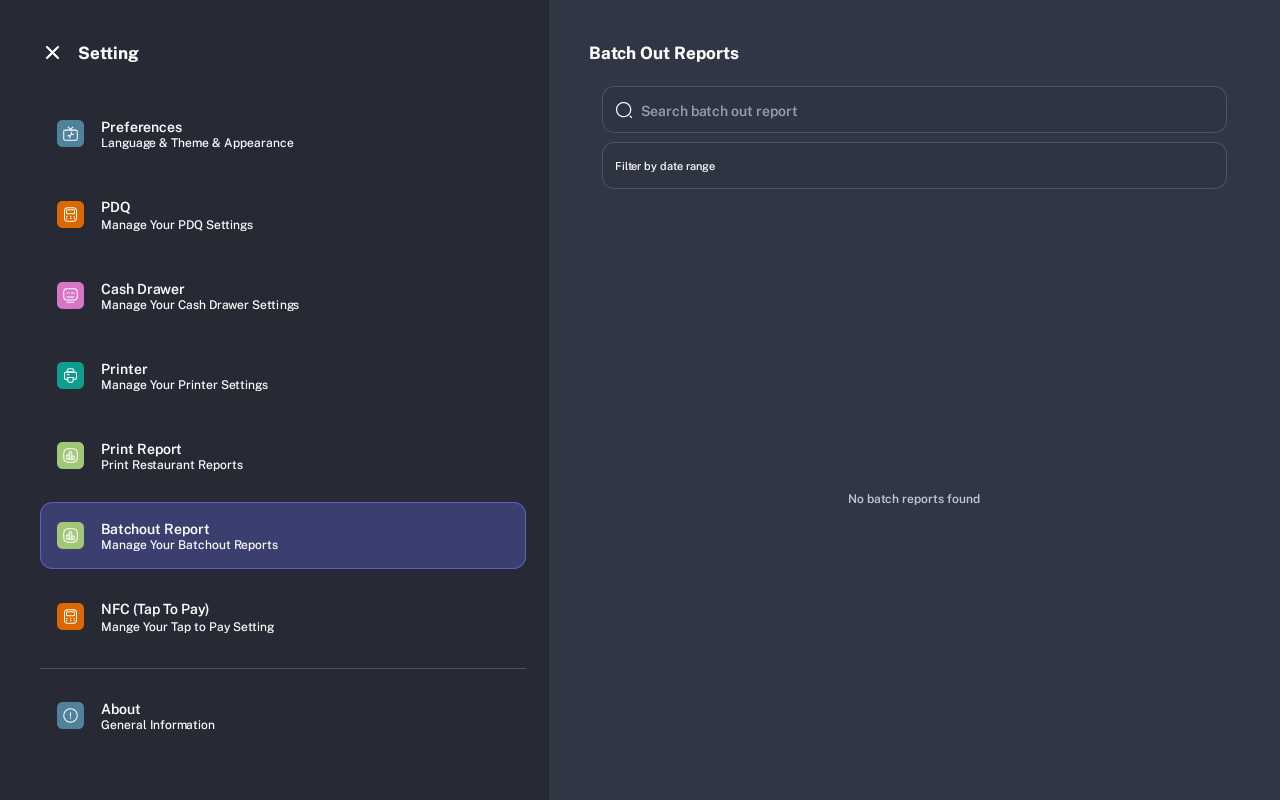
Find a previous Batch Out report
Open Settings, select Batchout Report, then search by report number or use Filter by date range.
Expected Result
Pending card transactions for the selected TPNs are settled, the batch settlement report can be printed, and the POS returns to login after success.
Troubleshooting
- No TPN Found: No batch-out payment devices are available. Confirm Dejavoo device setup in Settings or contact support.
- All transactions are already settled: There are no pending transactions for the selected TPNs. Tap OK Close.
- No settlement transactions found: The selected devices returned no transactions for settlement. Confirm the correct TPNs were selected.
- Session could not be verified: Log in again and retry Batch Out. If it repeats, contact support.
- BatchOut failed for a device: Unselect the named device and TPN, then run Batch Out again for the other devices. Check the failed terminal separately.
- No Main Printer Found: Configure or reconnect the main printer before printing a settlement report.
Common Questions
- Can I skip Batch Out? Follow your manager policy. If pending Dejavoo transactions exist, Batch Out is the settlement step after closing.
- Can I settle one terminal at a time? Yes. Select only the TPNs you want to settle.
- Where do I reprint a report later? Open Settings and select Batchout Report.
- Should I close the screen while Batch Out is running? No. Keep the screen open until success or an error appears.
Notes
Screenshots were captured from the connected iMin D1 during a real BatchOut flow. Payment identifiers that appeared in the Batch Summary and Transaction screenshots were redacted for the user manual.