How to Split Payment by Seat or Item
Purpose
Use Split by Seat when each seat should pay its own balance. Use Split by Items when guests want to choose specific items for each payment tab.
Before You Start
- The order must already have items and be open on the payment screen.
- Use Split by Seat only after items are assigned to the correct seats.
- Use Split by Items when item selection matters more than seat assignment.
- Use Card only when the payment terminal is connected and setup is complete.
Steps
-
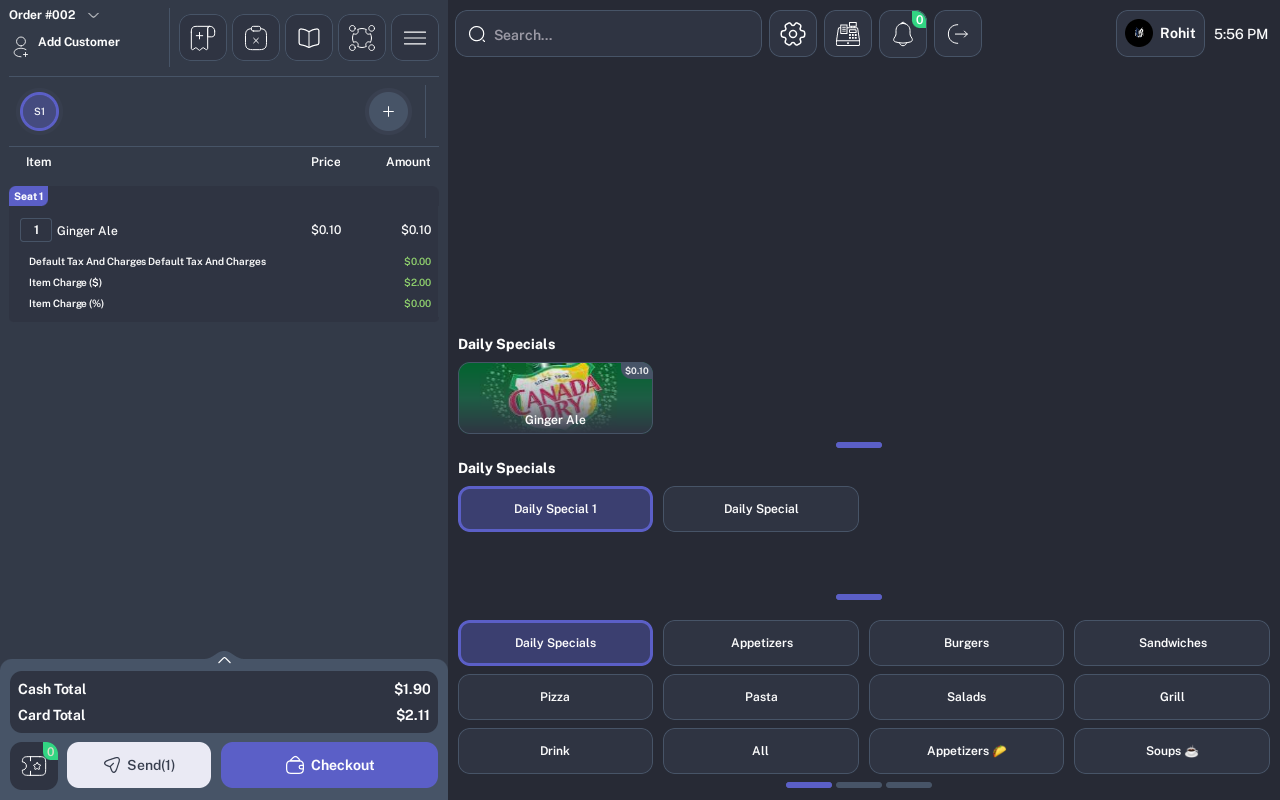
Open the active order and confirm the correct items are on the ticket.
-
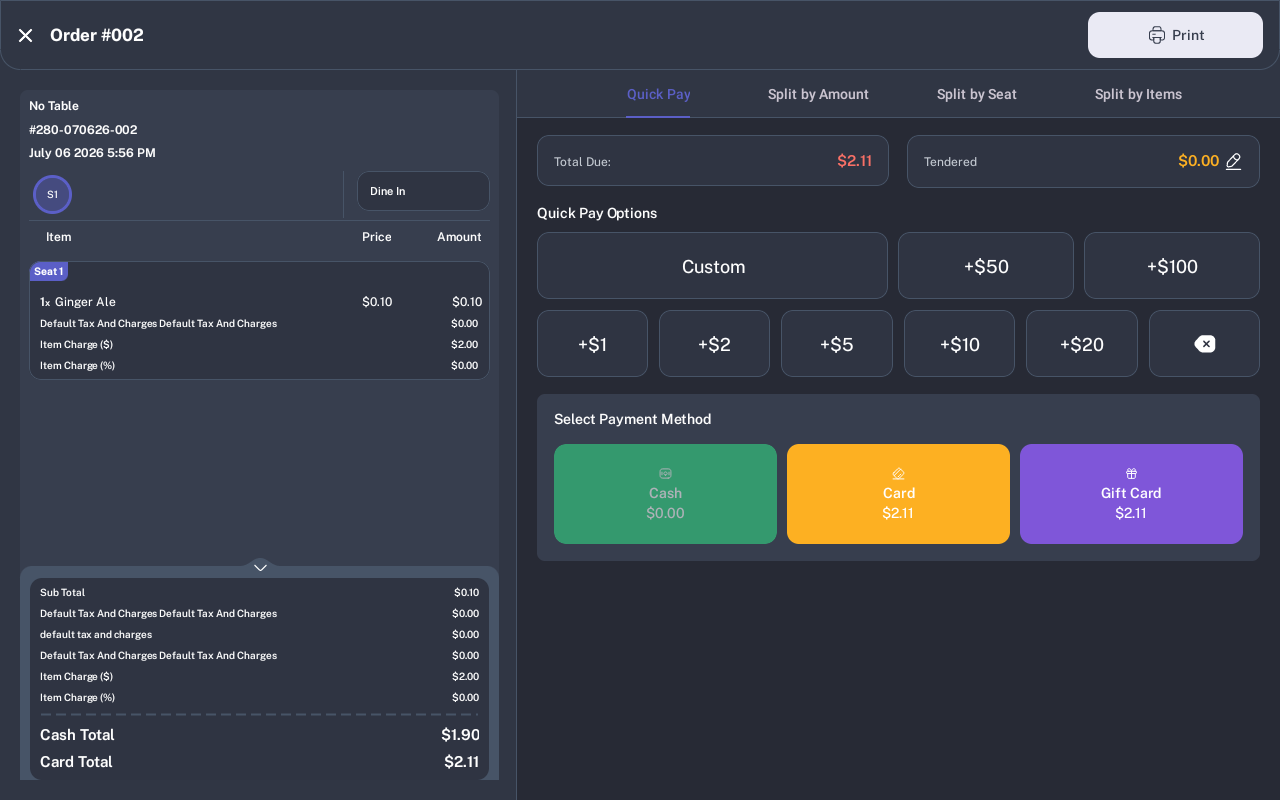
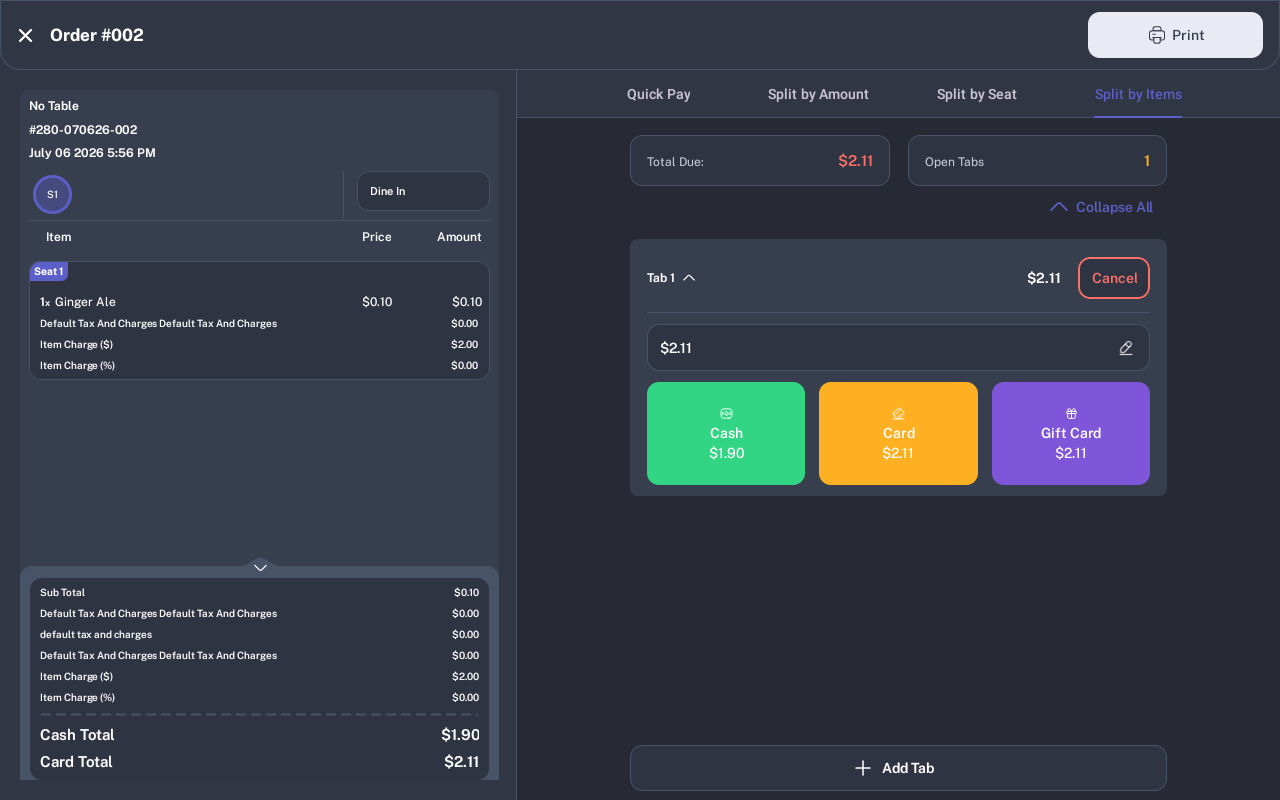
Tap Checkout. The payment screen opens with the order summary on the left and payment tabs on the right.
-
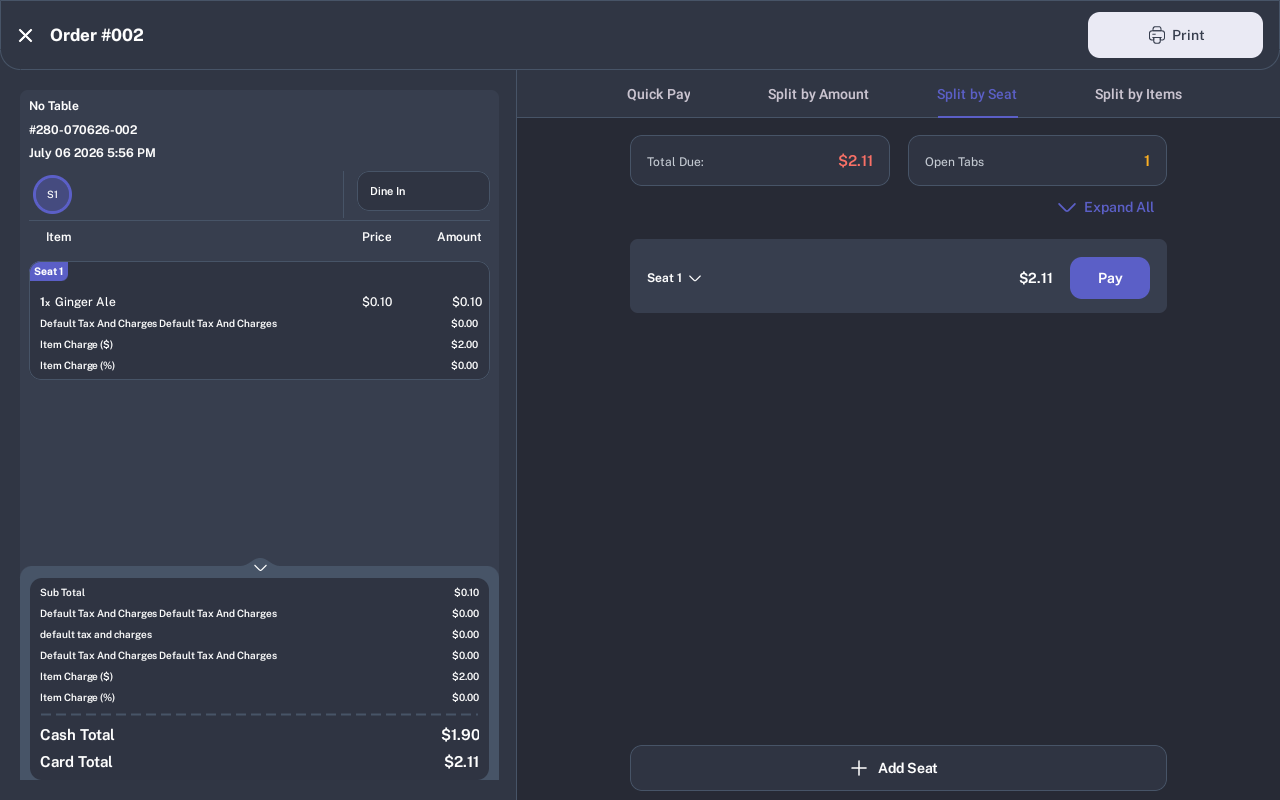
To split by guest seat, tap Split by Seat. Review each seat, the seat total, and the Pay button. Use Add Seat only when another seat must be added before payment.
-
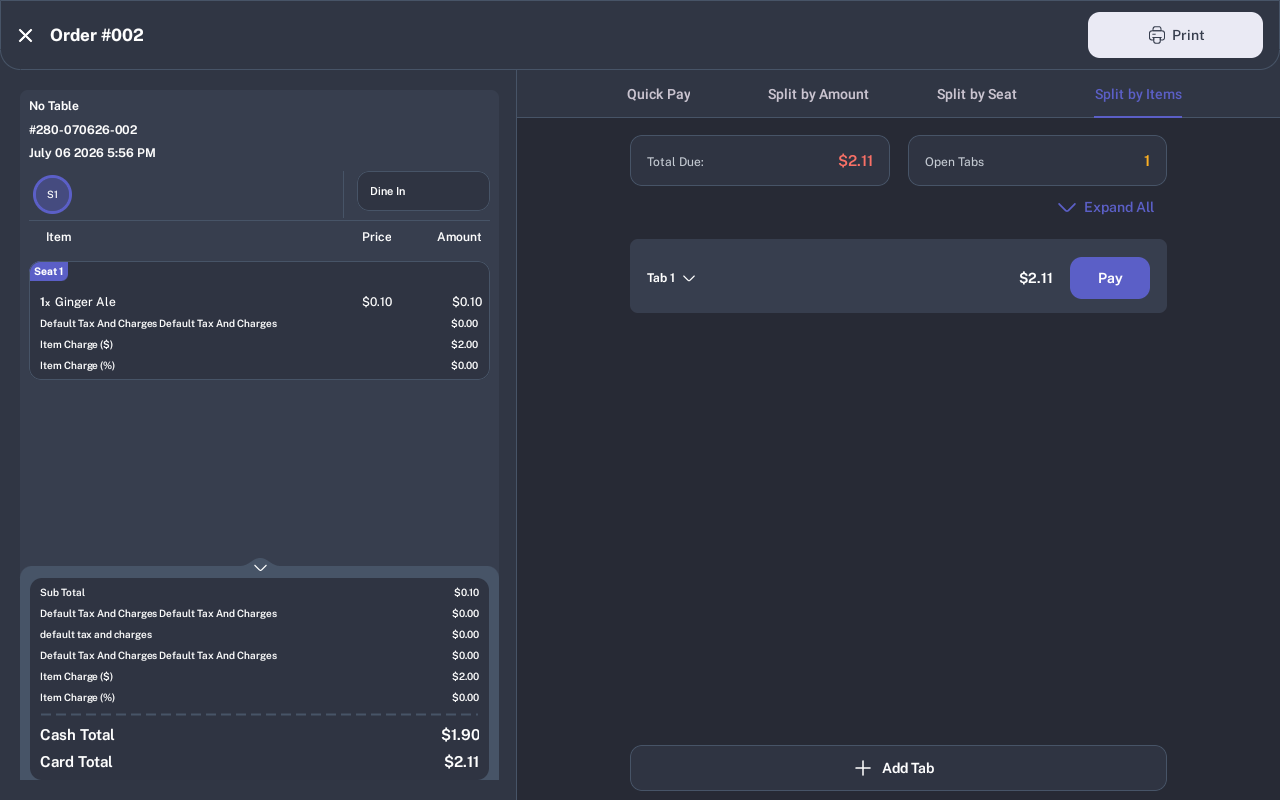
To split by individual items instead, tap Split by Items. Review each tab and use Add Tab when another item group needs a separate payment.
-
Tap Pay on the seat or item tab, confirm the payment amount, then choose Cash, Card, or Gift Card. Repeat until all open tabs are paid.
Expected Result
Each paid seat or item tab records its own payment. The Open Tabs count decreases as tabs are completed, and the order can be closed after all tabs are paid or settled.
Common Mistakes
- Using Split by Seat before assigning items: Return to the order and move items to the correct seats first.
- Using Split by Items for a quantity group: Itemize the order first if one line quantity needs to be separated into single items.
- Editing a paid tab: Paid or settled tabs cannot be changed. Follow the restaurant's manager workflow for refunds or corrections.
- Starting another payment while one is pending: Finish or resolve the pending transaction before continuing.
Common Questions
- Can one seat pay with more than one method? Yes. Tap the amount field, collect a partial payment, then repeat until the tab is fully paid.
- Can I print a guest copy? Yes. Use Print from the payment screen when a customer copy is needed.
- Can I switch between Split by Seat and Split by Items? Yes, before completing payment. Verify the open tabs after switching.
Assumptions to Verify
Screenshots were captured from a live iMin D1 demo order. Item names, charges, taxes, tender amounts, and terminal prompts may vary by restaurant setup.