How to Open and Manage Cash Drawers
Purpose
Use this tutorial when staff need to open a configured cash drawer, add starting cash, remove paid-out cash, or review the drawer's cash movement for the day.
Before You Start
- Your role must have cash drawer permission.
- The cash drawer must be configured and linked to a printer.
- The printer connected to the drawer must be online and able to receive open-drawer commands.
- Use Cash In/Cash Out when money is added to or removed from the drawer outside normal cash sales.
Open the Cash Drawer
-
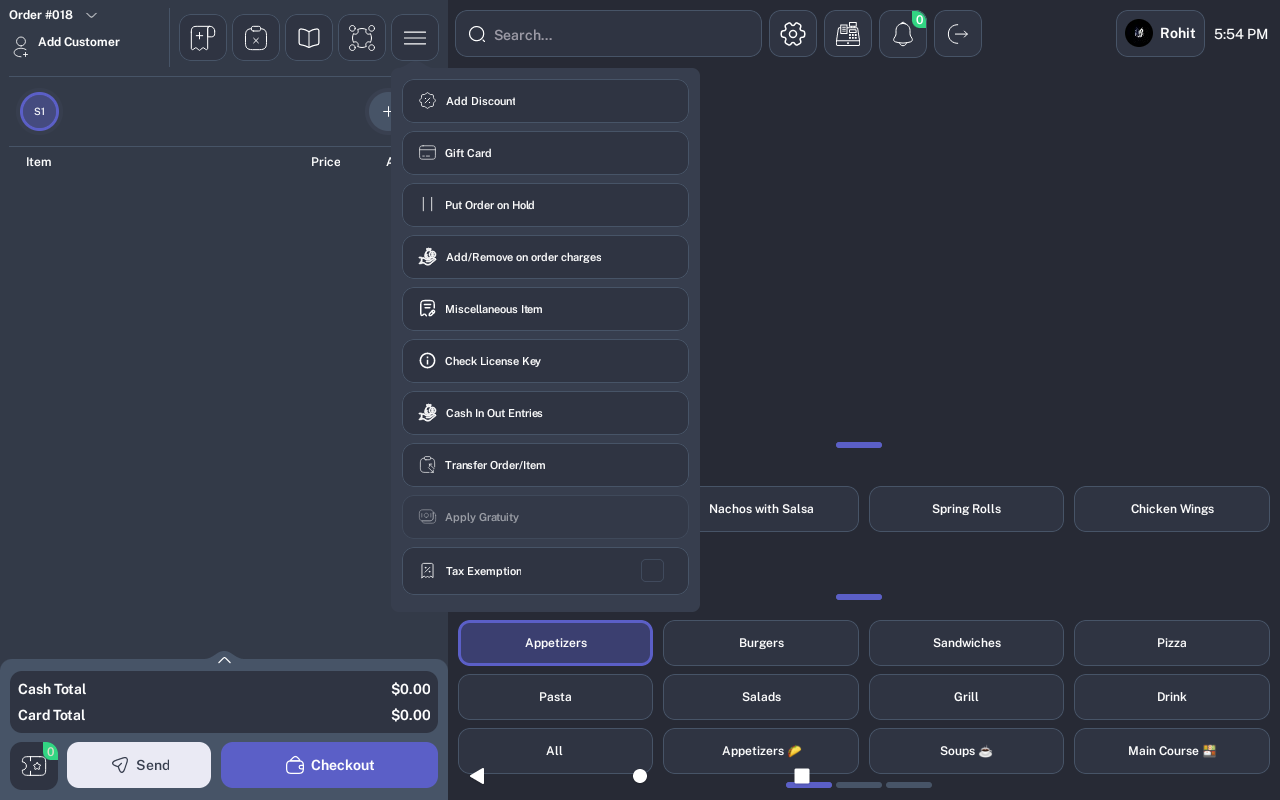
From the POS order screen, tap the cash drawer/register icon in the top bar.
- If more than one drawer is configured, select the correct Cash Drawer from the Select Cash Drawer to open window.
- Wait for the drawer to pop open or for the POS to show a printer or drawer status message.
Record Cash In or Cash Out
-
Open the order actions menu and select Cash In Out Entries.
-
On the Cash In/Cash Out screen, review the Cash Register Balance and Today's History.
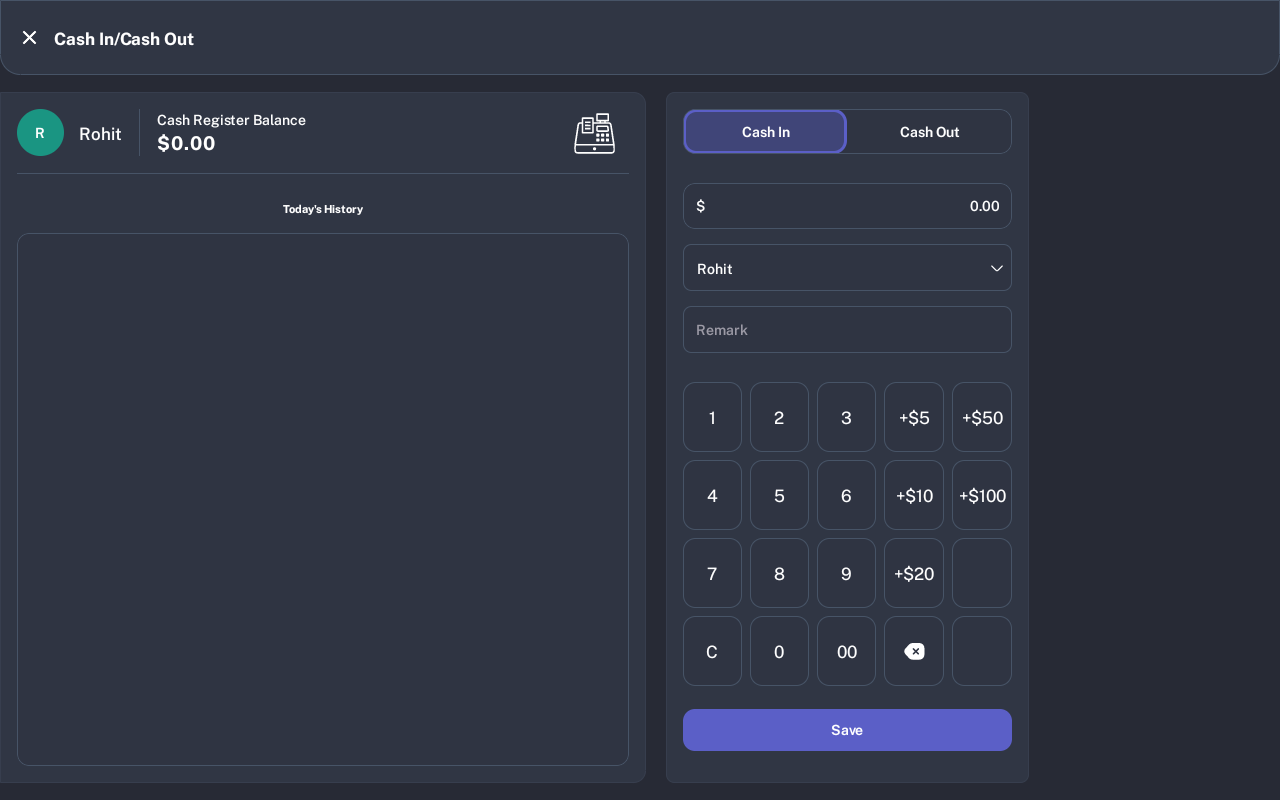
- Select Cash In when adding money to the drawer, such as a starting bank or extra change.
- Select Cash Out when removing money from the drawer, such as a paid-out or cash drop.
- Enter the amount with the keypad or quick amount buttons.
- Confirm the staff member is correct.
- Enter a clear Remark, such as Opening cash, Cash drop, or Paid out.
- Tap Save. If your role can open the drawer, the POS attempts to open the drawer after saving.
Expected Result
The drawer opens when the configured printer and drawer are available. Cash In/Cash Out entries appear in Today's History and update the Cash Register Balance.
Cash Out Limit
If the cash-out amount is greater than the current cash register balance, the POS shows Cash-out amount should not be greater than Cash Register Balance. Enter a smaller amount or confirm the balance before saving.
Common Questions
- Should I use Cash Out for customer change? No. Customer change is part of the payment workflow. Use Cash Out for non-sale removals such as drops or paid-outs.
- Can I open the drawer without recording cash movement? Yes, use the cash drawer/register icon when only the physical drawer needs to open.
- Can I record opening cash? Yes, use Cash In, enter the amount, and use a remark such as Opening cash.
- Can I save without a remark? Add a remark whenever cash is moved so managers can audit the drawer later.
Notes
Screenshots were captured from a connected iMin D1 on July 2, 2026. The manual assumes the drawer is already configured in SalsaPOS and connected through a supported printer.