How to Hold and Reopen an Order
Purpose
Use this tutorial when a guest is not ready to pay, a table needs more time, or staff need to temporarily leave an order and reopen it later from running tabs or the Order List.
Before You Start
- Start from the menu/order screen with the correct order open.
- Add at least one item before holding the order. An empty cart is not saved as a held order.
- Confirm the order is not already paid, settled, voided, or wastage. Those orders cannot be put on hold.
Hold an Order
- Open the order that should be paused.
- Add the guest's items and confirm the order total looks correct.
-
Open the order actions menu, then select Put Order on Hold.
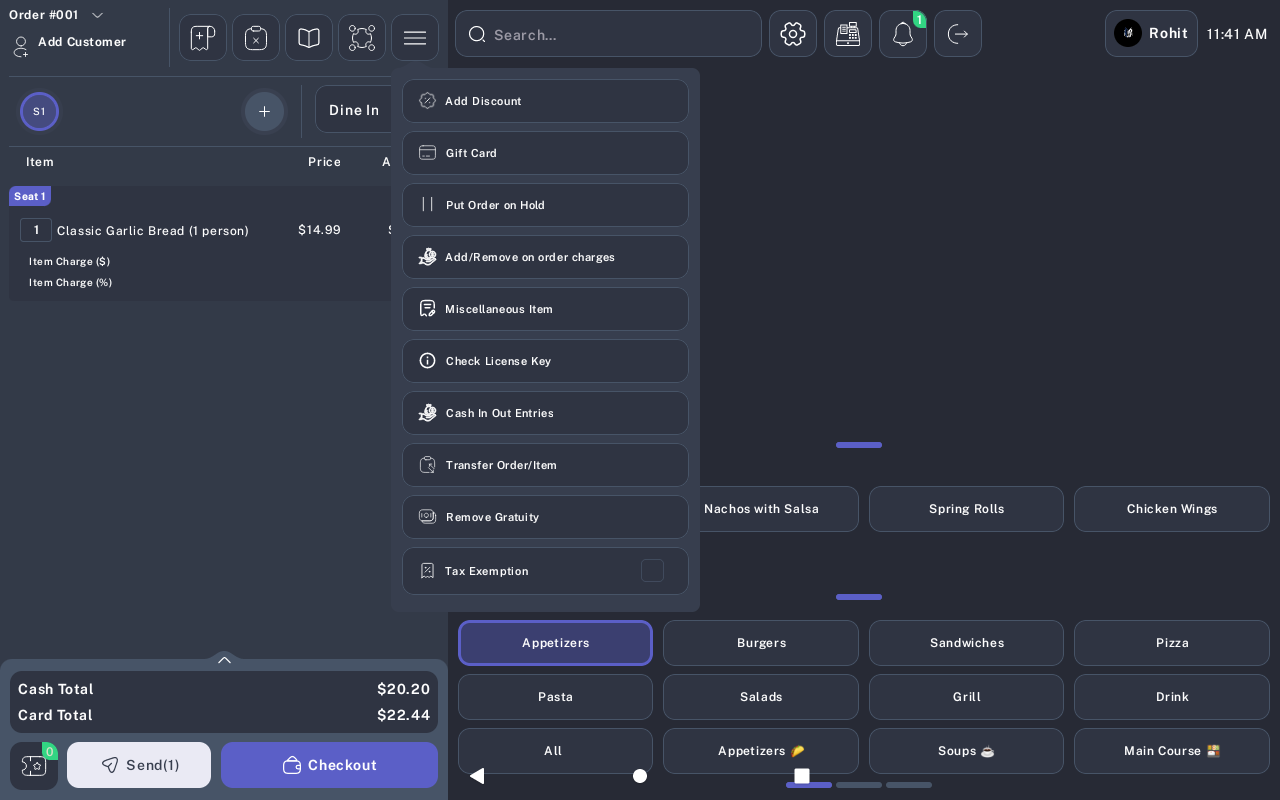
- Wait for the success message: Order has been put on Hold Successfully.
- After the order is held, the POS starts a new blank order so staff can continue serving the next guest.
If the Order Is Already On Hold
If staff select Put Order on Hold for an order that is already held, the POS shows Order is Already On Hold. No duplicate order is created. Reopen the existing held order from the running tab, table, or Order List instead.
Reopen from Running Tabs
- Return to the main menu/order screen.
- Find the running seat or tab strip near the order area. Dine-in seats show like S1; bar tabs show like Tab 1.
- Tap the seat or tab that belongs to the held order.
- Confirm the order items, table, guest, and totals reload before editing or checking out.
If the order is attached to a table, opening that active table from the floor plan may also reload the held order.
Reopen from Order List
-
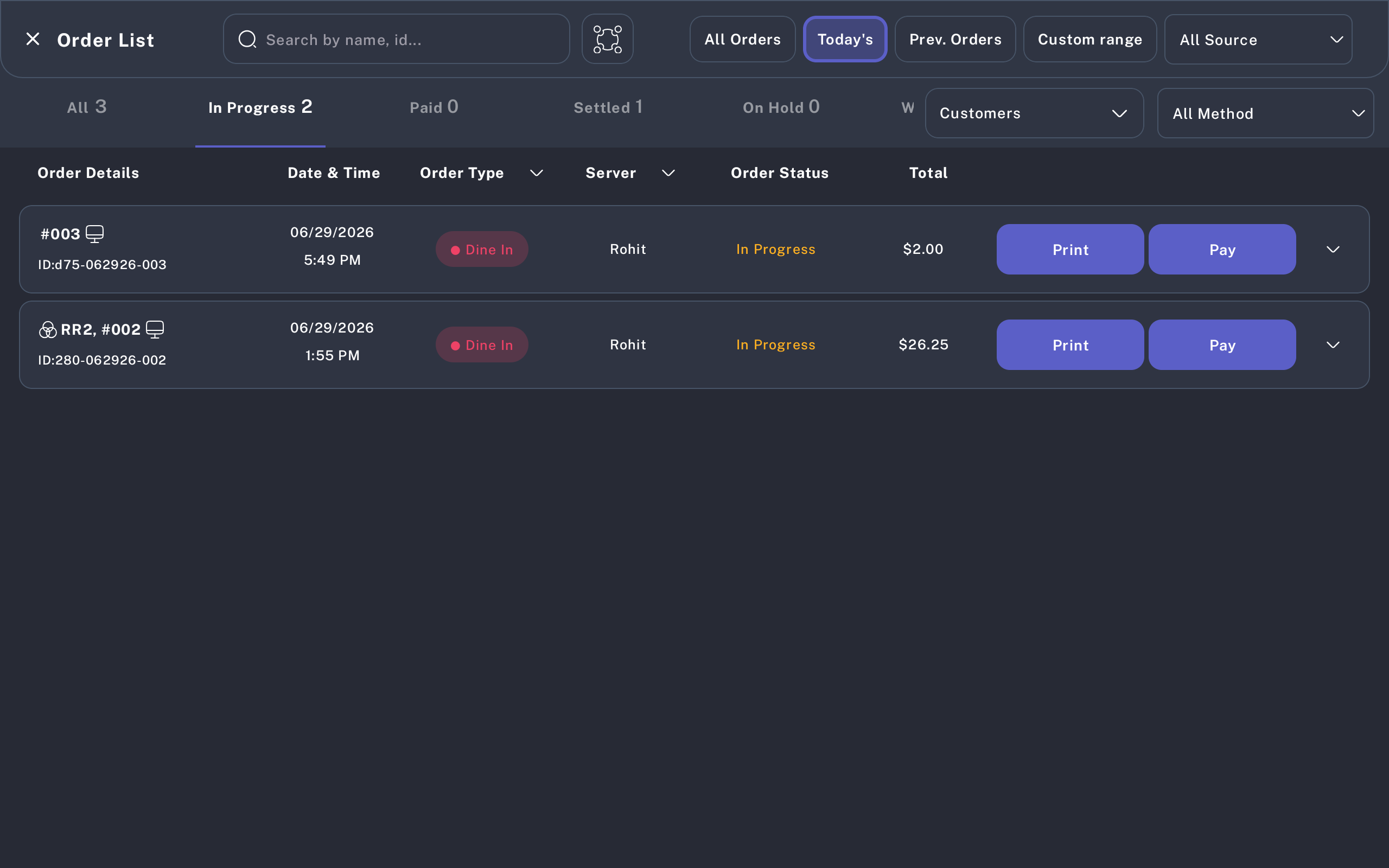
Open Order List from the POS navigation or order history area.
-
Select the On Hold tab to see held orders. If the count is zero, there are no held orders for the current filter.
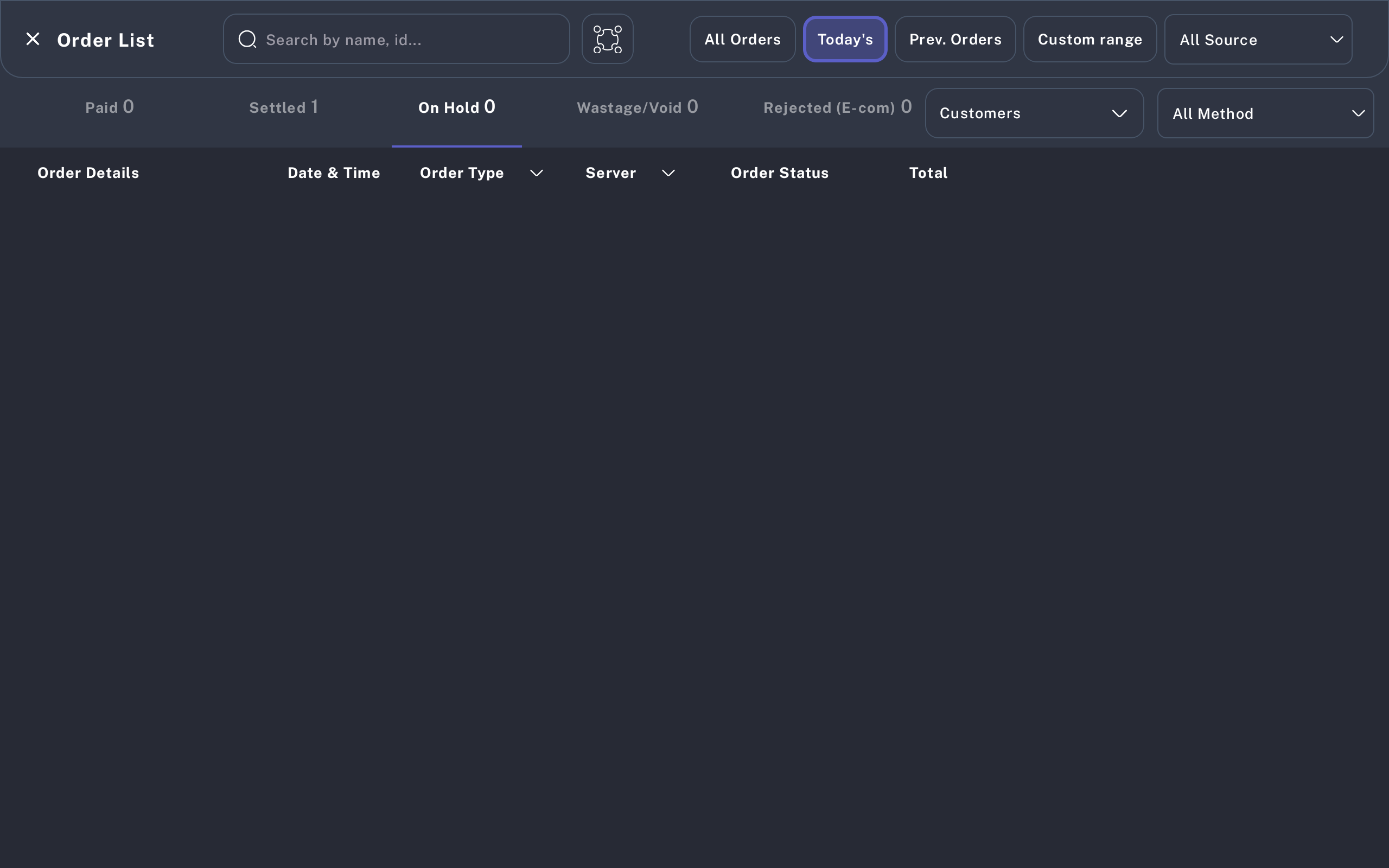
- Use the search field when needed. Search by order number, table number, guest/customer information, or the visible ID if your store uses IDs for lookup.
- Select the held order row, or use the row action available in your Order List view, to open the order.
- Check the order status and total after it opens. Continue editing only after the correct order is visible.
Checkout After Reopen
- Review the reopened order and add any new items, discounts, charges, or notes needed before payment.
- Tap Checkout on the order screen.
-
On the payment screen, confirm the order total and select the guest's payment method.
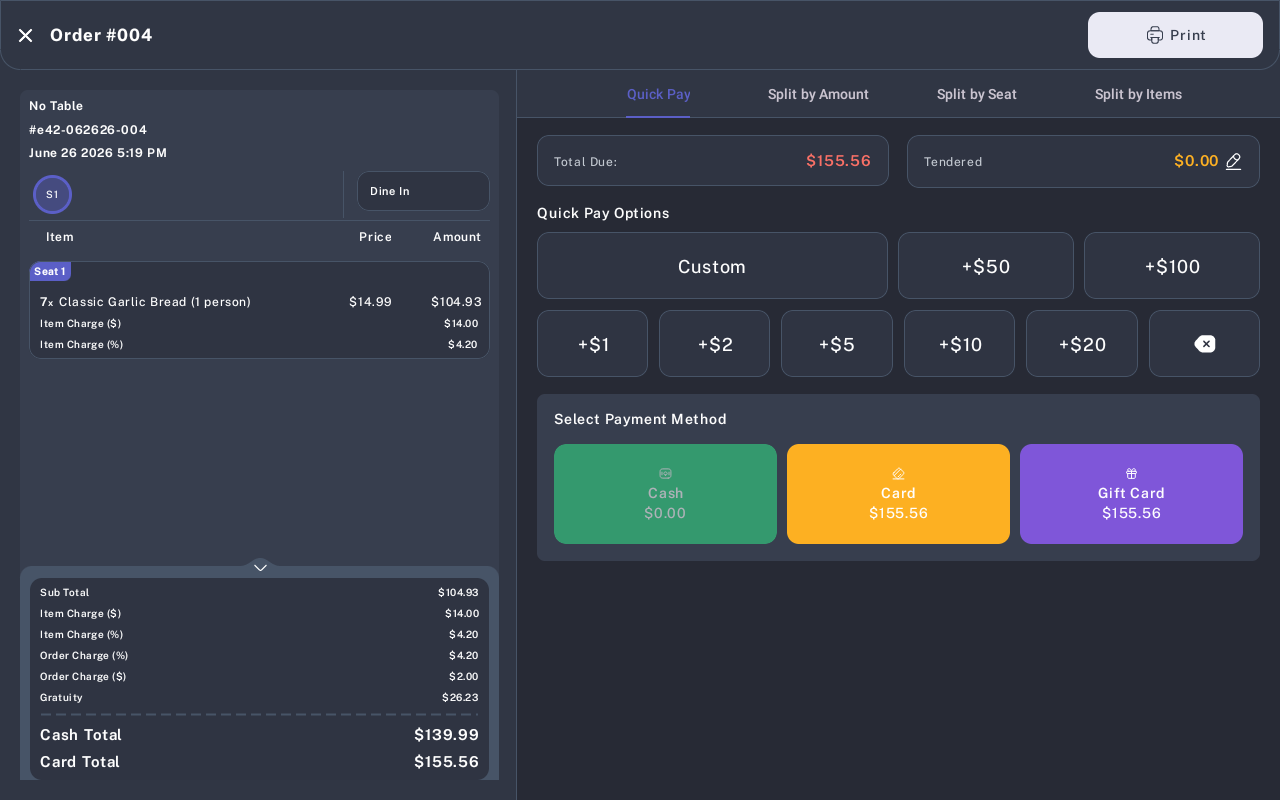
- Complete payment and print or send the receipt according to the restaurant workflow.
Expected Result
The held order is saved with its items and can be reopened later. After reopening, checkout works like a normal active order. Once payment is complete, the order moves out of active or held work queues.
Common Questions
- Can I hold an empty order? No. Add at least one item before holding.
- Can I hold a partially paid order? The POS keeps partially paid orders active for payment handling. Reopen it and finish payment instead of treating it like a new held ticket.
- Does holding send items to the kitchen? Holding saves the order state. Use the normal Send workflow when kitchen preparation is required.
- Can another terminal reopen the held order? Yes, if that terminal can see the same order list or table and the order has synced.
Notes
Screenshots were taken from a connected Pixel Tablet emulator on June 29, 2026 and existing safe POS manual assets. The captured Order List had no held orders at the time, so the On Hold screenshot demonstrates the filter location rather than a populated held-order row.