How to Apply Discounts, Charges, and Gratuity
Purpose
Use this guide when an order needs a manual discount, an optional order charge, or gratuity before payment is completed.
Before You Start
- Add at least one item to the order before applying a discount or gratuity.
- Apply discounts and charges before taking payment. Discounts cannot be edited after payment has started or after the order is paid, partially paid, settled, or has a paid amount.
- Gratuity must be enabled for the location. Applying gratuity requires a manager PIN.
- The available order charges depend on the restaurant's configured charges. Credit card charges are not shown in the manual add/remove charges list.
Open Order Actions
-
Open the order on the POS menu screen and add the items the guest ordered.
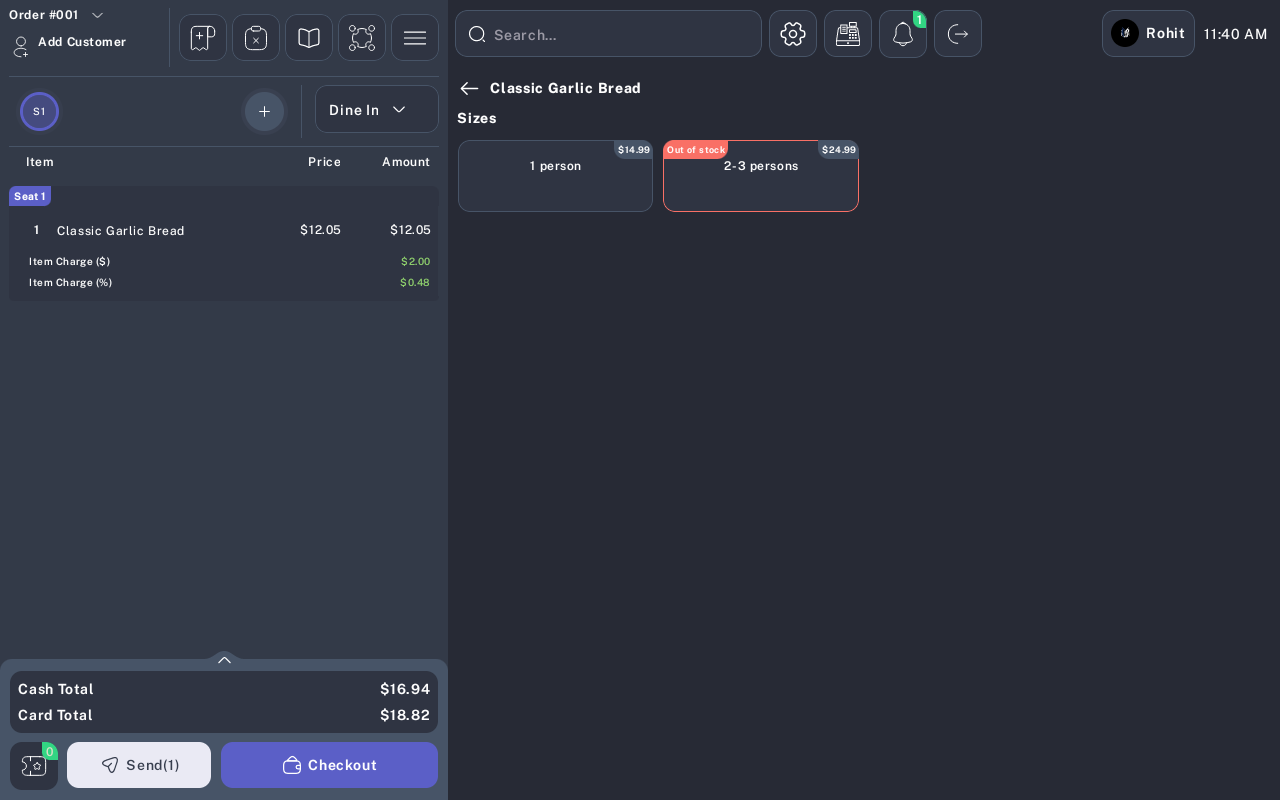
- Tap the order actions button in the top bar.
-
Use the action menu to choose Add Discount, Add/Remove on order charges, or Apply Gratuity.
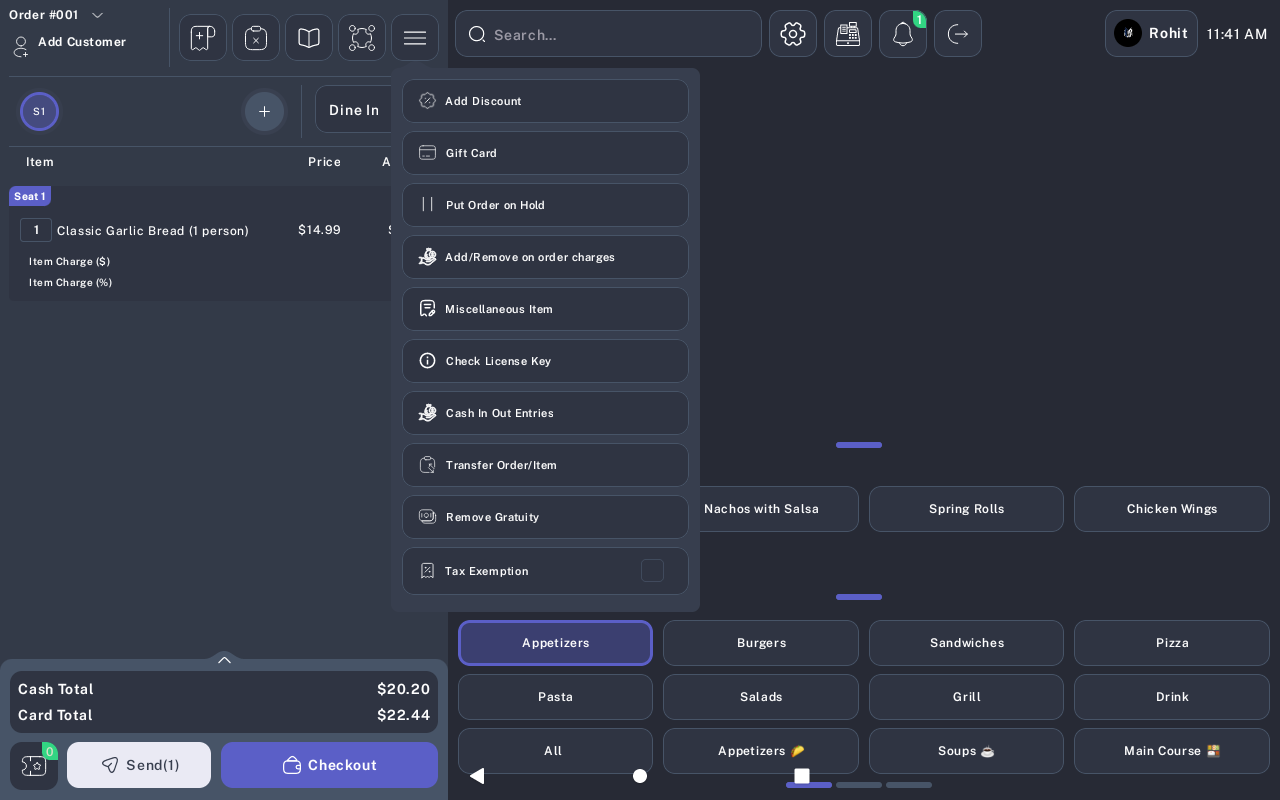
If Apply Gratuity is dimmed, gratuity is not available for the current order or current location settings.
Apply a Discount
-
From the order action menu, tap Add Discount.
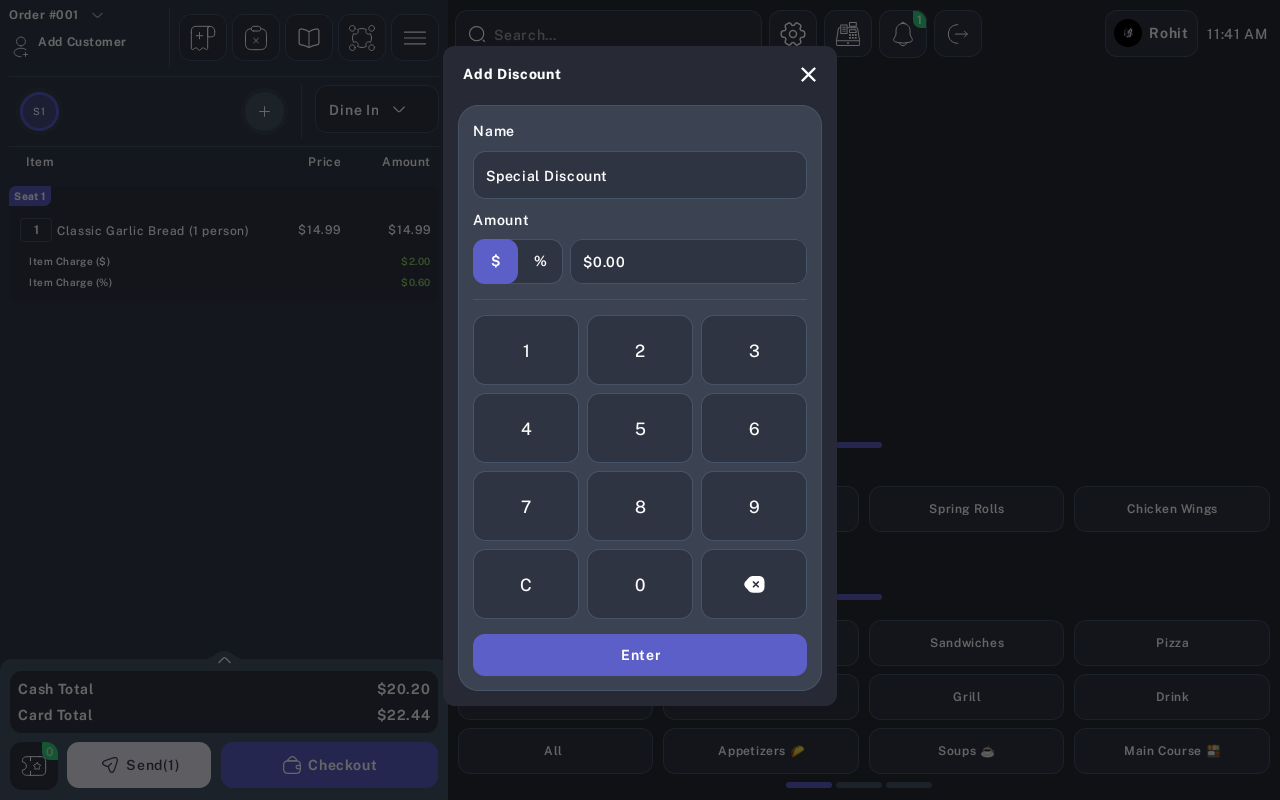
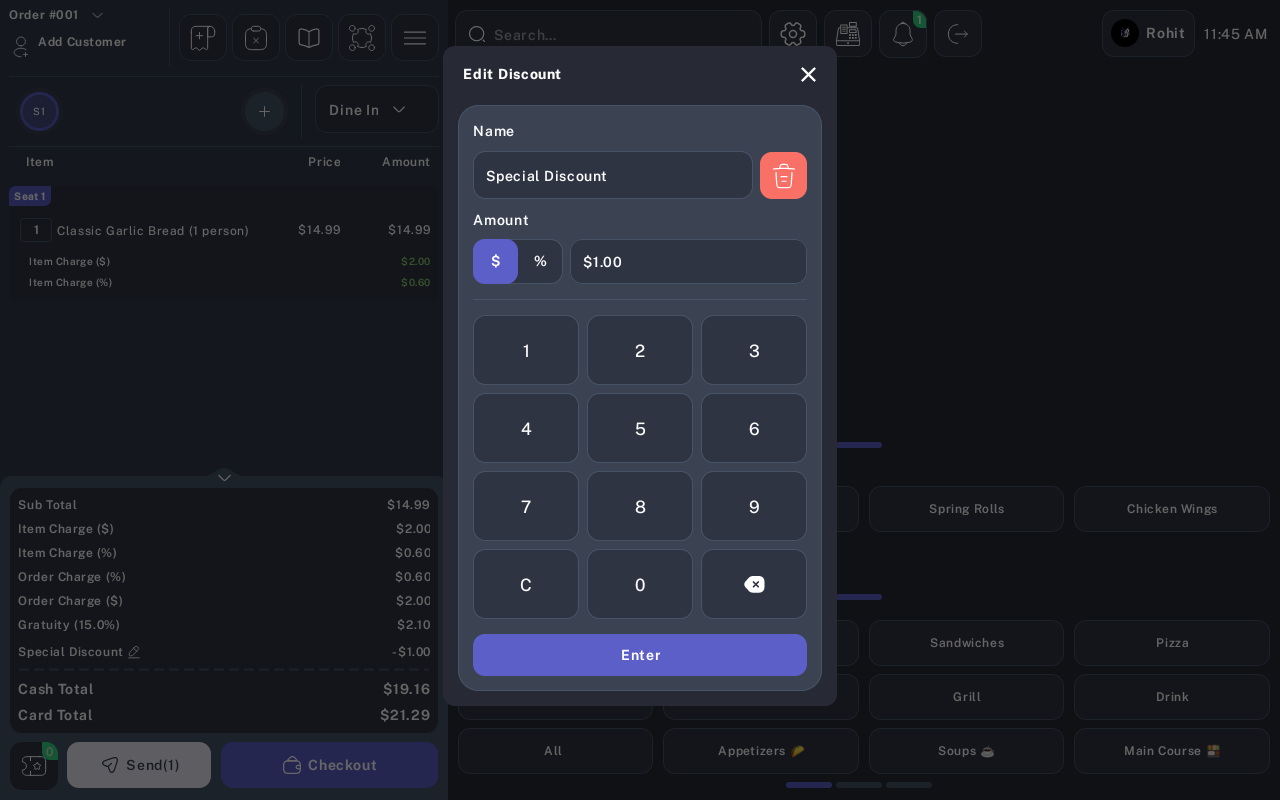
- In the discount window, keep the name as Special Discount or enter a short discount name.
- Select $ for a dollar discount or % for a percentage discount.
- Enter the discount amount on the keypad.
- Tap Enter.
-
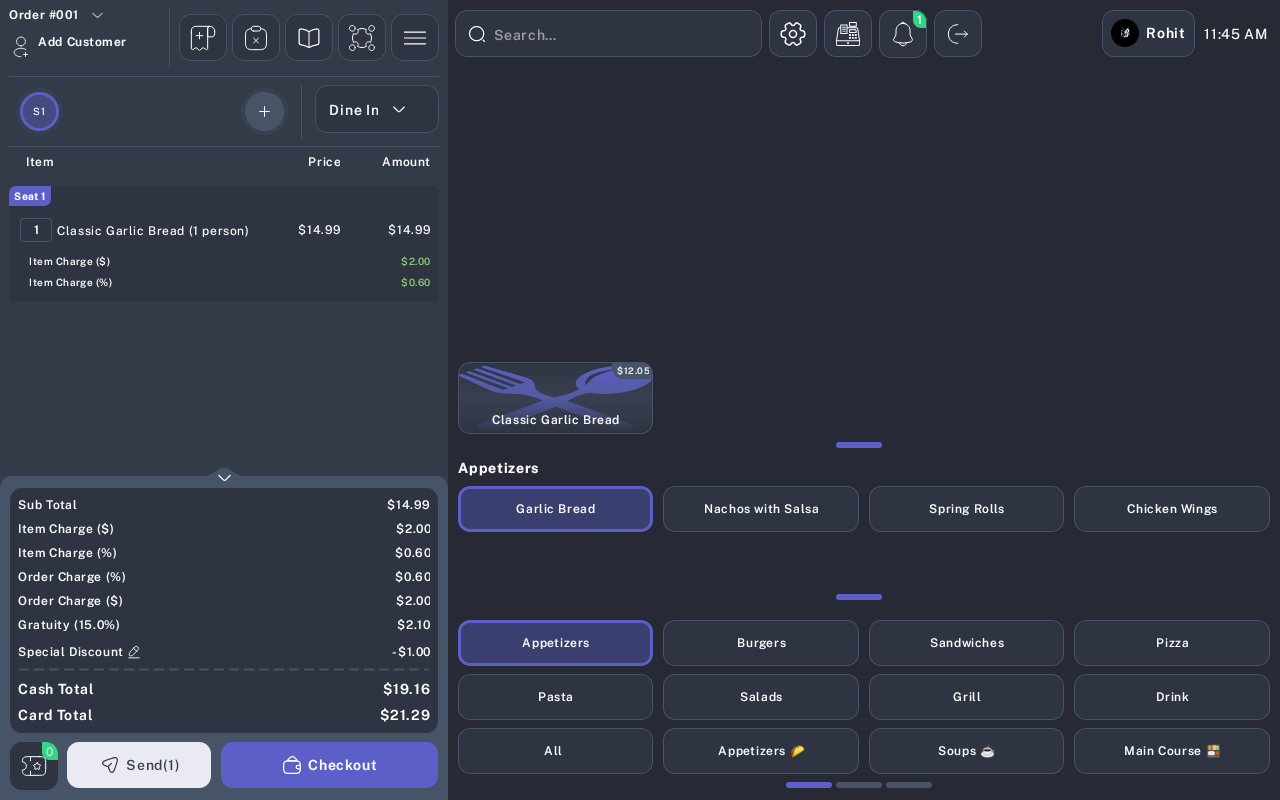
Review the order totals before checkout. The discount appears in the totals panel with an edit icon.
-
To edit the discount, tap the edit icon next to Special Discount, update the amount or name, and tap Enter.
Add or Remove Order Charges
- From the order action menu, tap Add/Remove on order charges.
- Review the list of available order charges.
- Check a charge to apply it to the order, or clear a checked charge to remove it.
- Tap Done.
- Confirm the selected charges appear in the order totals.
If the POS shows Can not Edit Charges for this order, the order is already saved in a state where charges cannot be changed from this screen.
Apply or Remove Gratuity
- From the order action menu, tap Apply Gratuity.
- If the POS asks for a percentage, enter a gratuity percentage from 1 to 100 and tap Apply.
- When prompted, enter the manager PIN.
- After the PIN is accepted, confirm that Gratuity appears in the order totals.
- To remove gratuity, open the same action menu and tap Remove Gratuity.
Some locations use automatic gratuity rules based on guest count or subtotal. If the current order matches a configured rule, the POS may ask only for manager PIN and apply the matched gratuity automatically.
Verify Totals at Payment
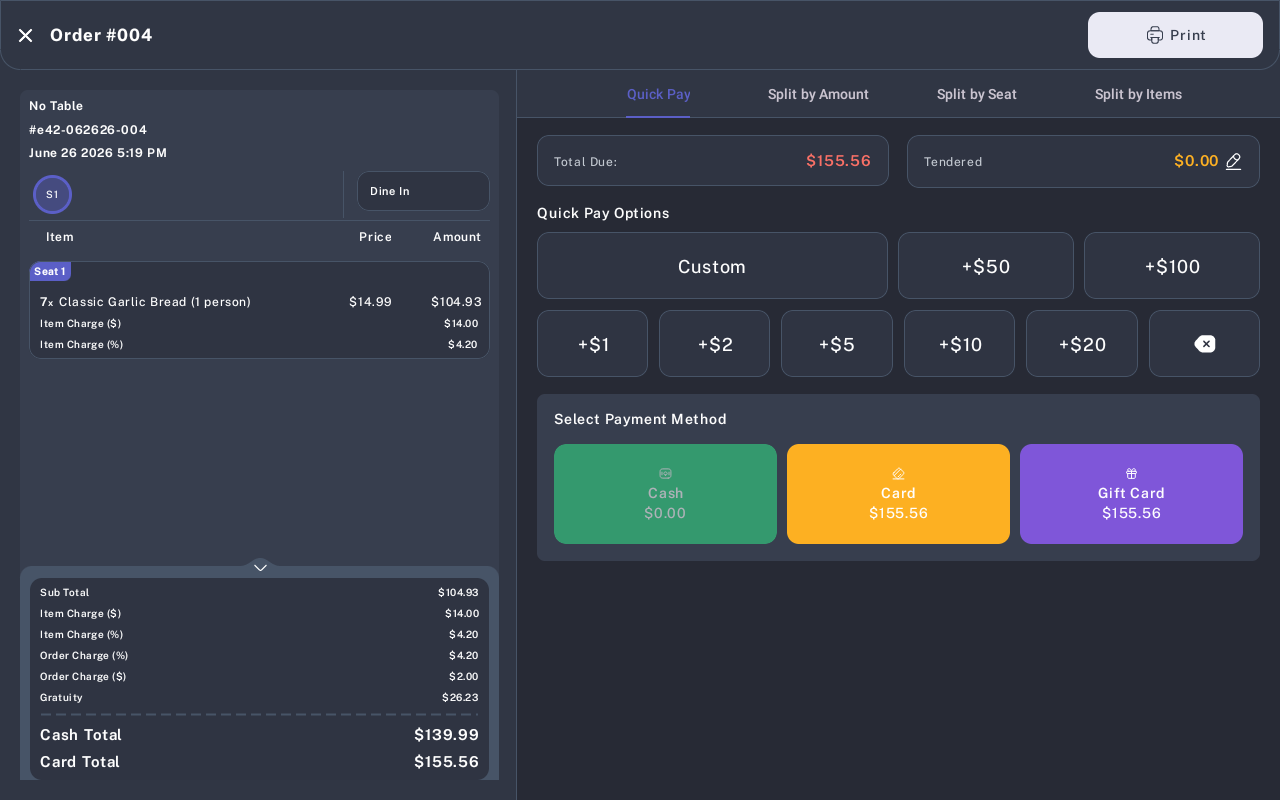
- Tap Checkout after the order adjustments are complete.
- Review the left side of the payment screen for the subtotal, charges, gratuity, and final cash/card totals.
- If a discount, charge, or gratuity is wrong, return to the order before taking payment and correct it.
Expected Result
The order total reflects the applied discount, selected order charges, and gratuity. The updated totals carry into checkout and print on the customer receipt where applicable.
Common Questions
- Can I apply both charges and gratuity? Yes. Apply each adjustment from the order action menu, then verify the totals before checkout.
- Can I edit a discount? Yes, as long as payment has not started. Open the discount option again, update the name or amount, and tap Enter.
- Why do charge names differ between restaurants? Order charges are configured for each location, so the list may show different charge names and amounts.
- Is gratuity the same as a tip? No. Gratuity is applied to the order before checkout. Tips are handled in the payment flow when enabled.
Notes
This guide uses the current SalsaPOS labels from the POS menu and payment screens. A product owner or QA user should verify tenant-specific charge names and gratuity rules for the live restaurant setup.