How to Add a Misc Modifier Into an Order
Purpose
Use this tutorial when a cashier or server needs to add a one-time modifier while adding a menu item or editing an order item. A misc modifier is useful for an item-specific request that is not available in the regular modifier list, such as a special preparation, add-on, or custom charge.
Before You Start
- Open an existing order or create a new order.
- Confirm the item is not voided, marked as wastage, or already sent to the kitchen.
Add a Misc Modifier While Adding an Item
-
Open or create the order from the Menu screen.
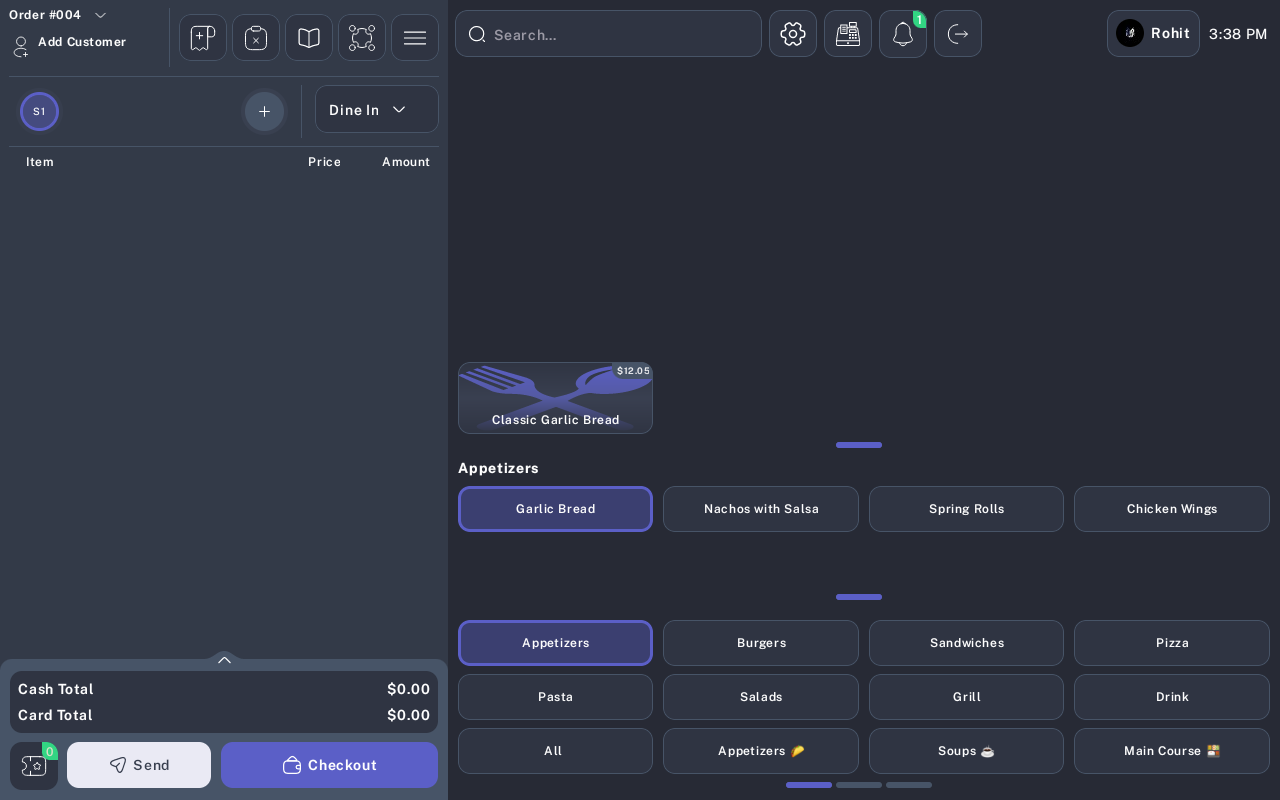
- Select the menu item the customer wants to order.
-
If the item has sizes, select the correct size.
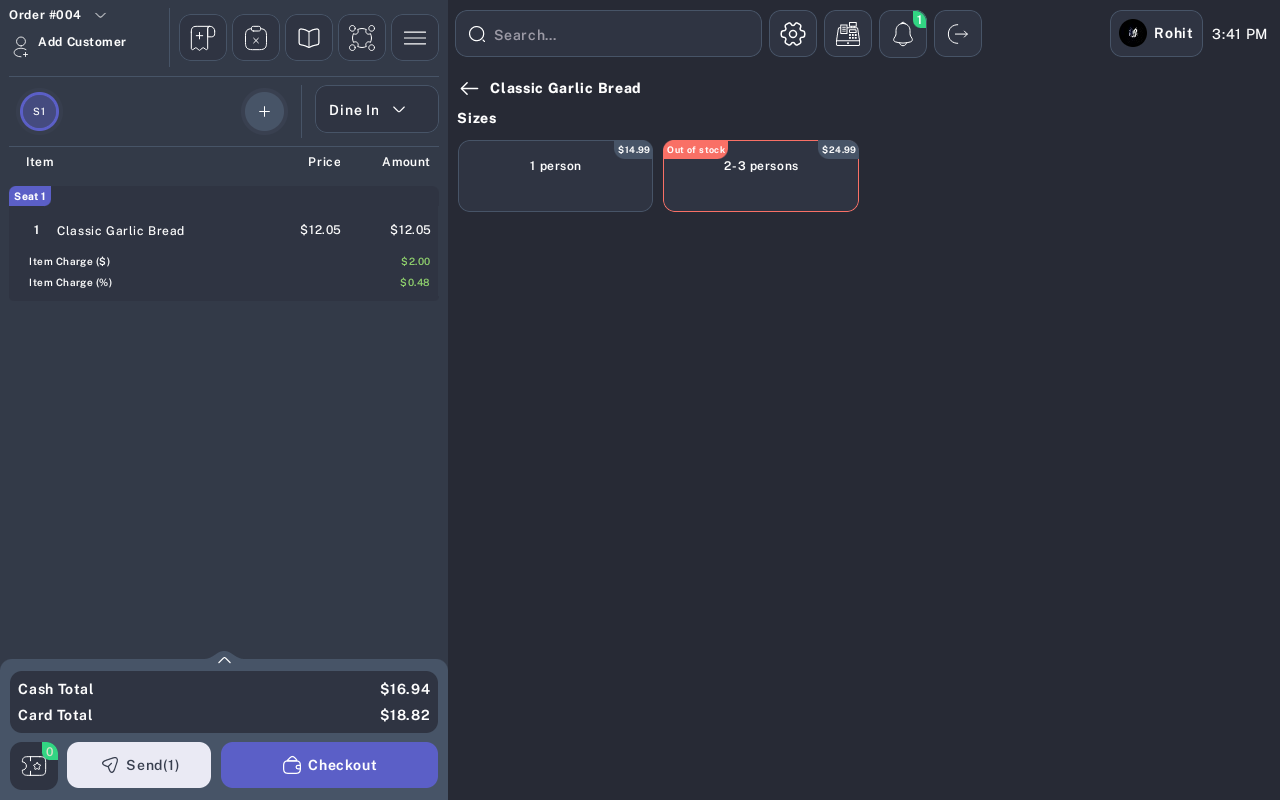
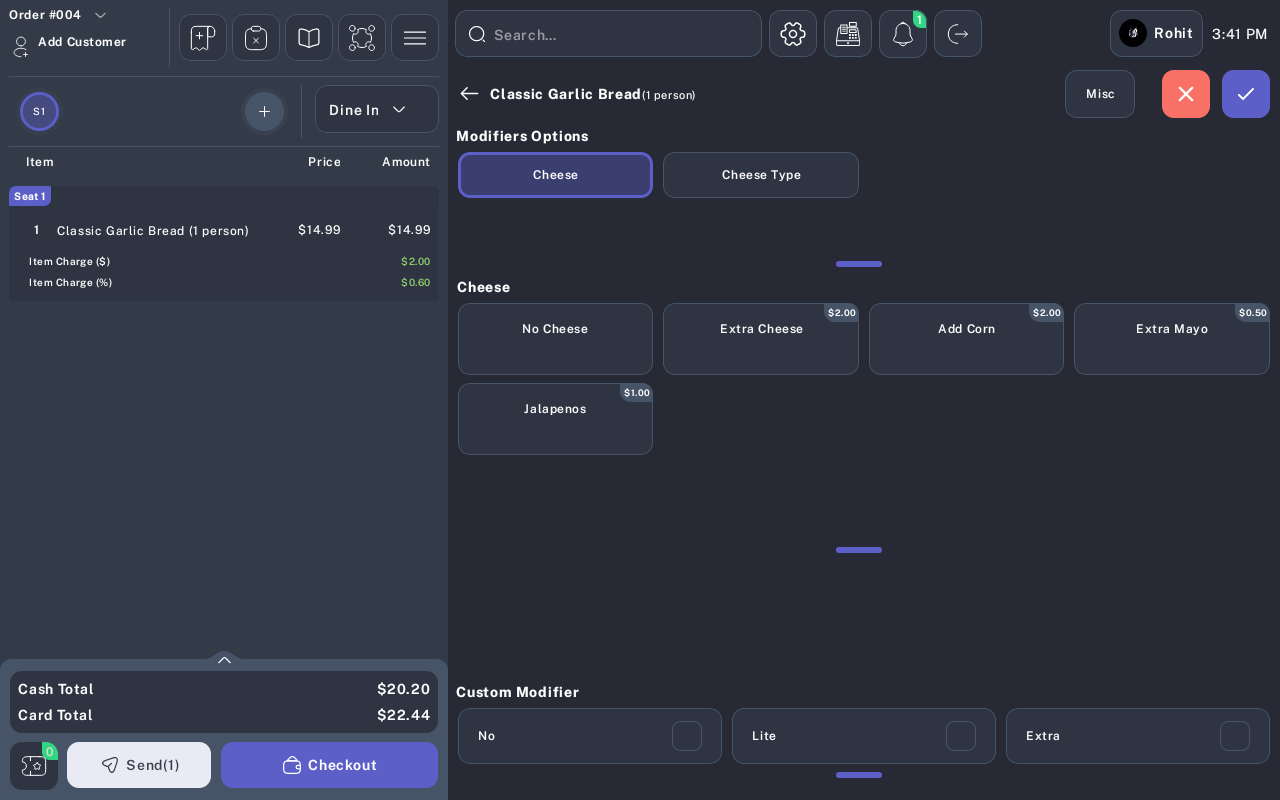
- When the modifier selection screen opens, review the item name and size at the top of the screen.
-
Tap Misc.
-
Confirm the dialog title shows the correct seat and item, for example Miscellaneous Modifier (Seat 1 | Item: [Item Name]).
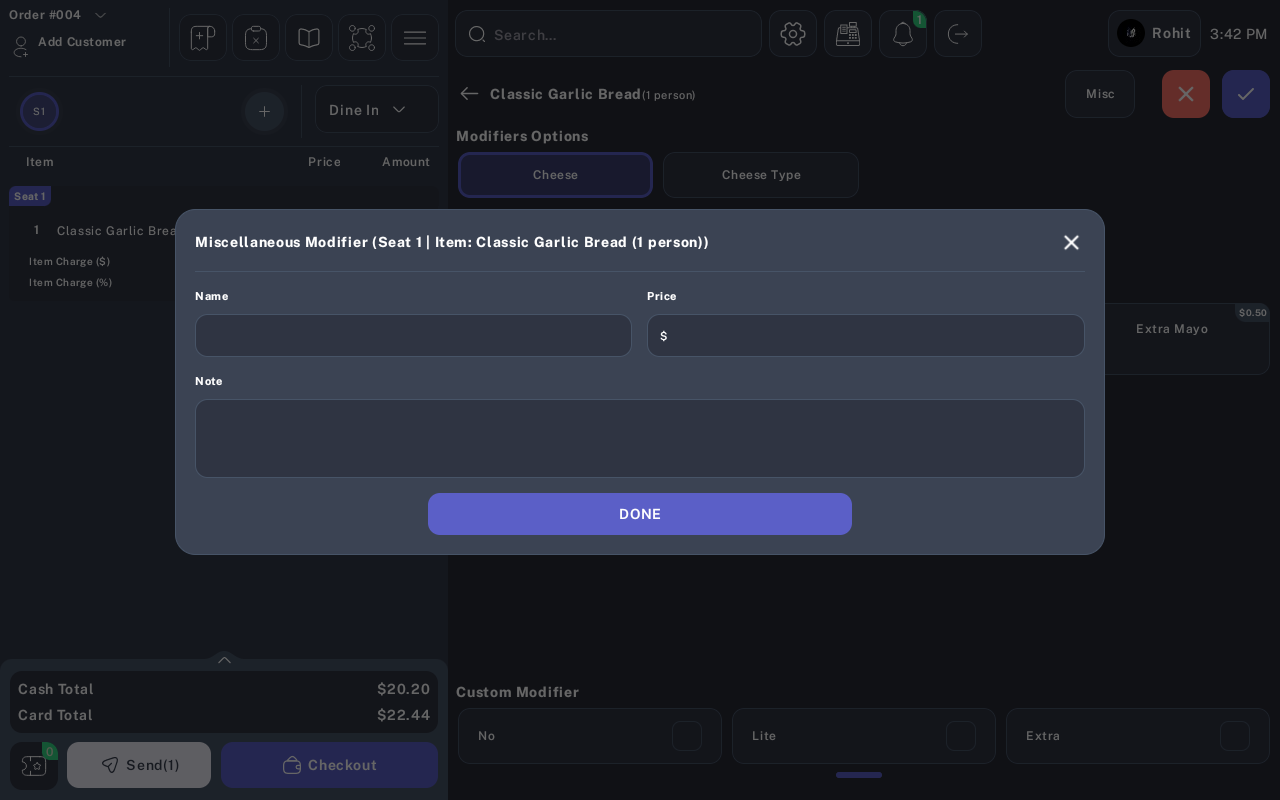
- In Name, enter the modifier name the kitchen or cashier should see.
- In Price, enter the modifier price.
- Tap Done.
- Continue selecting any regular modifiers needed for the item.
- Tap the checkmark button to finish adding the item to the order.
Add a Misc Modifier While Editing an Item
- Open or create the order from the Menu screen.
-
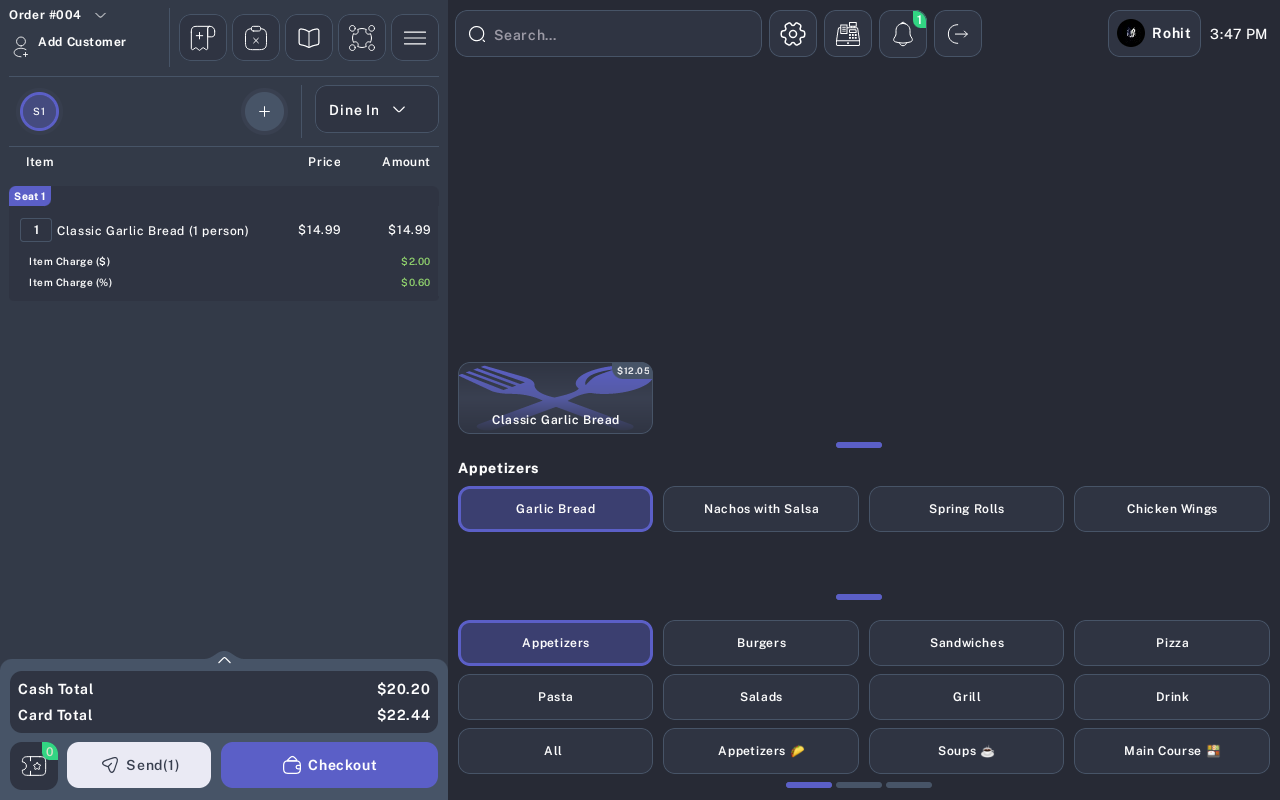
In the order panel, select the item that needs the misc modifier.
-
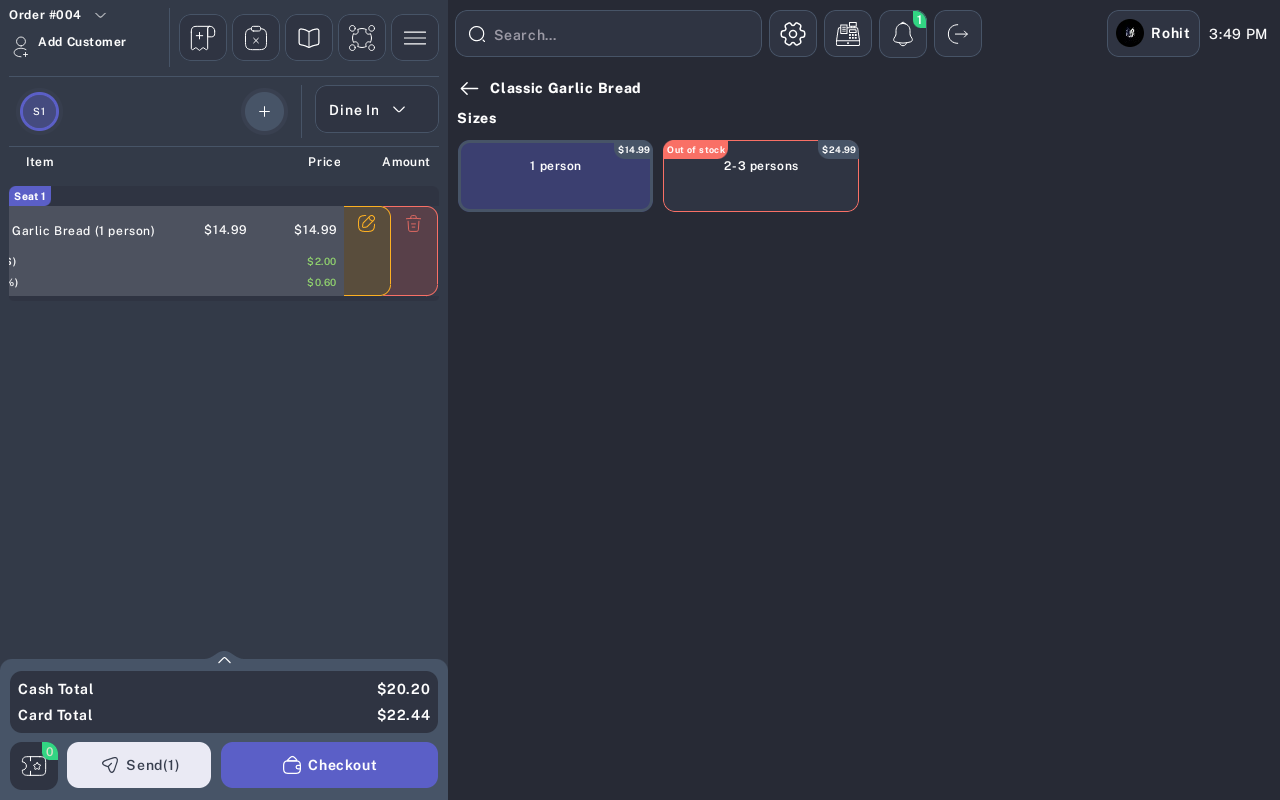
Swipe left on the order item and tap the edit icon.
-
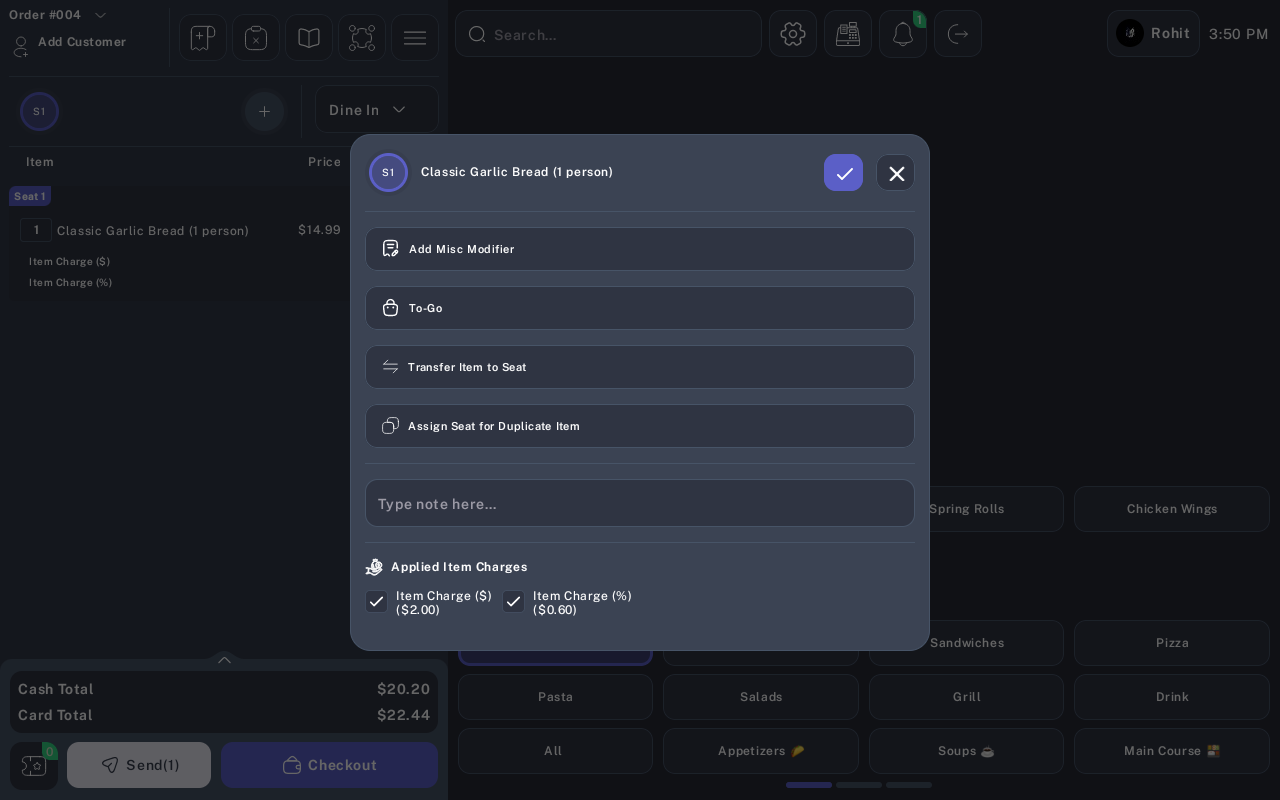
In the edit item dialog, tap Add Misc Modifier.
-
Confirm the dialog title shows the correct seat and item.
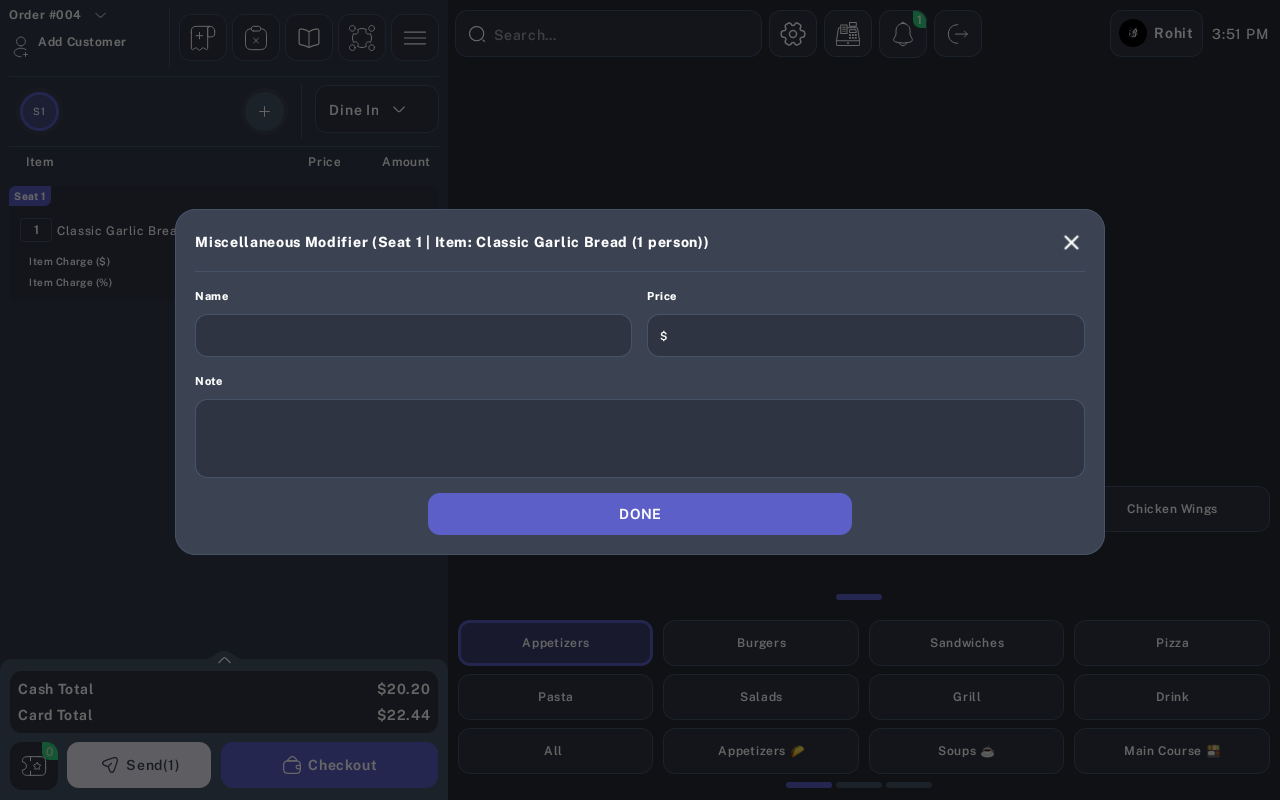
- In Name, enter the modifier name.
- In Price, enter the modifier price.
- Tap Done.
- Review the order item and confirm the misc modifier appears under the correct item.
Expected Result
The misc modifier is added to the selected order item. The order total updates using the modifier price and the item quantity.
Common Questions
- Can I add a misc modifier while adding an item? Yes. Use Misc from the modifier selection screen before tapping the checkmark button to finish adding the item.
- Can I add more than one misc modifier to the same item? Yes, repeat the same steps for each modifier that needs to appear under that item.
- Does the misc modifier affect the order total? Yes. The modifier price is included in the order total.
- Can I use this for a full miscellaneous item? No. Use Miscellaneous Item when the custom charge should be its own item on the order. Use Add Misc Modifier when the custom charge belongs under an existing item.
Notes
- The misc modifier dialog includes a Note field in the current layout. Verify with QA or the product owner before training staff to rely on that field, because the add flow currently saves the modifier name and price.
- Some screen variants may show the item options as a long-press menu, edit menu, or item action panel depending on device layout.