How to Add a Misc Item Into an Order
Purpose
Use this tutorial when a cashier or server needs to add a one-time item that is not available in the regular menu. A misc item is useful for a custom charge, special request, or temporary item that should appear as its own line on the order.
Before You Start
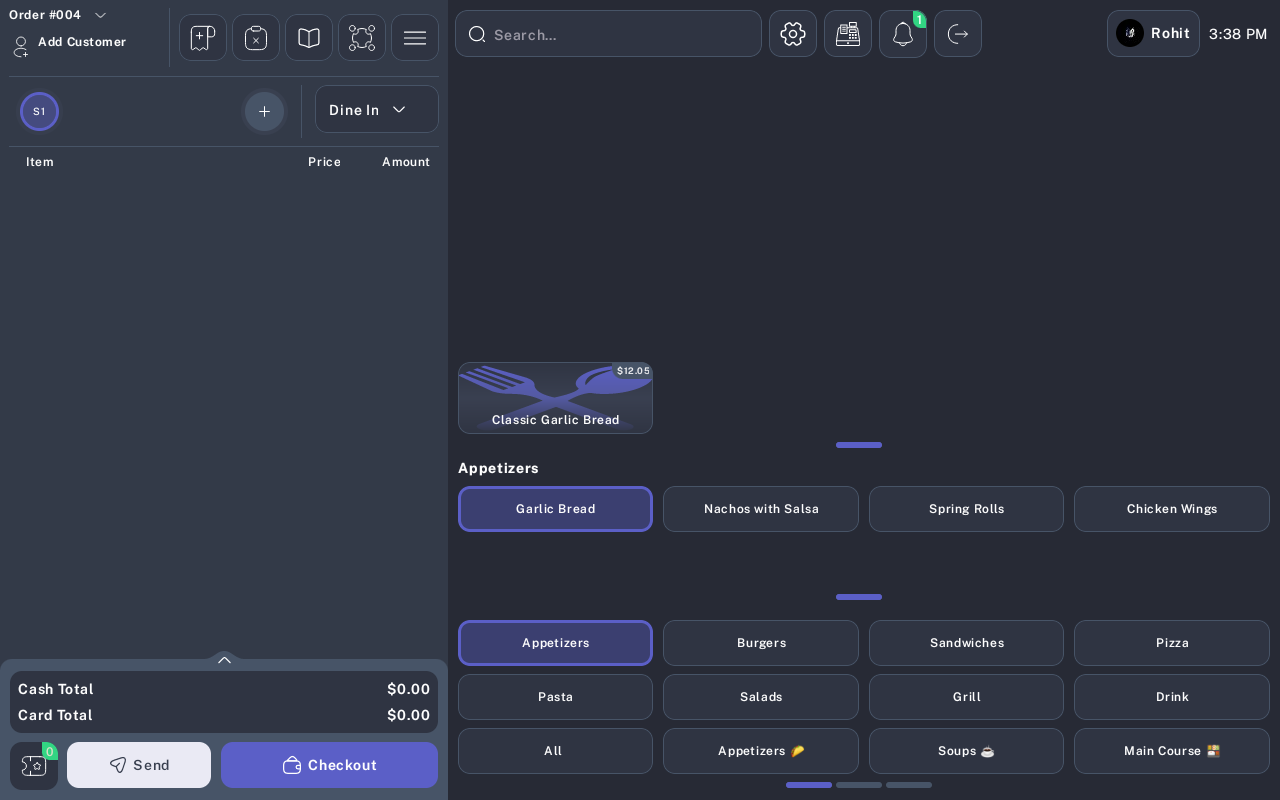
- Open an existing order or create a new order from the Menu screen.
- Confirm the order is active and can still be edited.
- If the misc item should print to the kitchen, confirm the correct kitchen printer or inventory tag is available.
Steps
-
Open or create the order from the Menu screen.
-
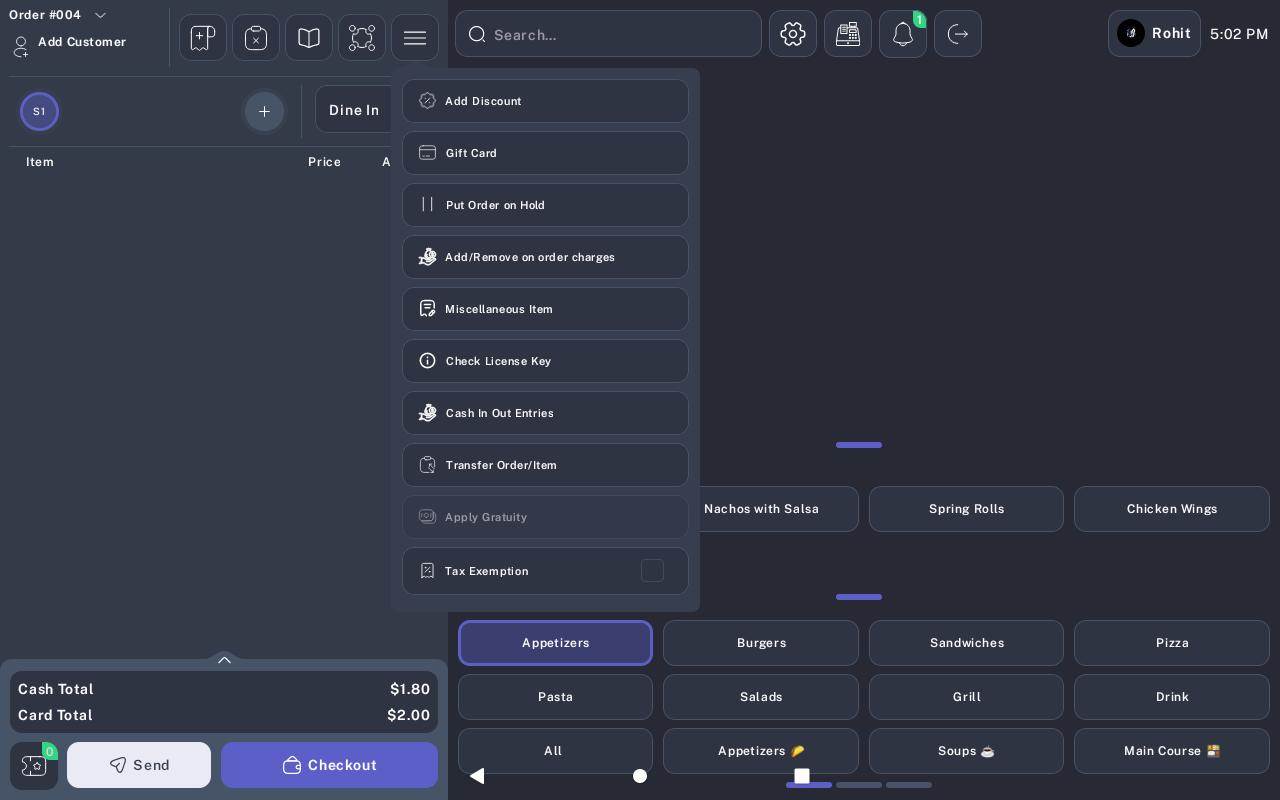
Open the order actions menu.
-
Tap Miscellaneous Item.
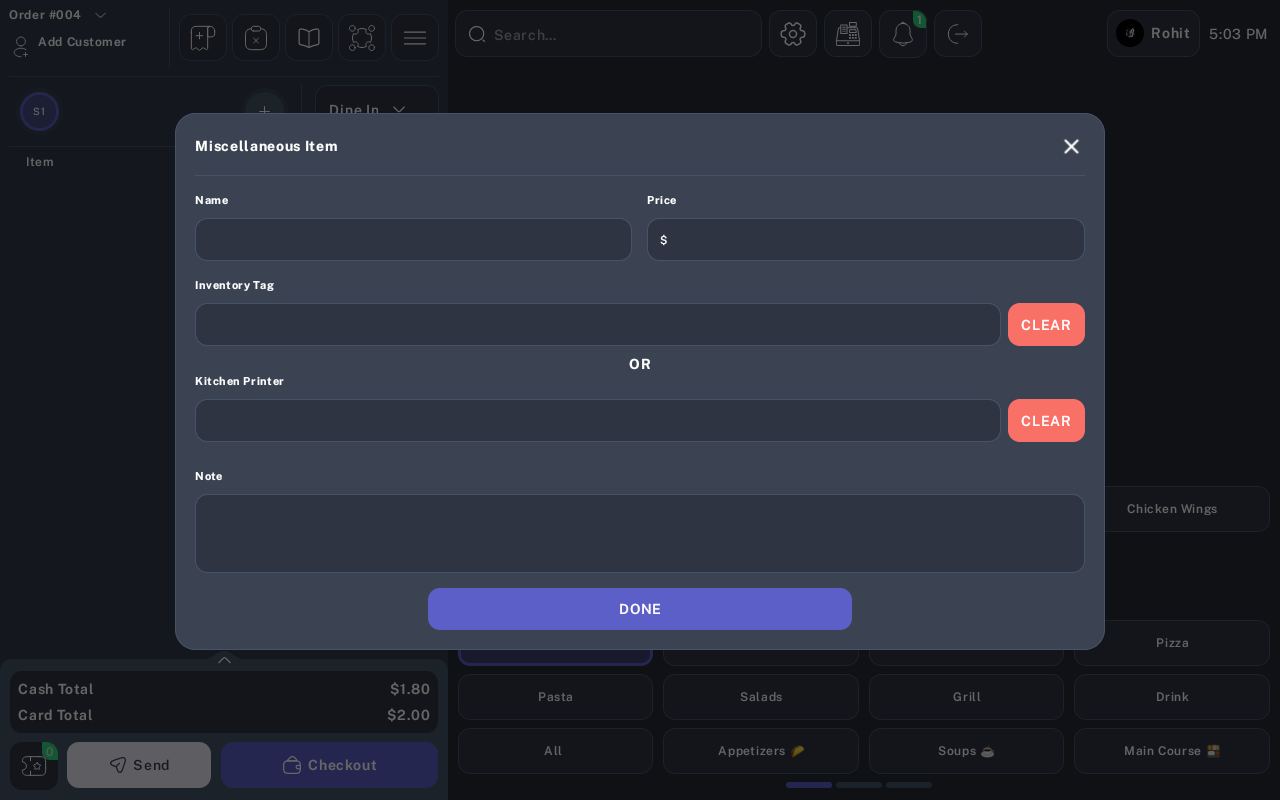
- In Name, enter the item name the cashier, server, or kitchen should see on the order.
- In Price, enter the item price.
- Optional: Tap Inventory Tag and select the correct tag if the item should use inventory-label routing.
- Optional: Tap Kitchen Printer and select the printer if the item should print to a specific kitchen printer.
- Optional: Use Clear beside Inventory Tag or Kitchen Printer to remove a selected value.
- Optional: In Note, enter any preparation or order detail needed for this item.
- Tap Done.
- Review the order panel and confirm the misc item appears as its own line item.
- Tap Send if the item needs to be sent to the kitchen, or tap Checkout when the order is ready for payment.
Expected Result
The misc item is added to the current order with quantity 1. The order total updates using the price entered in the Price field. If a kitchen printer is selected, the item is routed to that printer when the order is sent.
Common Questions
- Can I add a misc item without choosing an inventory tag or printer? Yes. Name and Price are required. Inventory Tag, Kitchen Printer, and Note are optional.
- Can I select both an inventory tag and a kitchen printer? The dialog is designed for one routing choice at a time. Selecting an inventory tag clears the printer, and selecting a kitchen printer clears the inventory tag.
- Can I change the quantity while adding the misc item? The misc item is added with quantity 1. Adjust the quantity from the order item controls after it appears in the order, if your screen allows item quantity changes.
- When should I use a misc item instead of a misc modifier? Use a misc item when the custom charge should stand alone on the order. Use a misc modifier when the custom charge or request belongs under an existing menu item.
Notes
- Tablet and mobile layouts may expose the misc item action from different order action areas. Train staff to look for Miscellaneous Item in the Menu screen order actions.
- Verify the exact access point with QA or the product owner for each device layout used by the restaurant.