How to Add an Age-Verified Beer to Cart
Purpose
Use this guide when a guest orders Beer from the Drink category and SalsaPOS asks for age verification before adding the item to the cart.
Before You Start
- Open an existing order or create a new order from the Menu screen.
- Confirm the guest's ID according to the restaurant's age-verification policy.
- The Beer item must be configured as an age-verification item in the menu.
Steps
-
Open the order on the Menu screen.
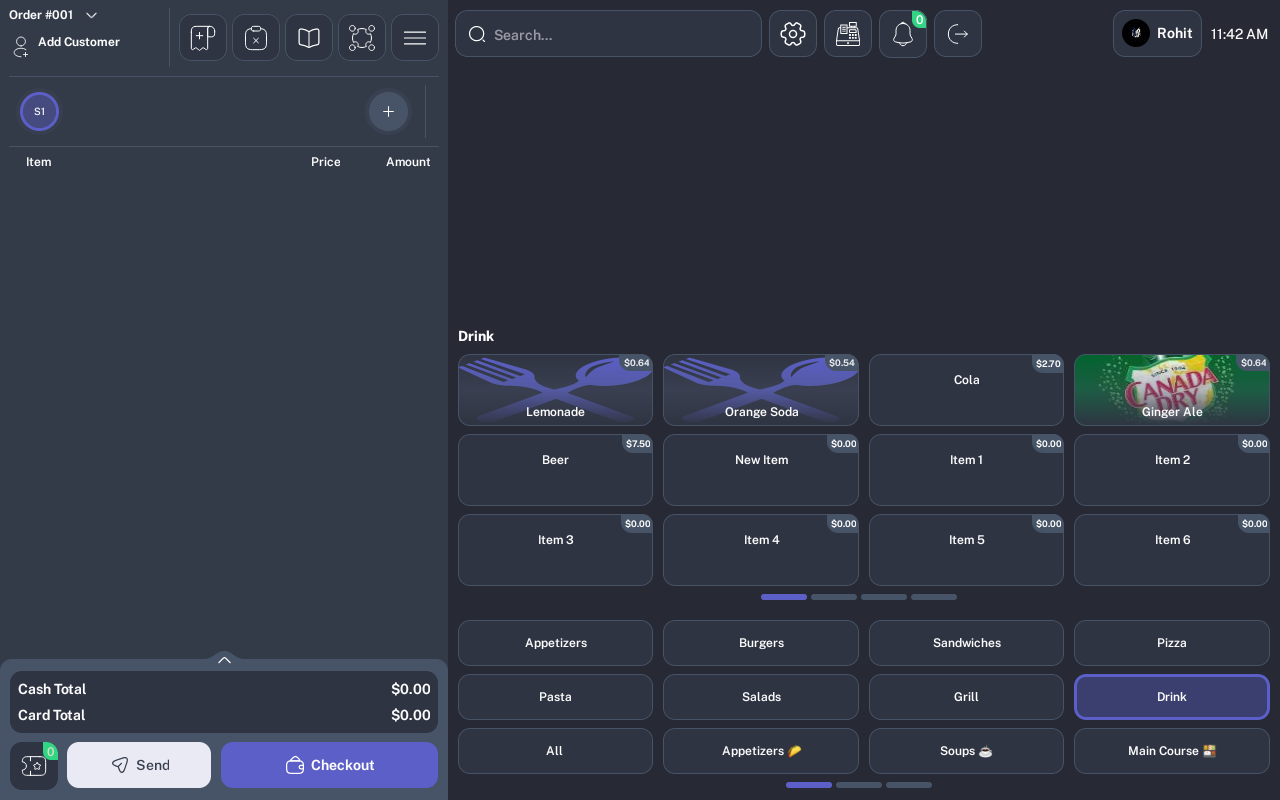
- Tap the Drink category if it is not already selected.
-
Tap Beer.
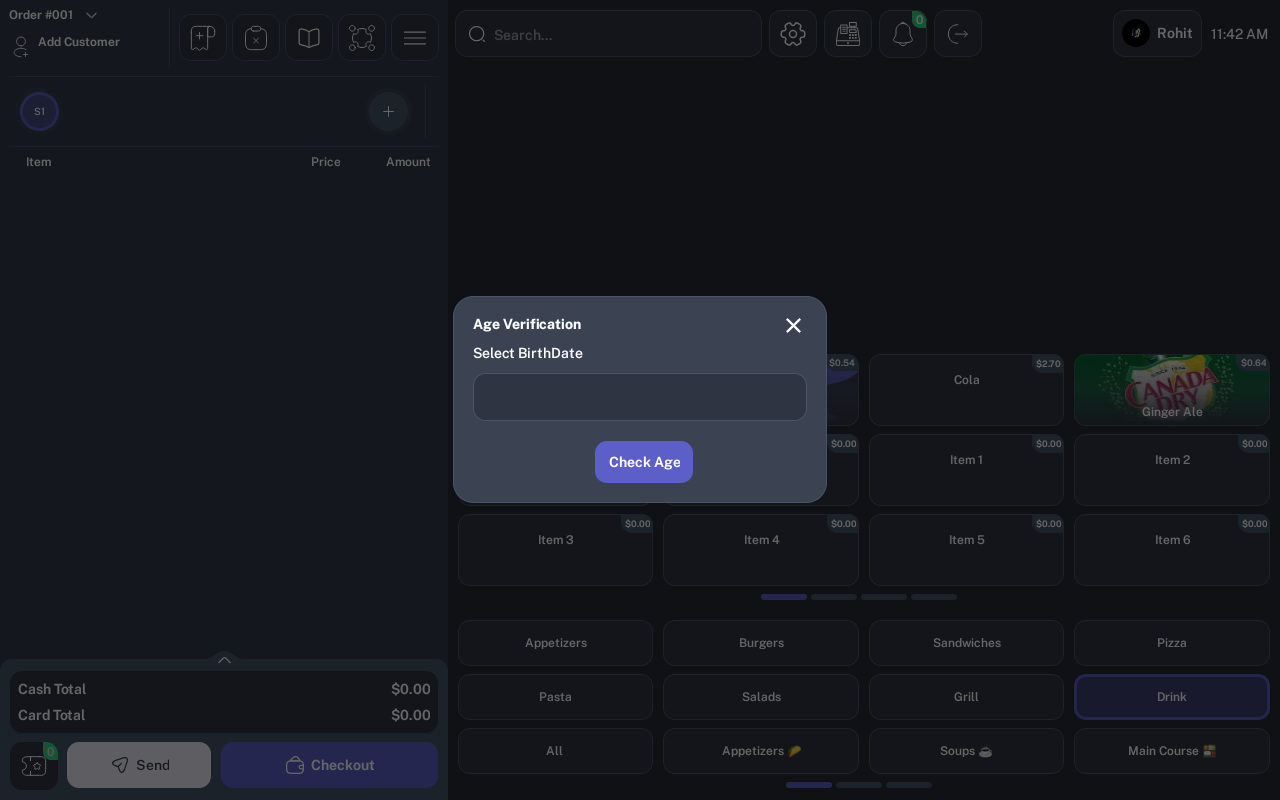
-
When the Age Verification dialog opens, tap Select BirthDate.
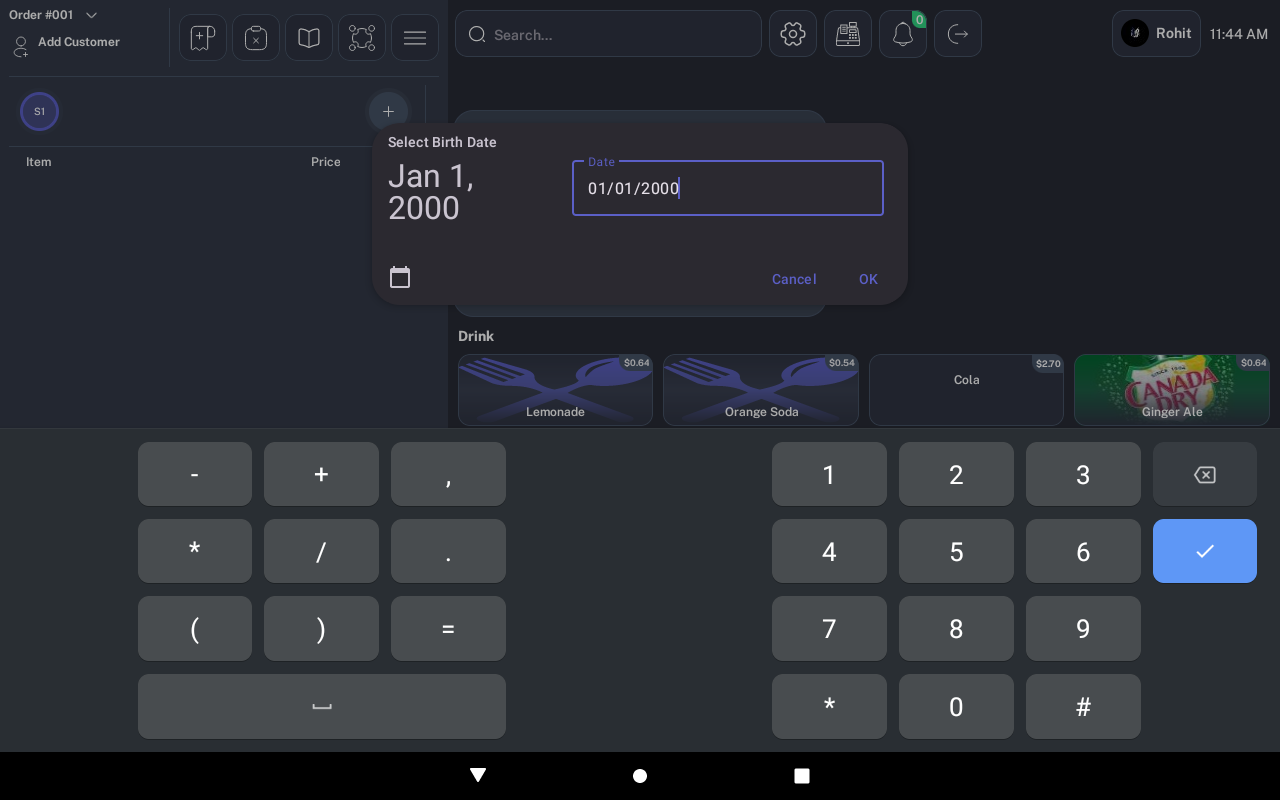
-
Select or enter the guest's birth date, then tap OK.
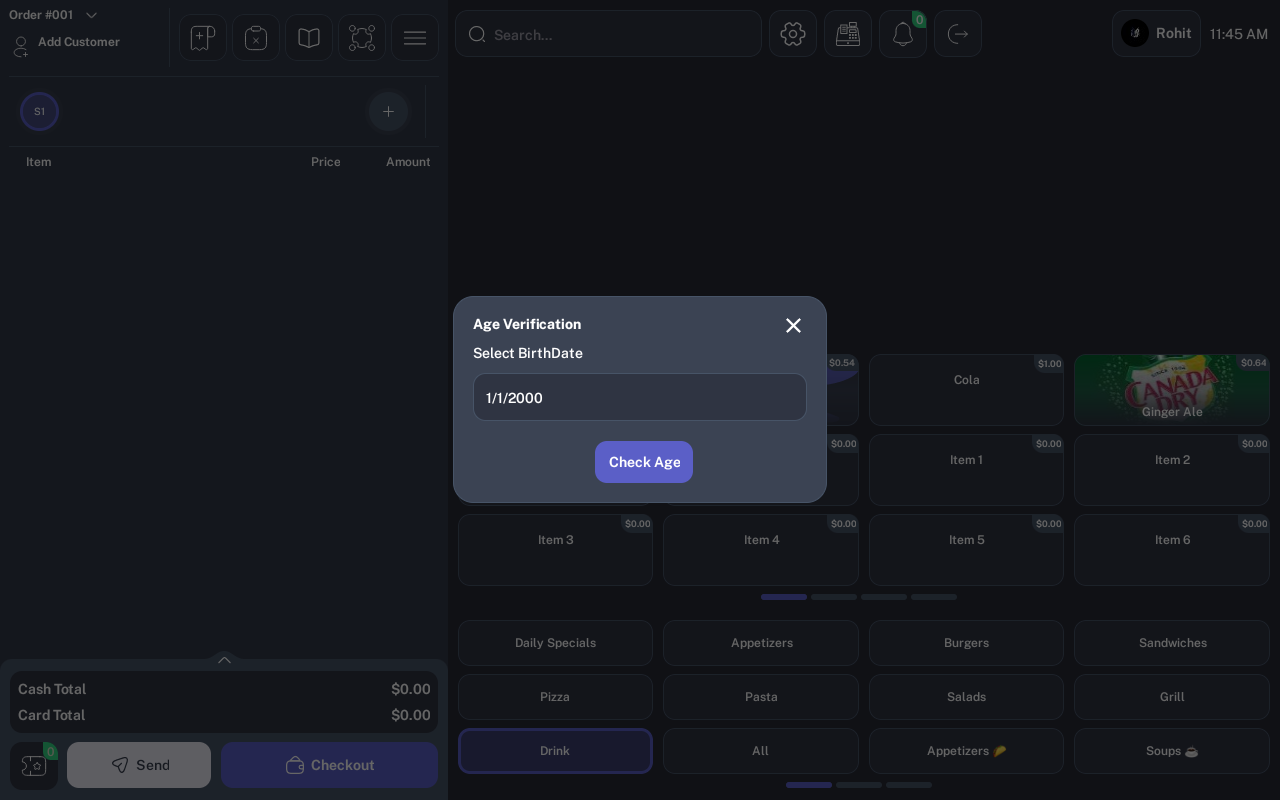
-
Tap Check Age.
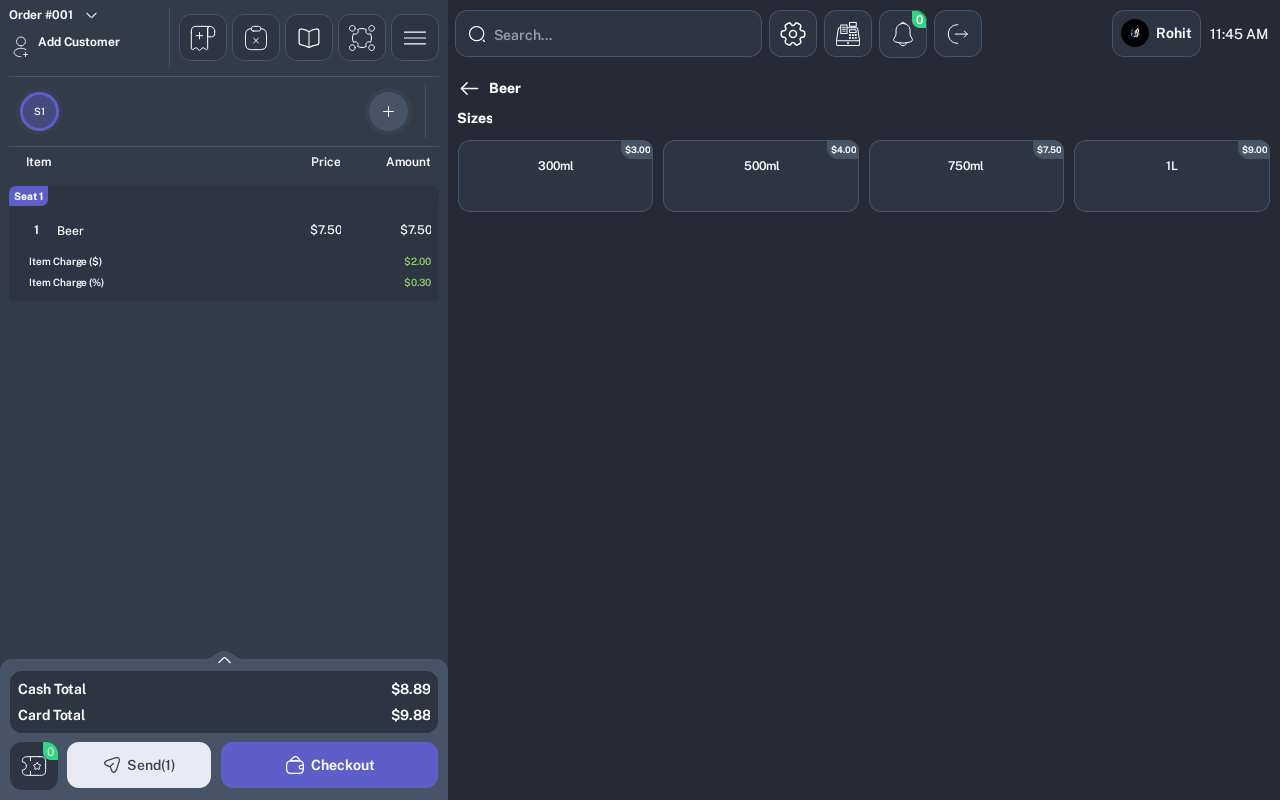
- If the guest is 18 or older, continue any required size or modifier selection and finish adding the item.
- Review the order panel and confirm Beer appears in the cart.
Expected Result
Beer is added to the current order only after the birth date passes age verification. The cart total updates after the item is added.
Common Questions
- Can I type the birth date manually? No. Use Select BirthDate and choose the date from the picker.
- Can I add Beer if the guest fails verification? No. SalsaPOS blocks the item and shows You are under 18.
- Does every drink ask for age verification? No. Only items configured for age verification show this dialog.
Notes
This guide assumes the restaurant menu has a Drink category with a Beer item configured for age verification. A product owner or QA user should verify the exact item name on the target training menu.