How Online Ordering Works on POS Side and KDS
Purpose
Use this guide when an order comes from online ordering, appears in POS notifications, and needs to be reviewed by the front counter and kitchen display.
Before You Start
- Online ordering must be enabled for the location.
- The POS device must be signed in, synced, and online.
- For POS notification handling, online ordering must be enabled for the POS side.
- For kitchen display handling, online ordering must be enabled for KDS.
- The online order should already be paid or settled before it appears in the notification list.
POS Side
-
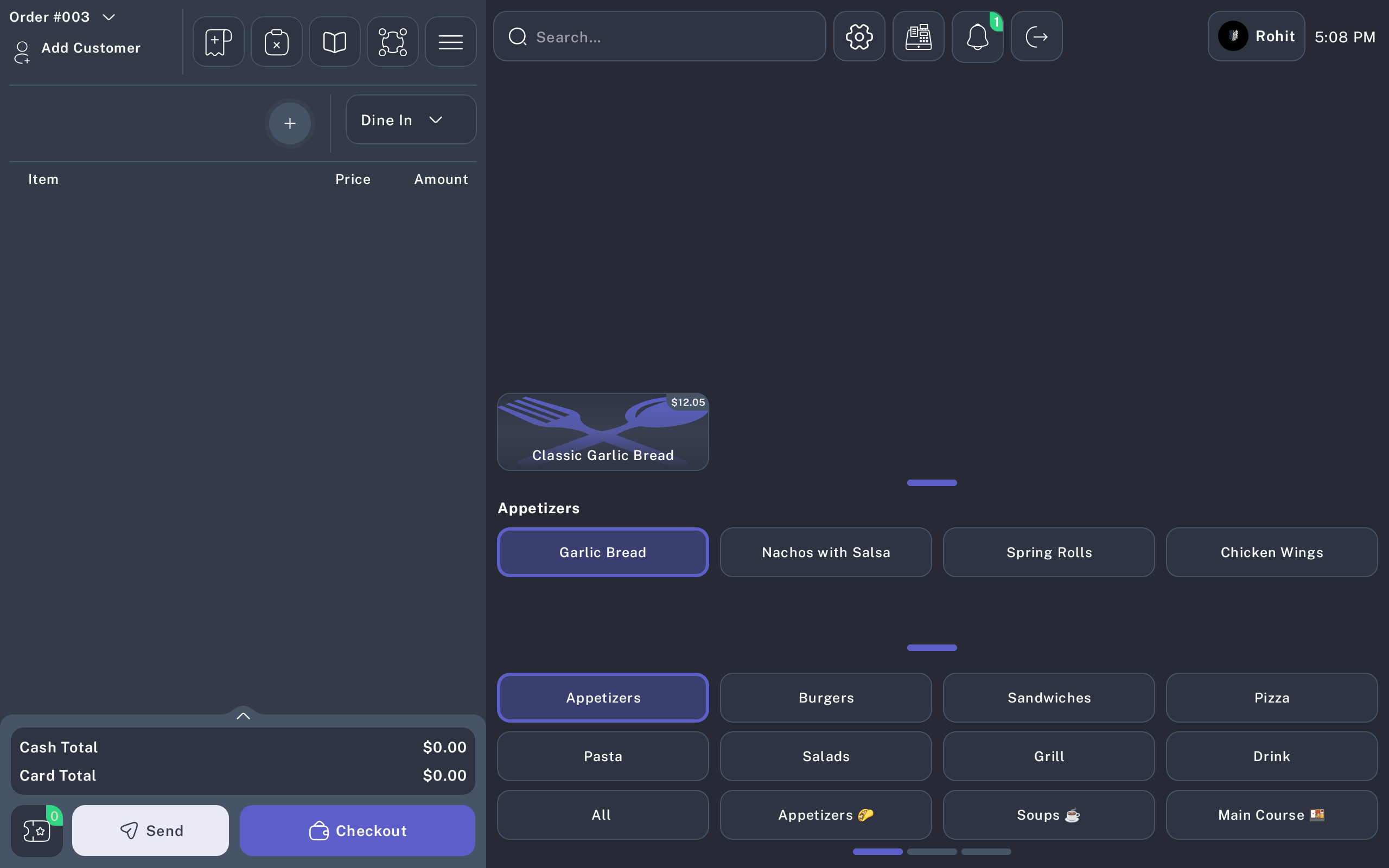
Stay on the POS order screen. When a new online order arrives, the notification bell shows a count badge.
-
Tap the notification bell to open Notifications.
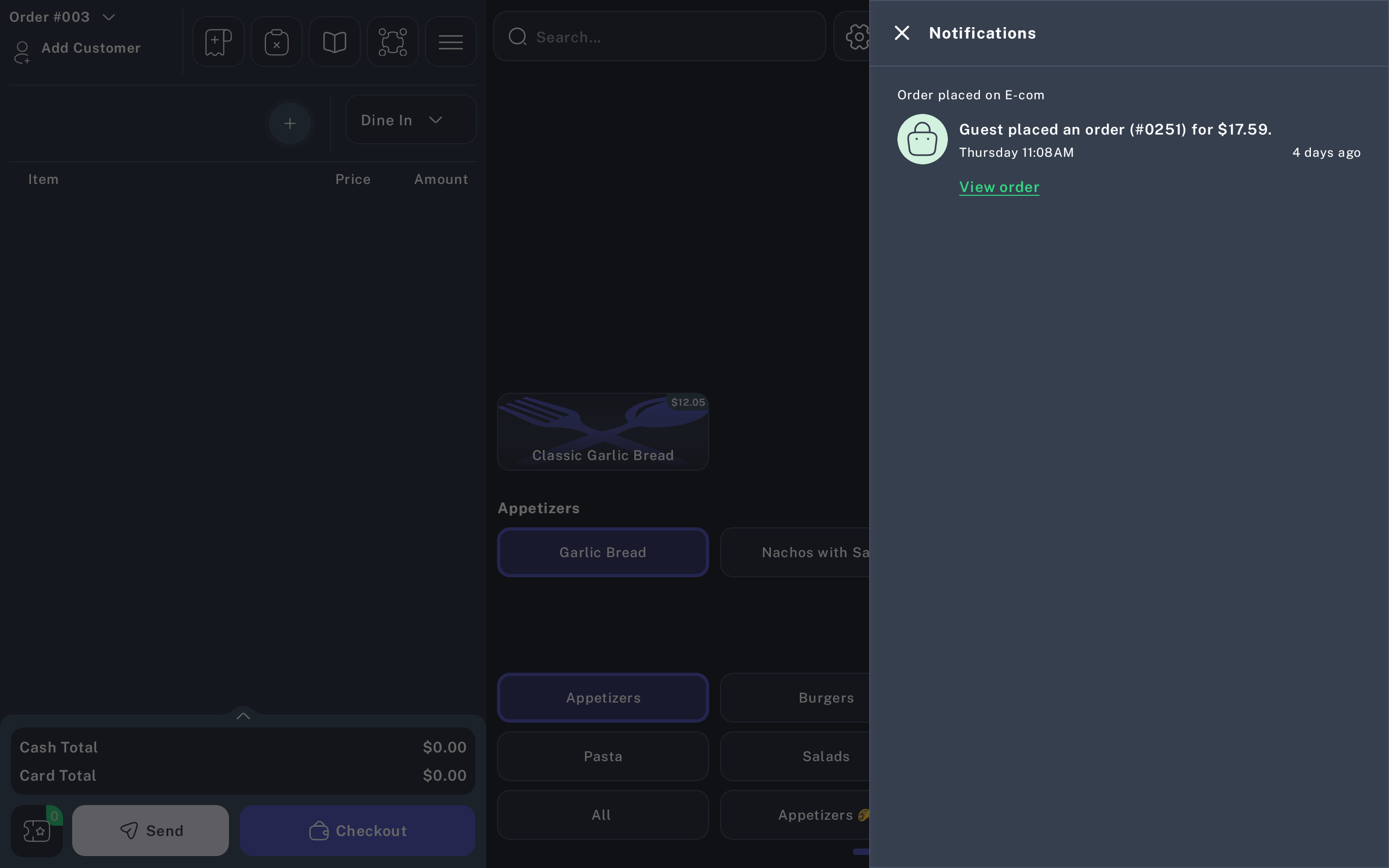
- Review the order source, order number, total, and time. Online web orders show as E-com.
-
Tap View order to open the order details.
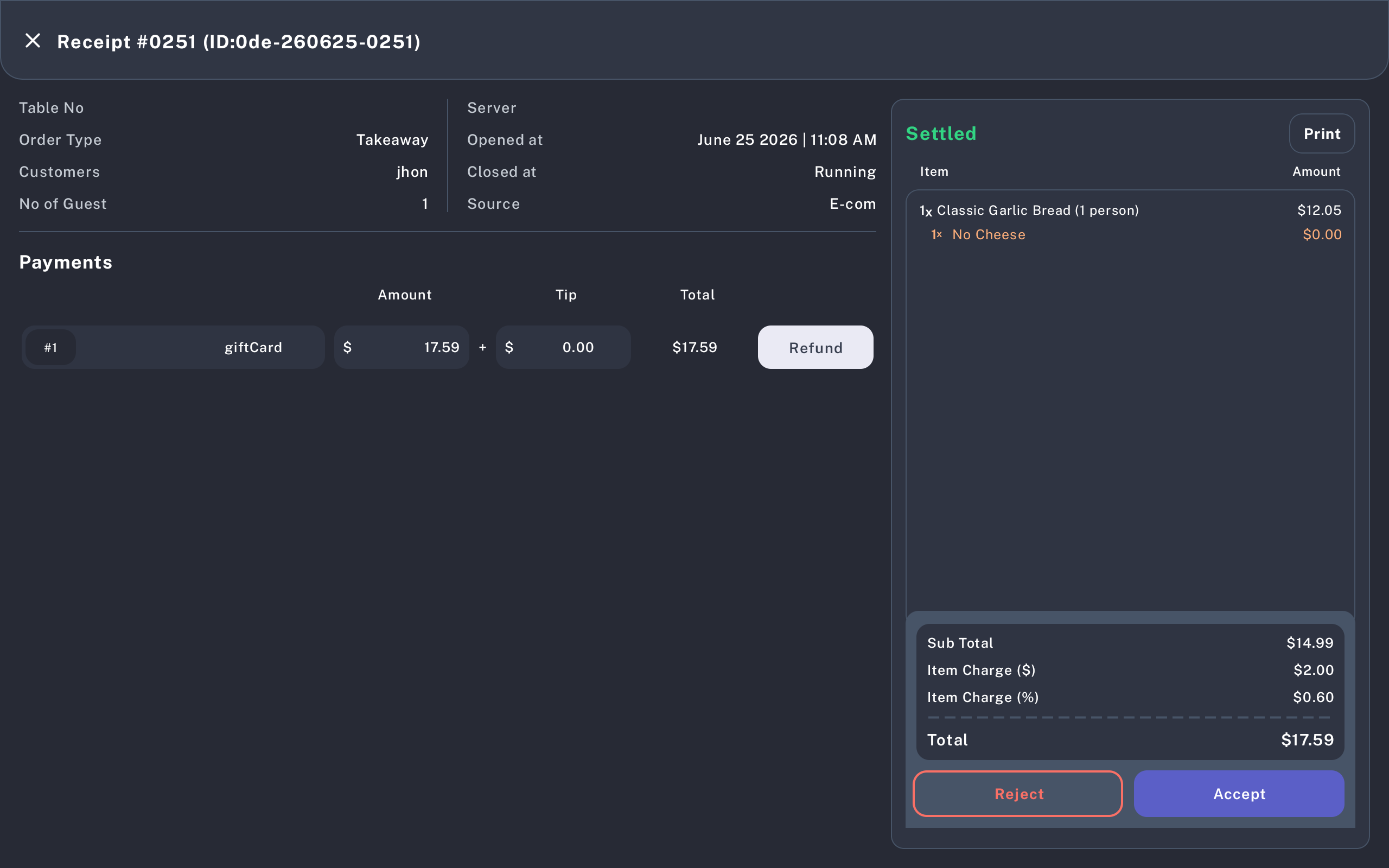
- Confirm the order type, source, customer name, item list, modifiers, payments, and total.
- Tap Accept when the order can be prepared.
- Tap Reject only when the order cannot be fulfilled. Add a clear reason if the POS asks for one.
A pending online order remains in notifications until it is accepted or rejected. Accepted and rejected orders should no longer appear as pending notification items.
KDS Side
-
Open the kitchen display screen used by the restaurant.
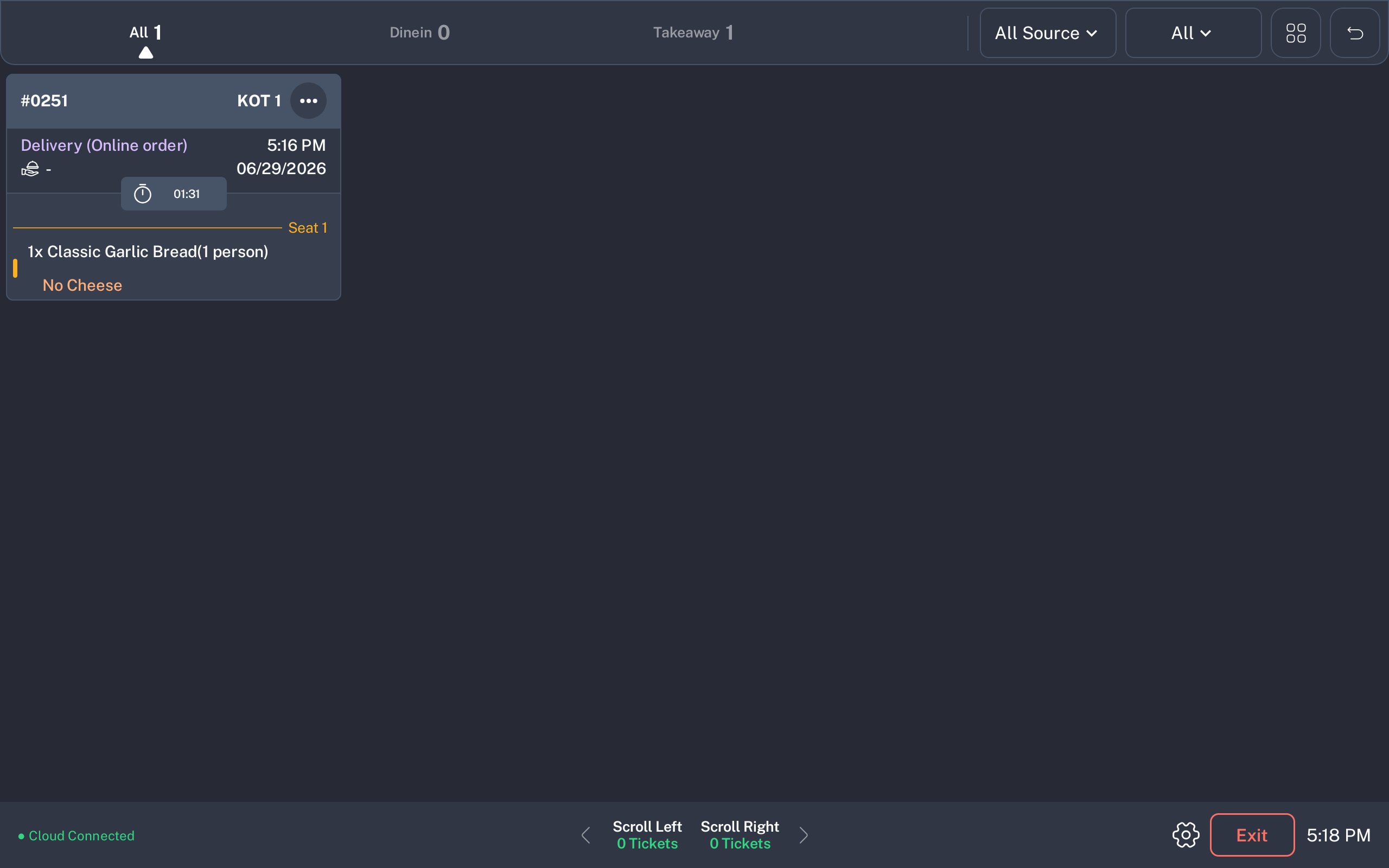
- Find the new online order ticket. Online order tickets show the order number and use the Delivery (Online order) label when the order came from E-com.
-
Open the ticket options menu.
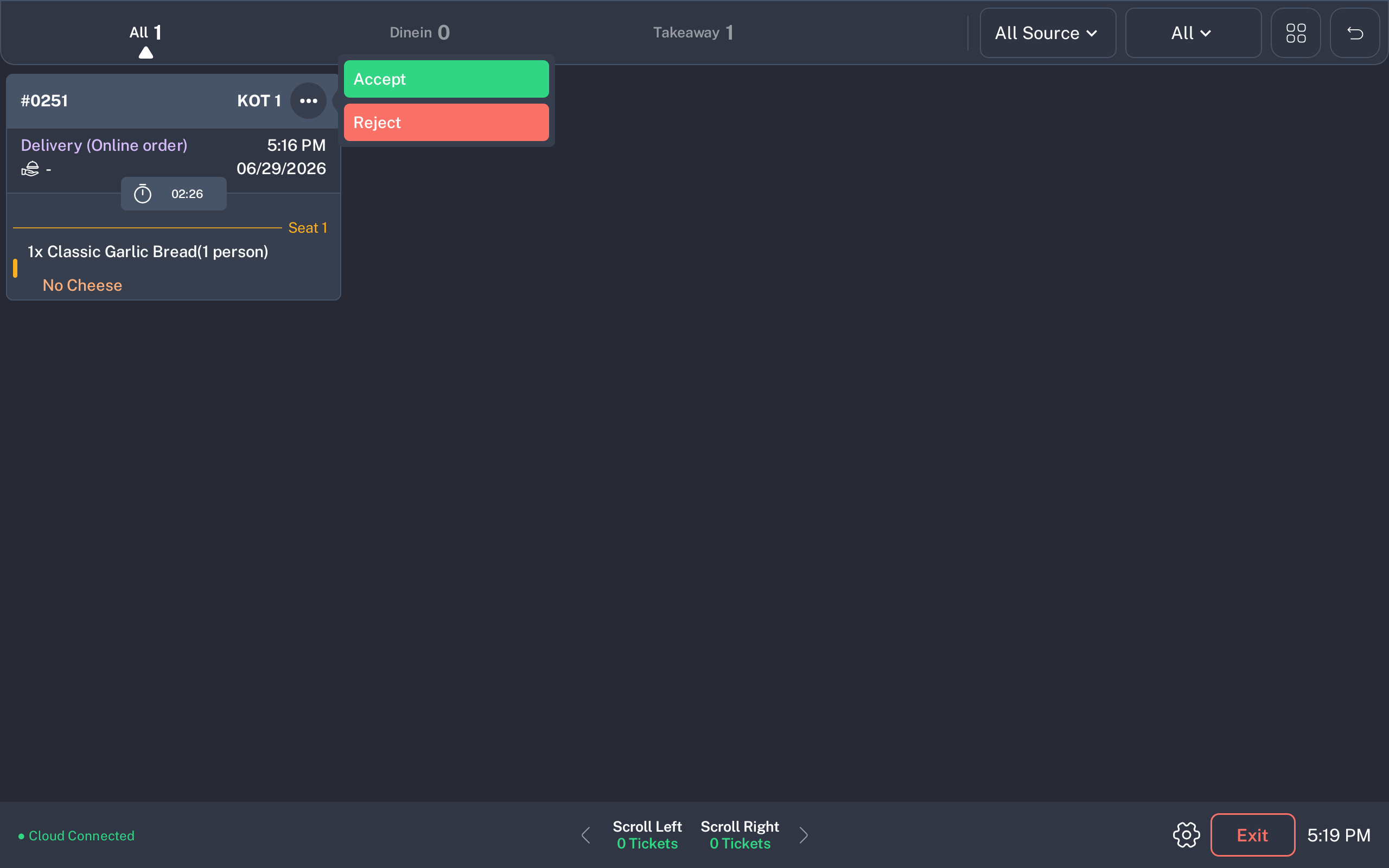
- For a pending online order, the menu shows Accept and Reject.
- Tap Accept to confirm the kitchen will prepare the order.
-
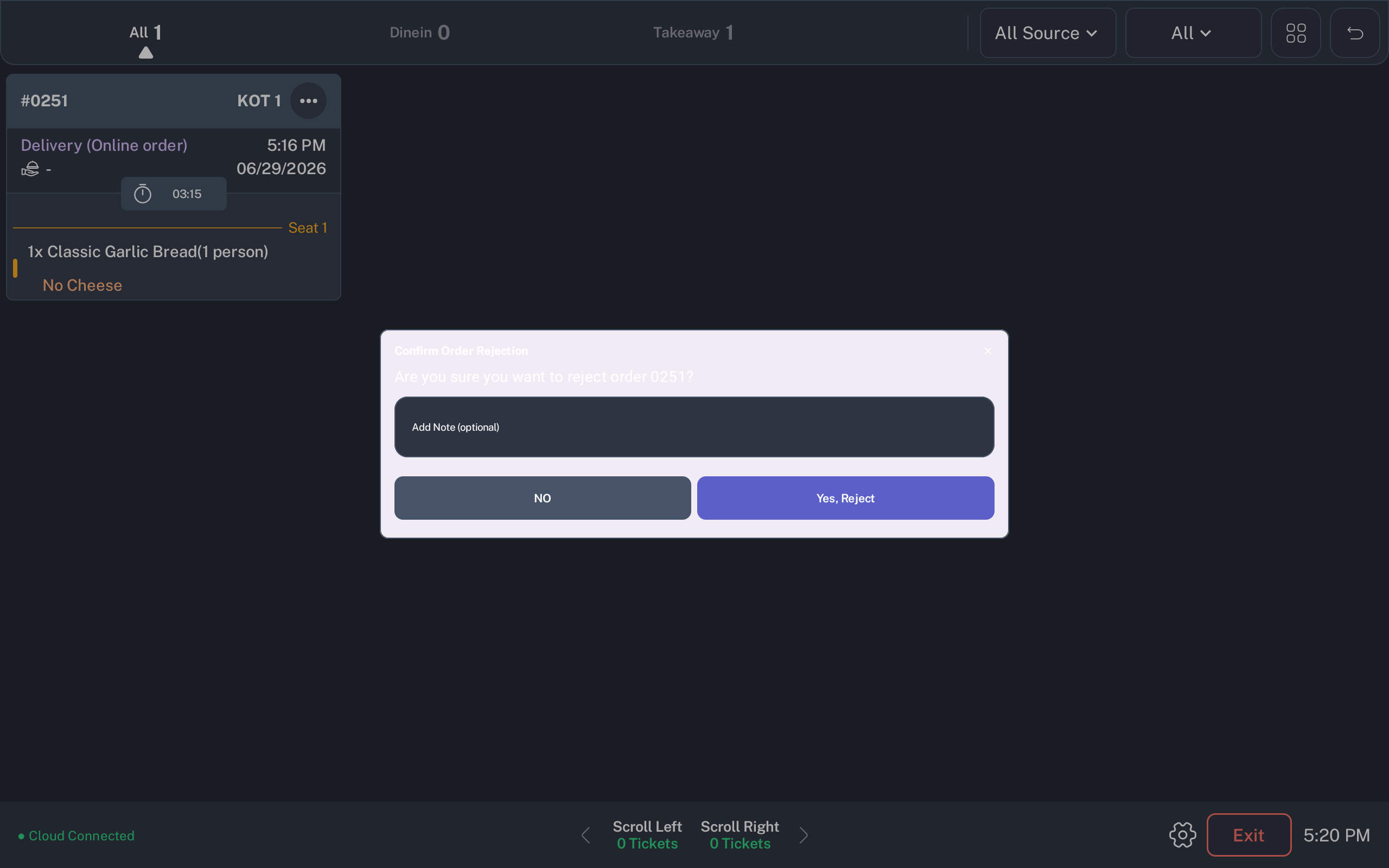
Tap Reject if the kitchen cannot prepare it. The KDS shows Confirm Order Rejection with an optional note field and a Yes, Reject button.
- After the order is accepted, prepare the items as usual.
- Use Ready when the accepted ticket or selected items are ready for pickup, packing, or handoff according to the restaurant workflow.
Use NO or close the dialog if the order should not be rejected.
Expected Result
The POS user can see and review the online order from Notifications. The kitchen display receives the matching online order ticket when KDS online ordering is enabled. Once the order is accepted, staff prepare it and mark it ready through the KDS workflow.
Common Questions
- Why does the source say E-com? E-com identifies an order placed through online ordering rather than directly on the POS.
- Can POS and KDS both accept or reject? The pending online order has one decision status. Staff should follow the restaurant's rule for whether the cashier or kitchen makes the final decision.
- What happens when the order is accepted? The order is no longer pending. If the order is linked to a table or floor object, the table can move into an in-process state.
- What happens when the order is rejected? The order is marked rejected, and the KDS ticket is removed from active preparation.
- Are gift card items sent to KDS? No. KDS tickets are created from kitchen-preparable items; gift card items are excluded.
Notes
This guide uses screenshots from the connected Pixel Tablet emulator and current SalsaPOS labels. A product owner or QA user should verify tenant-specific online ordering settings before publishing the guide to staff.