How to Read the Connectivity Status Bar
Purpose
Use this guide when you need to confirm whether the POS can communicate through the cloud or local network before taking orders, syncing tickets, or using KDS.
Before You Start
- Keep the POS device powered on and connected to the restaurant Wi-Fi or wired network.
- If the device was just restarted, wait a few seconds for the connection status to update.
Read the Status
-
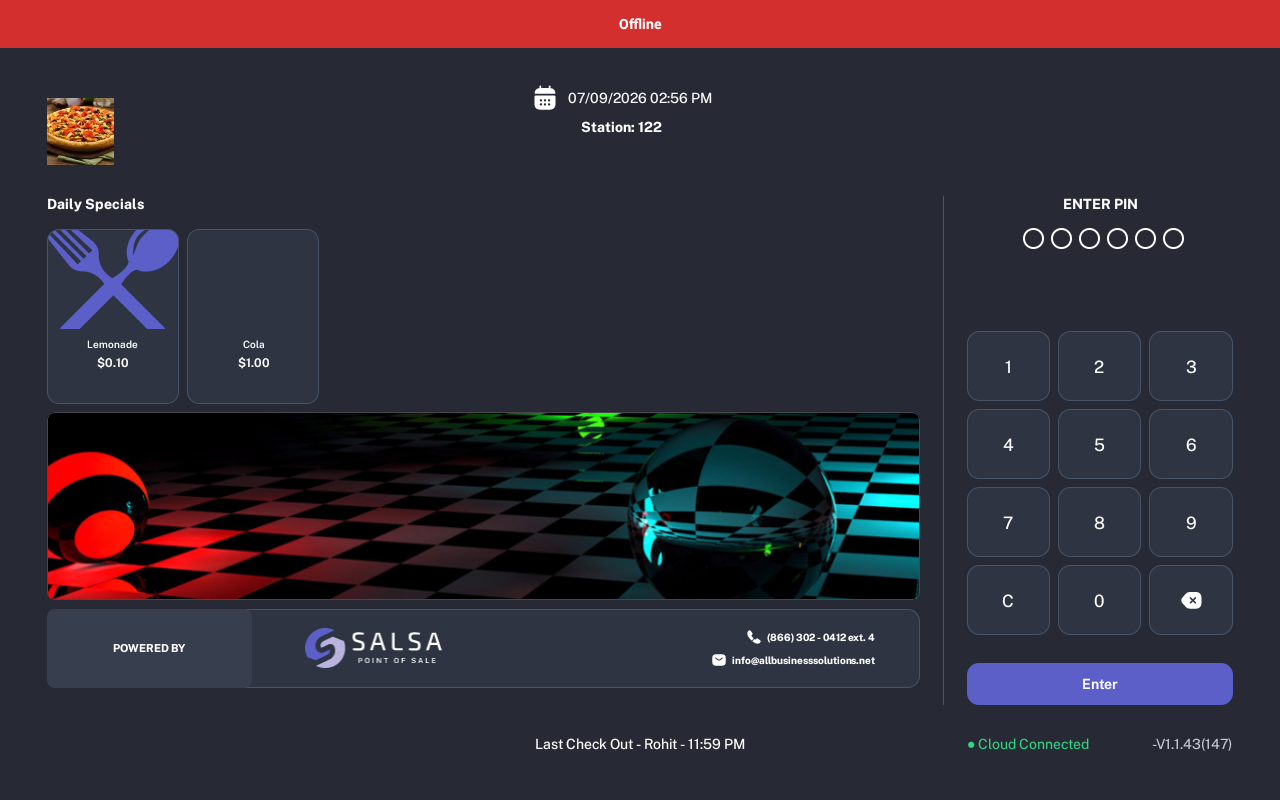
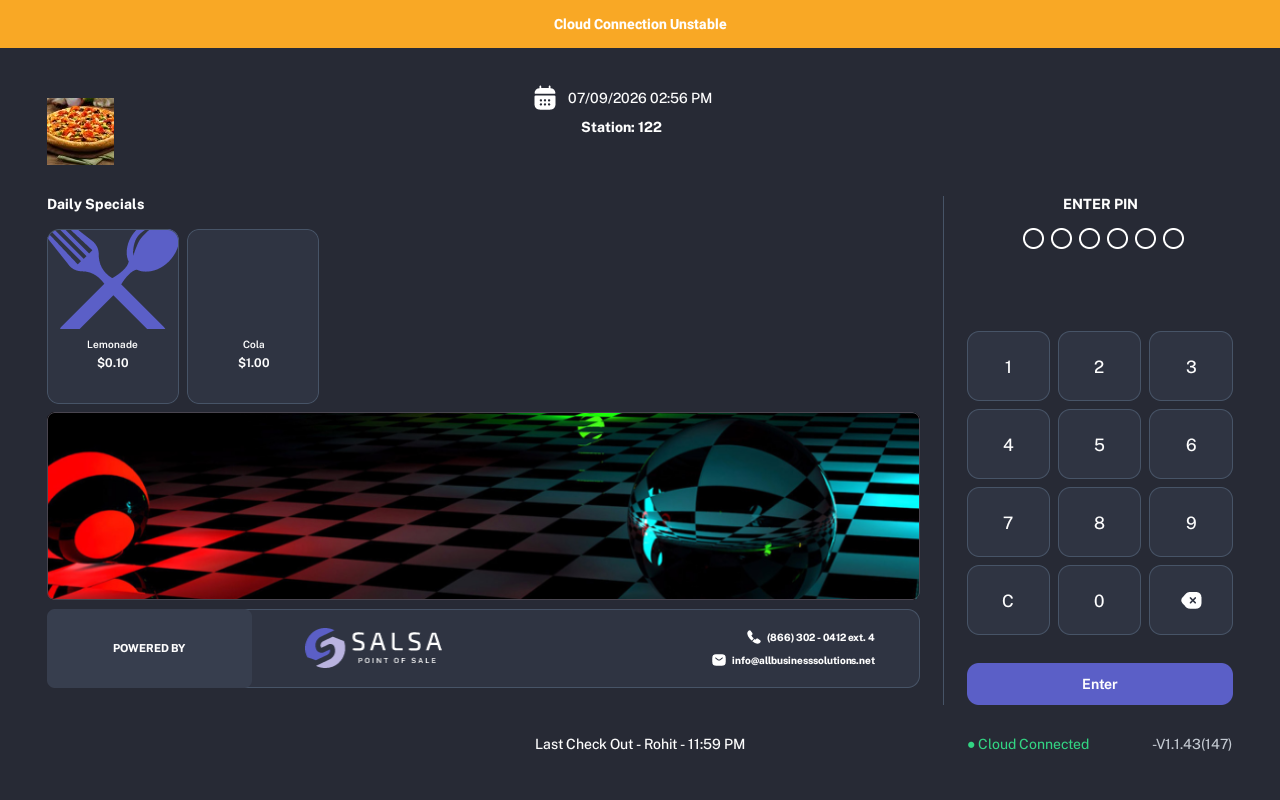
Look for the connectivity status bar at the top of the POS screen.
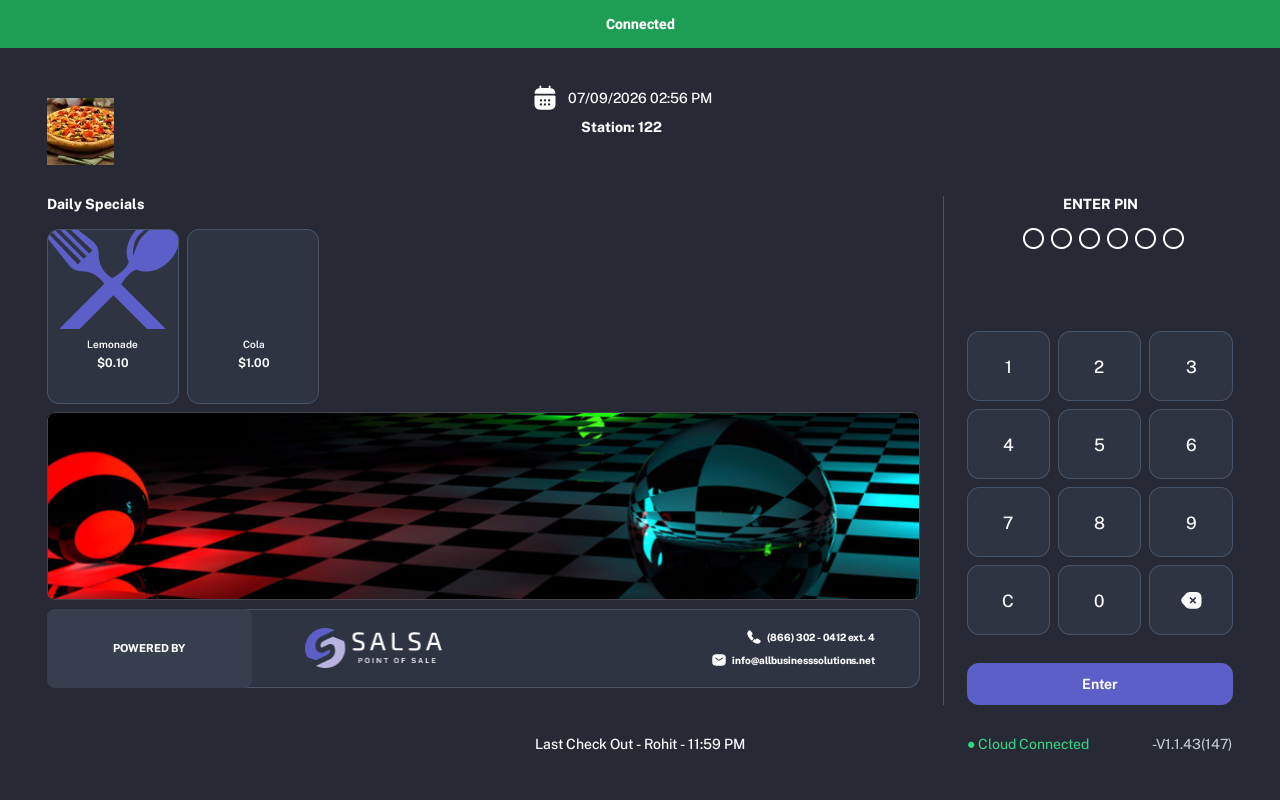
- Connected means the POS is connected. This green bar may disappear after a short time because the device is in the expected state.
-
Offline means the POS is not connected through cloud or local network. Check Wi-Fi, ethernet, or the router before continuing network-dependent work.
-
Cloud Connection Unstable means the POS has an unstable cloud connection. Continue only with workflows your manager allows during an unstable connection and report the issue.
Expected Result
Staff can quickly tell whether the POS is connected, offline, or experiencing unstable cloud connectivity.
Troubleshooting
- Status stays Offline: Confirm Wi-Fi or ethernet is connected, then ask a manager to check the network equipment.
- Connected bar disappears: This is expected. The connected status is temporary and hides after a short time.
- Status changes during service: Wait briefly for the status to refresh, then retry the action after the connection returns.
Notes
The screenshots were captured from an iMin D1 using the app's real connectivity status bar text. Exact screen content can vary by restaurant setup and signed-in state.